
Storydoc + Adobe Analytics: Bring Storydoc activity into your analytics
Connect Adobe Analytics to Storydoc to collect visitor data from your business documents and analyze it alongside activity from your other channels.

Connect Adobe Analytics to Storydoc to collect visitor data from your business documents and analyze it alongside activity from your other channels.
Trusted by 400,000+ users to automate their workflows


Add Adobe Analytics to your Storydocs and bring document activity into your existing analytics workflow.
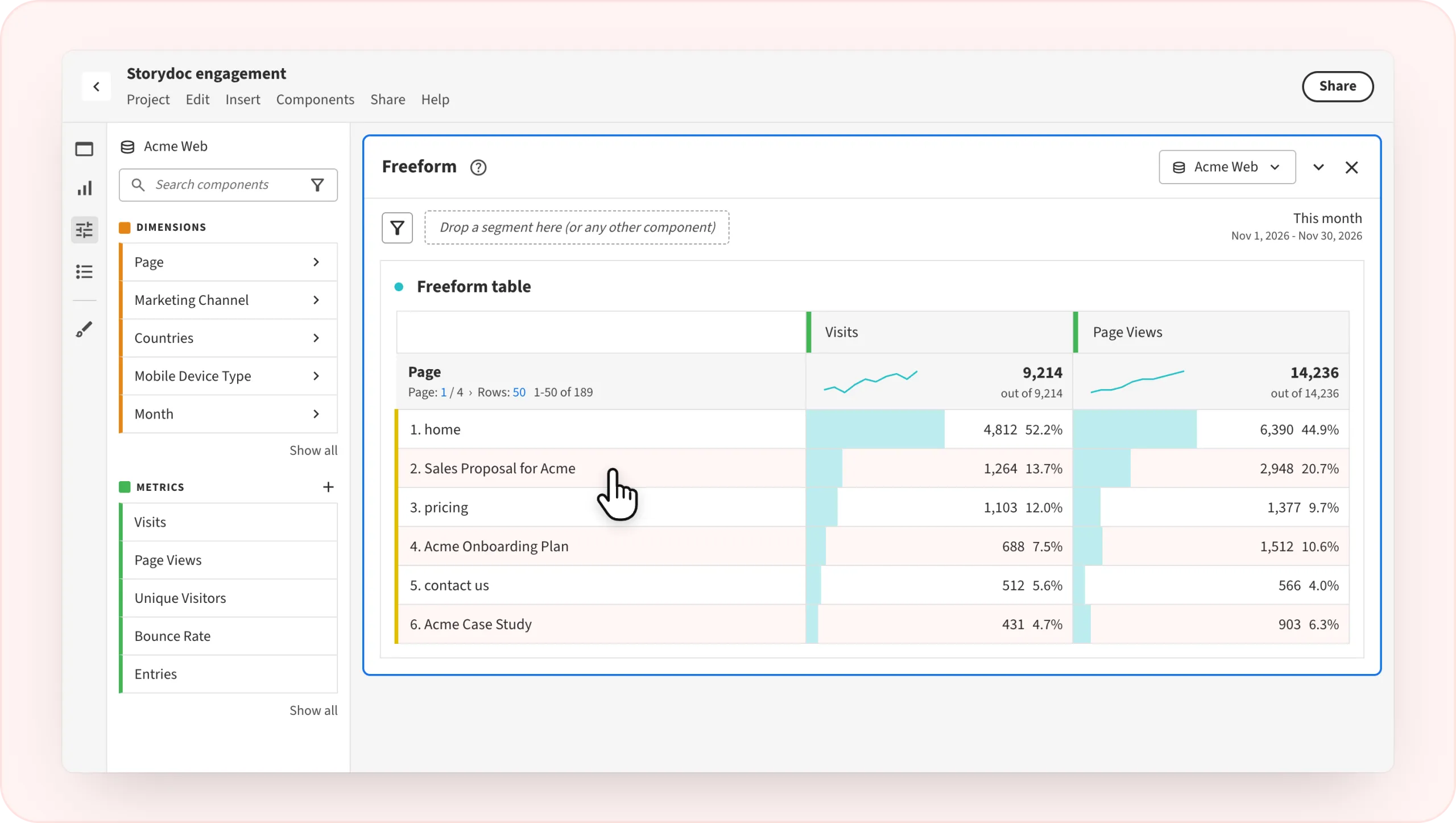
Add your existing Adobe Analytics implementation to Storydoc to collect visitor data when people open your business documents.
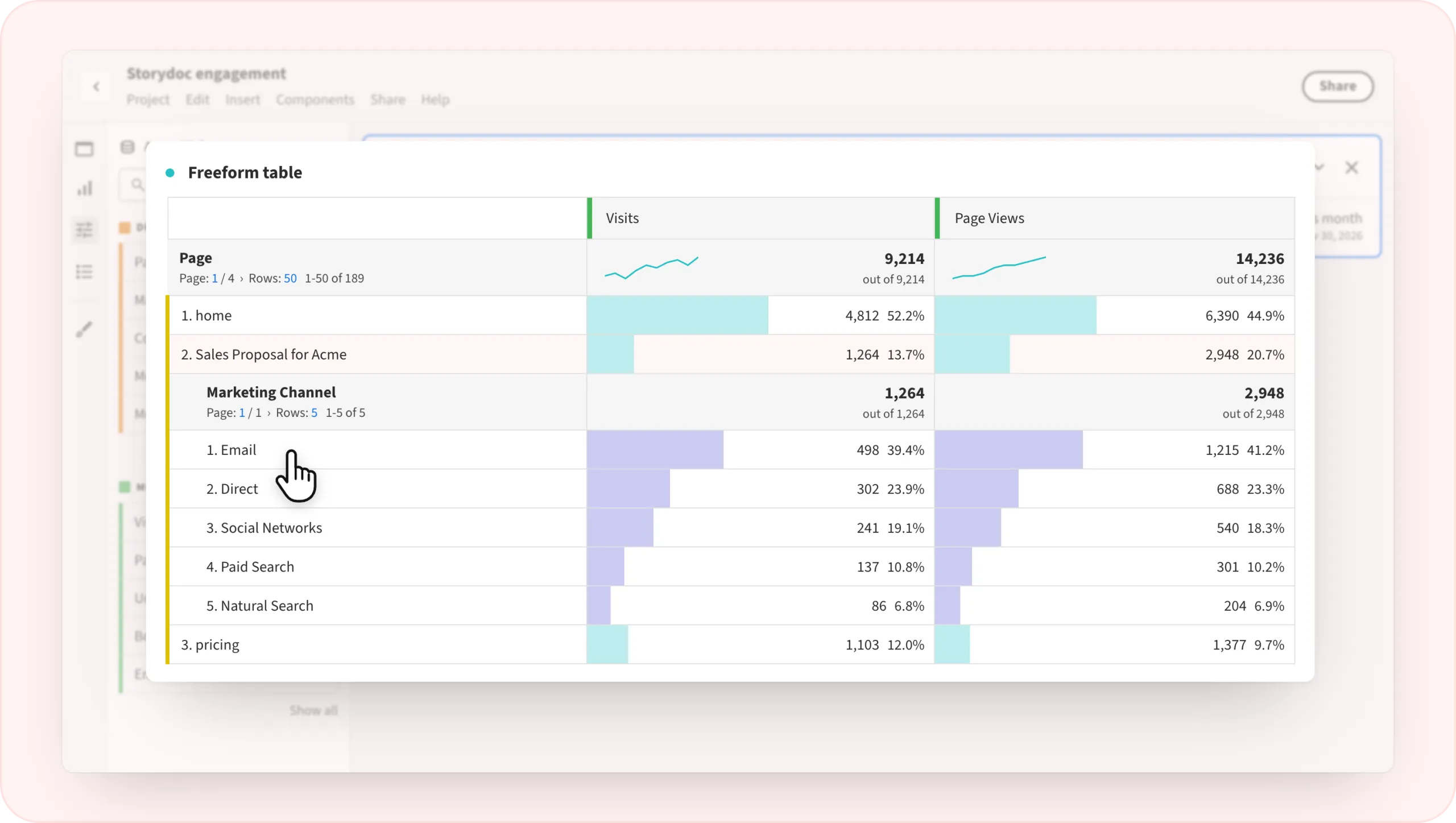
Bring Storydoc data into Adobe Analytics alongside activity from your website and other digital channels for a broader view of how people interact with your business.
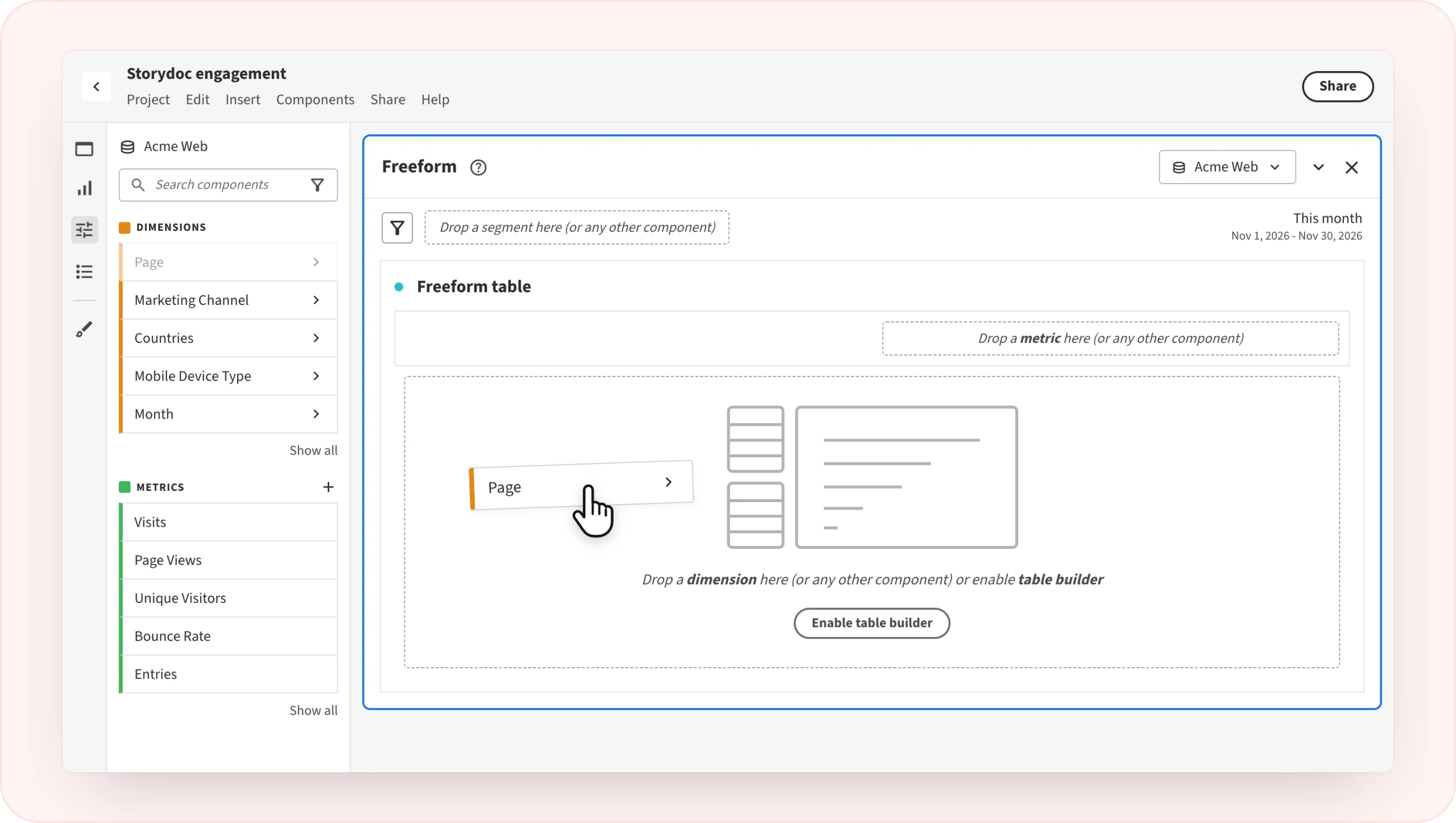
Keep using the metrics, dimensions, events, and other tracking your team has already configured in Adobe Analytics rather than creating a separate analytics setup for Storydoc.
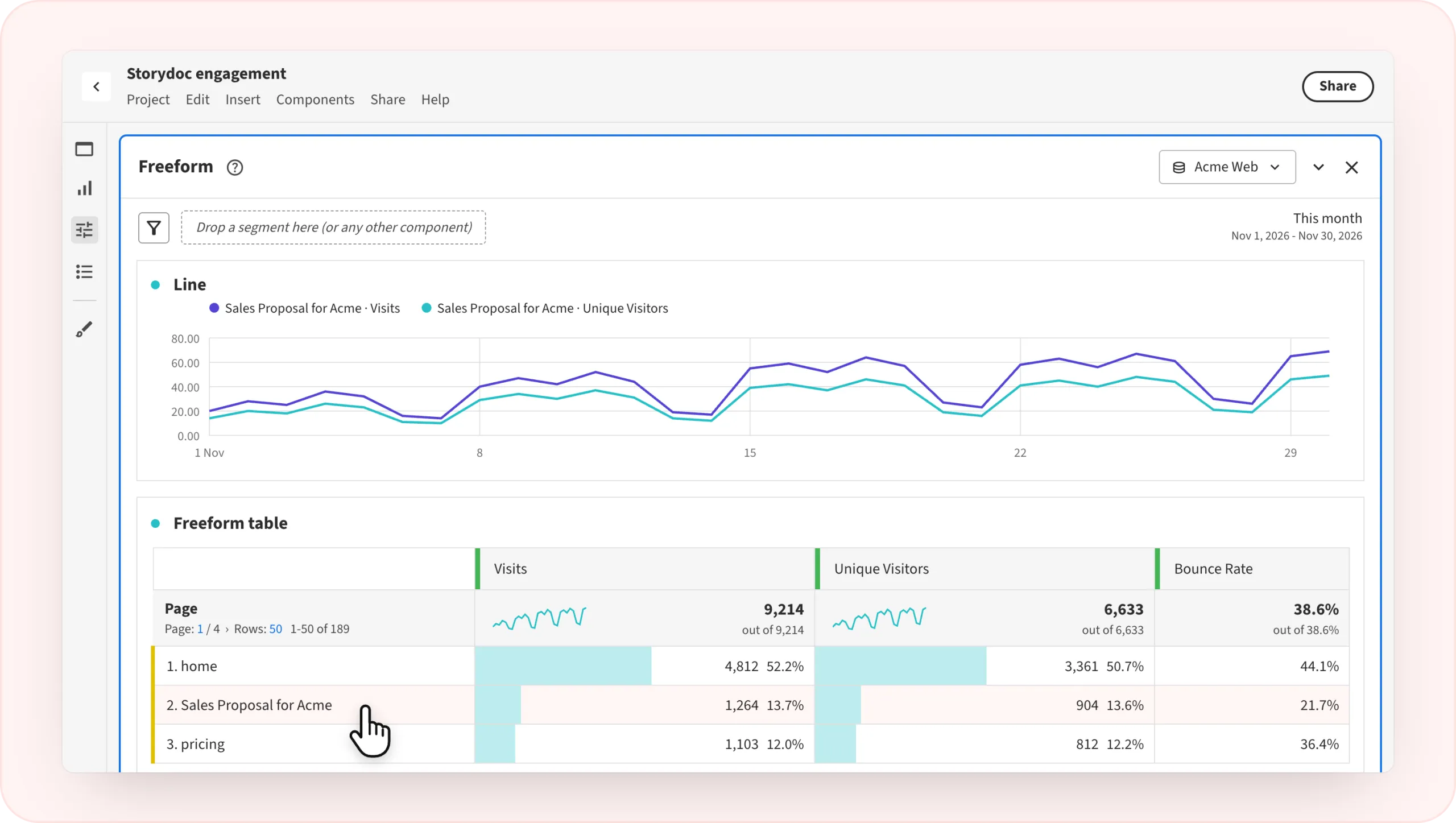
Use your existing Adobe Analytics configuration to decide which Storydoc activity you want to measure and how it fits into your reporting.
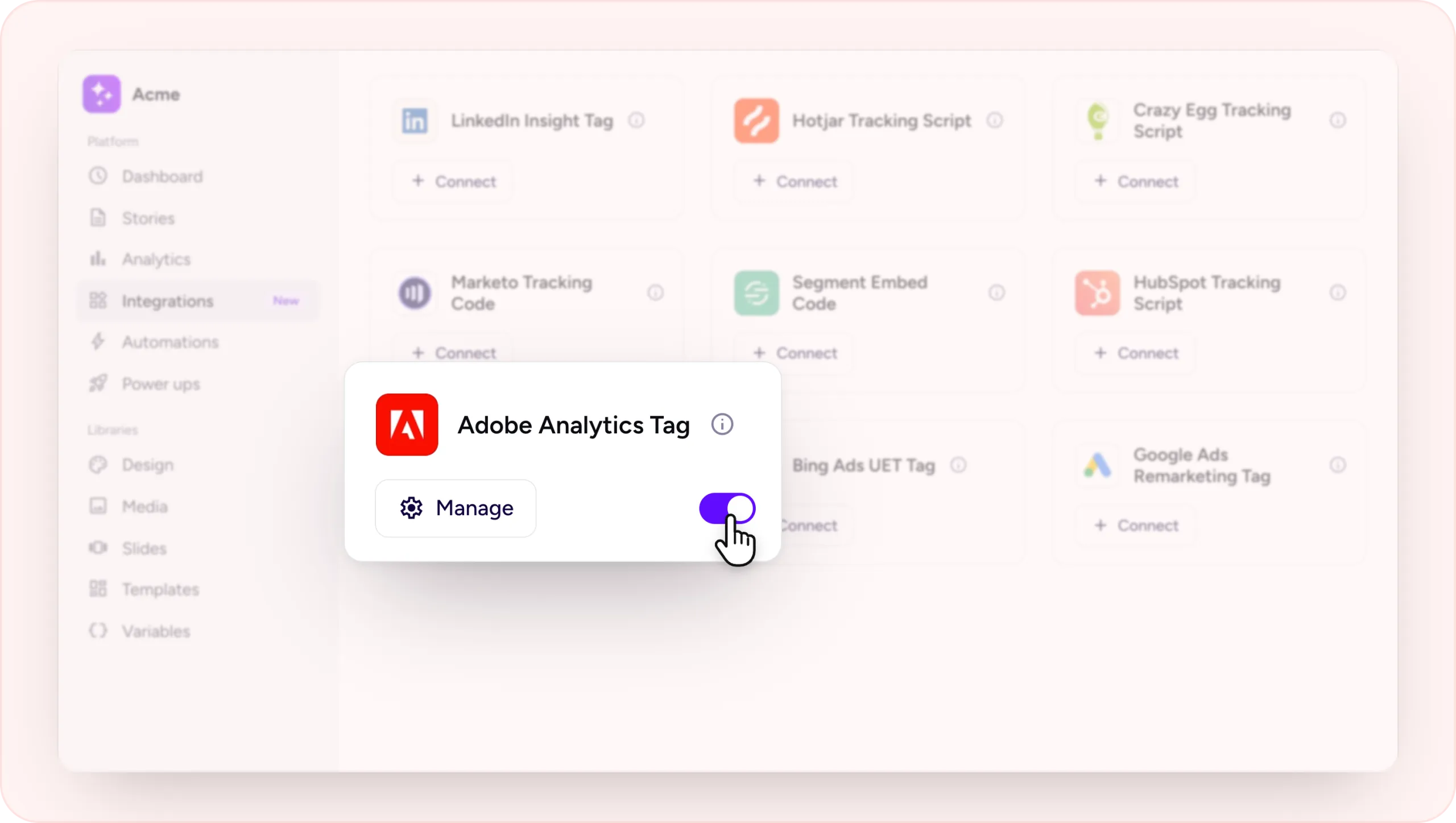
Connect Adobe Analytics once and your tracking setup applies to all your Storydocs.
You can switch it off for individual Storydocs whenever needed.
Add your existing Adobe Analytics tracking setup to Storydoc and start including document activity in your wider analytics.
1. Get the code for your Adobe Analytics implementation
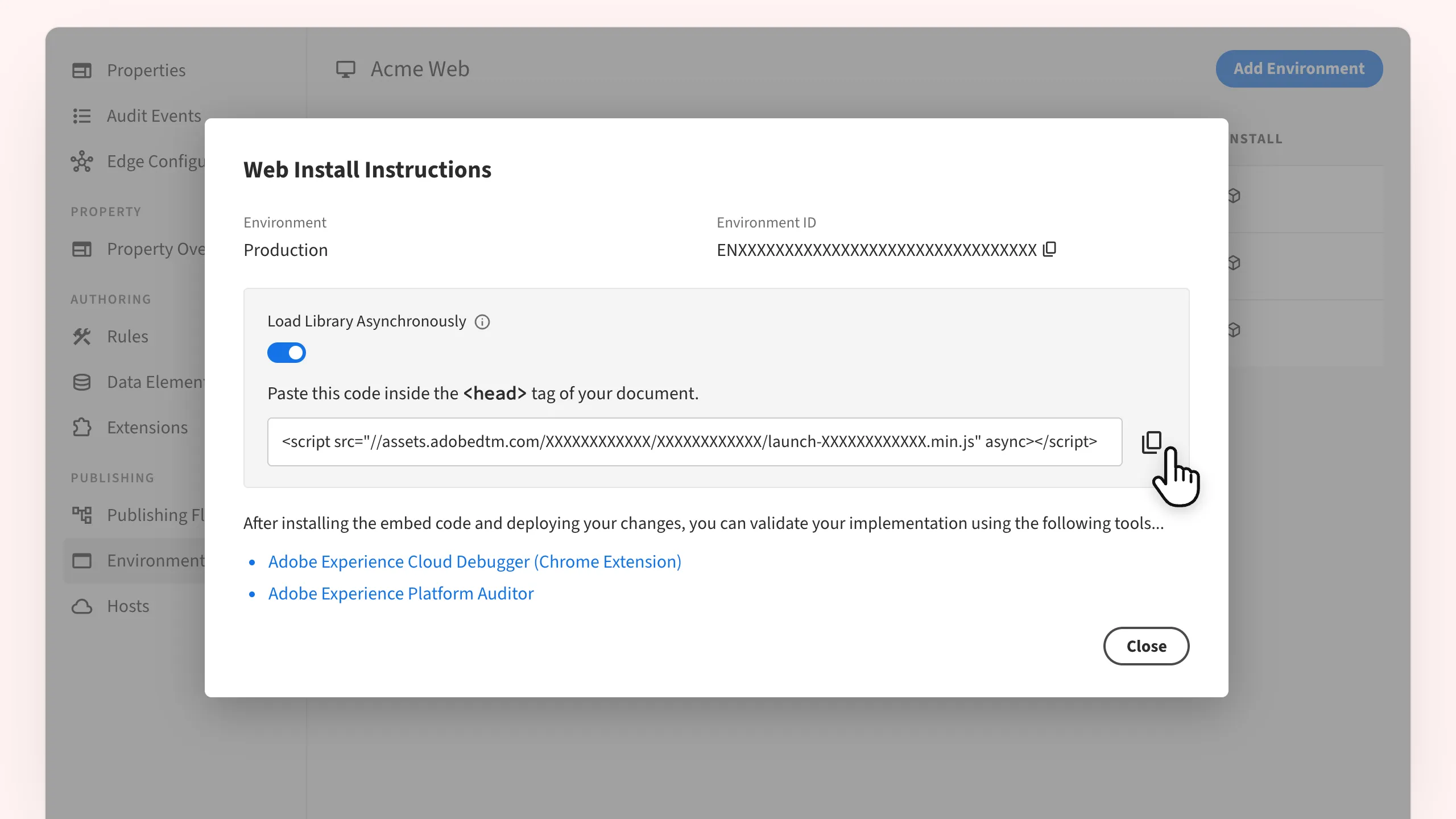
Adobe supports several ways to collect analytics data, including Experience Platform Tags, Web SDK, and AppMeasurement. Use the implementation your team already has in place for Adobe Analytics.
2. Connect Adobe Analytics to Storydoc
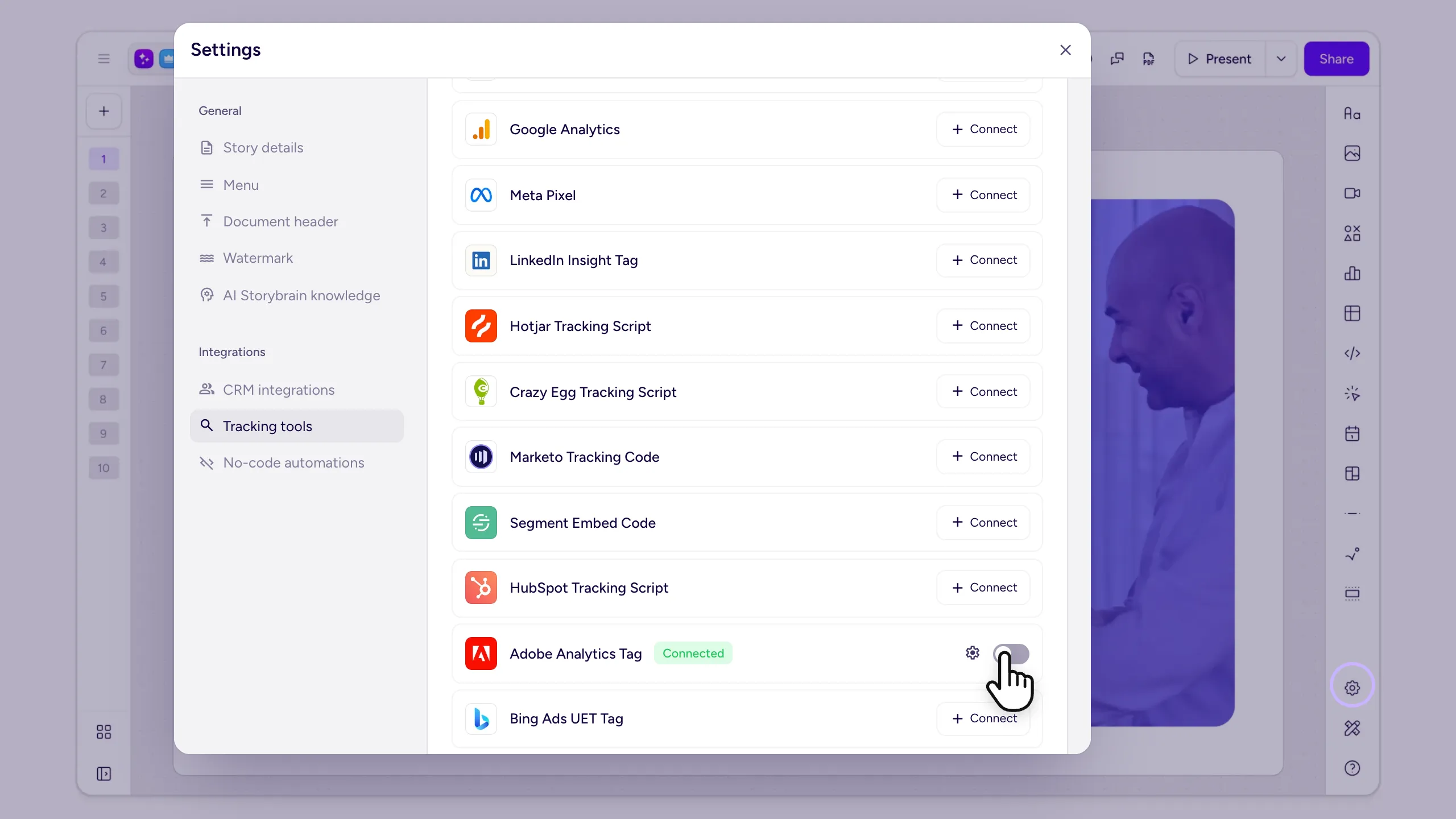
In Storydoc, go to:
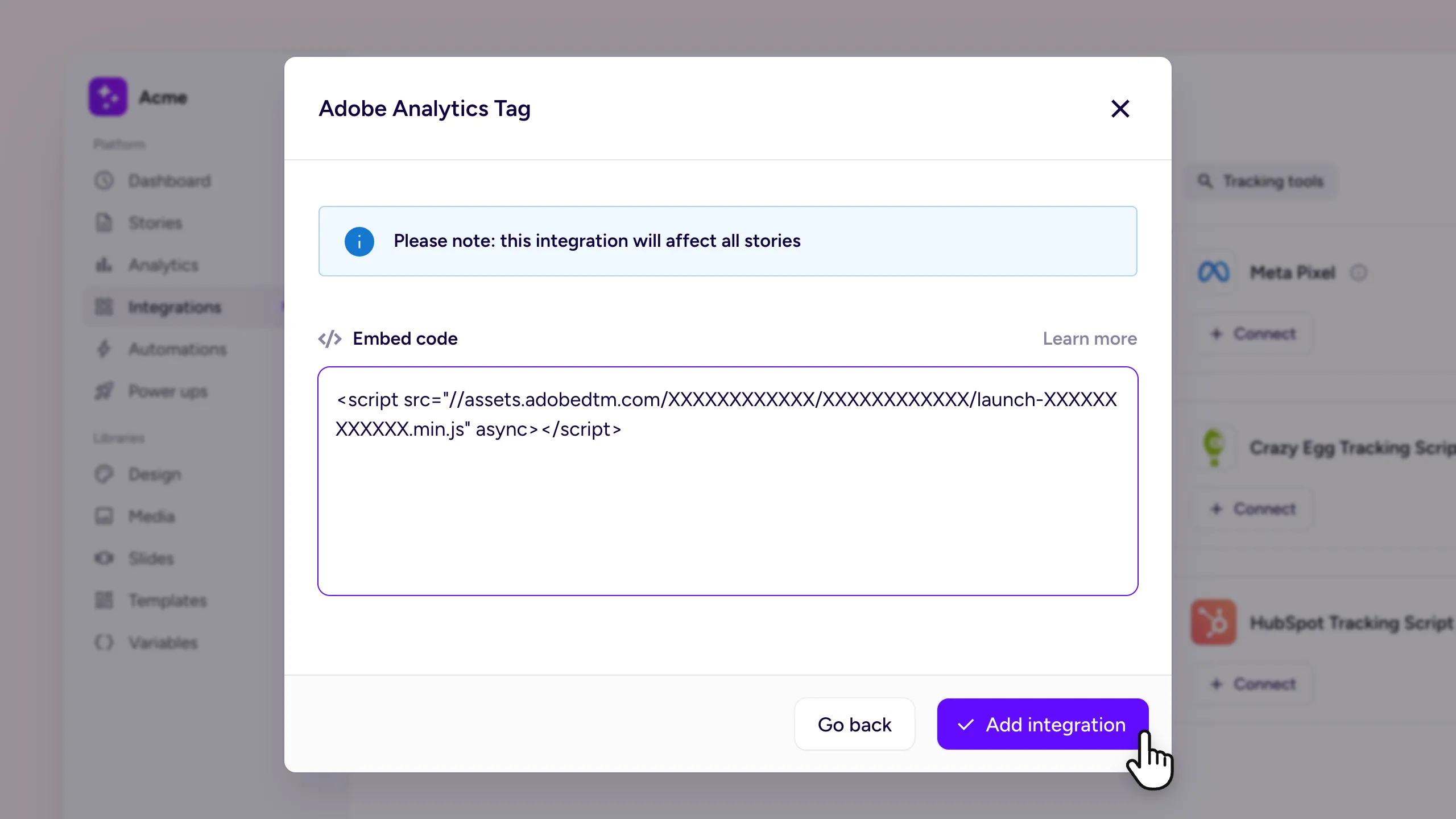
Integrations → Tracking tools → Adobe Analytics Tag → Connect
Paste your existing Adobe Analytics embed into the Embed code field and click Add integration.
The integration applies to all your Storydocs.
3. Share your Storydocs as usual
Once connected, your Adobe Analytics implementation can start collecting data when people visit your published Storydocs.
What gets collected will depend on how your team has configured Adobe Analytics, including the metrics, dimensions, and events you track.
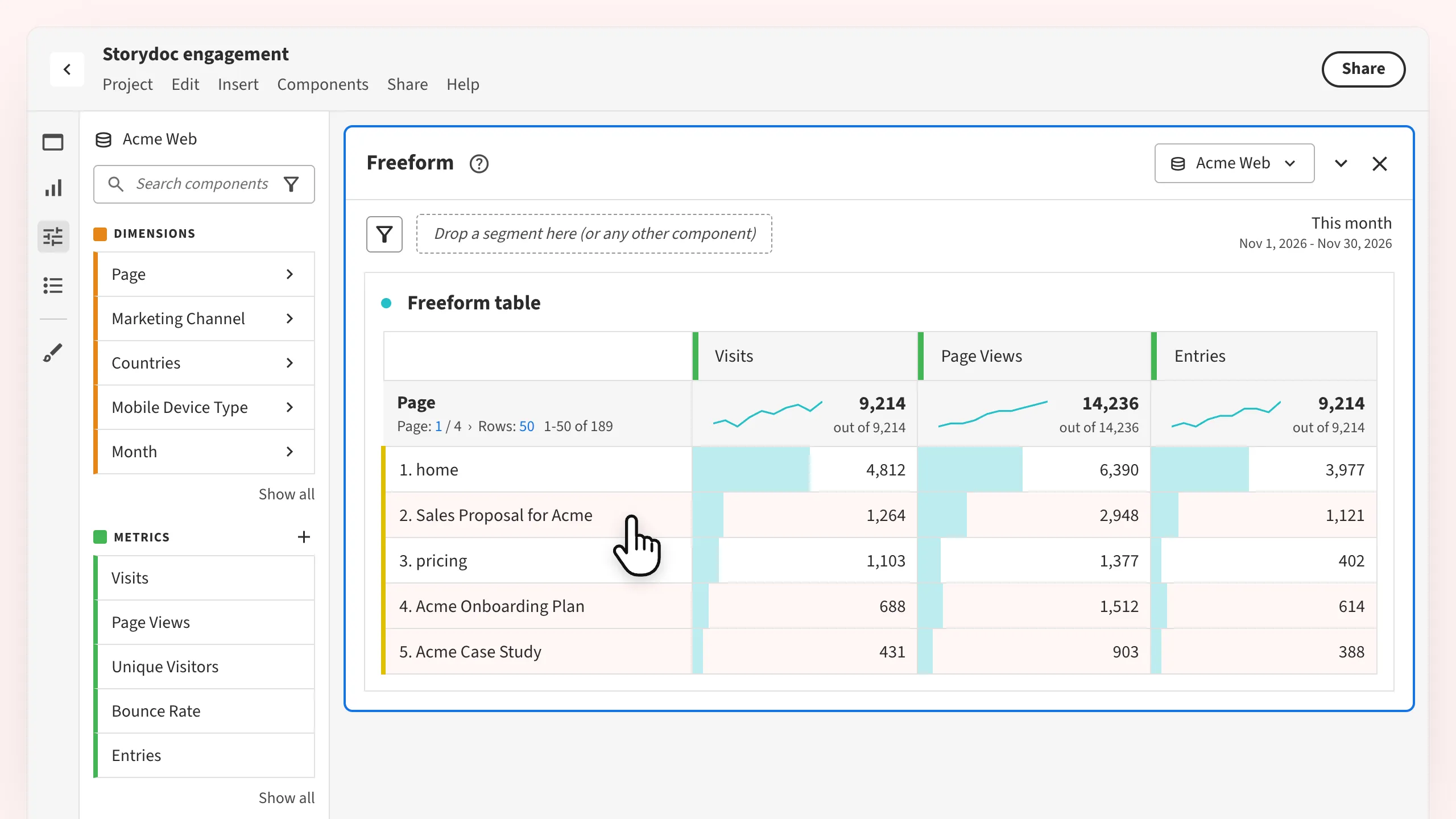
4. Analyze Storydoc activity in Adobe Analytics
Use your existing Adobe Analytics reporting to analyze the visitor data collected from your Storydocs alongside your other tracked channels.
5. Turn off Adobe Analytics for individual Storydocs
If you don’t want Adobe Analytics running on a particular Storydoc, open its Integrations panel and switch it off.
The connection will remain active for the rest of your workspace. If the Storydoc is already published, republish it for the change to take effect.

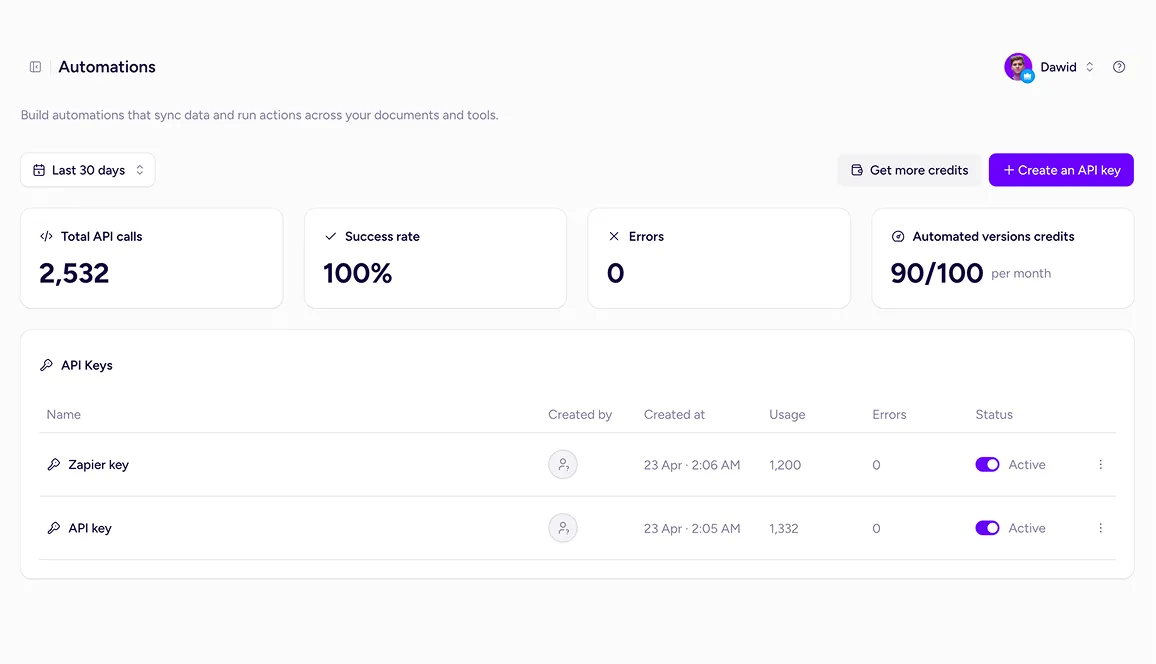
Go beyond native integrations with the Storydoc API.
Automatically generate personalized Storydocs, trigger follow-ups based on engagement, and connect everything to your go-to-market stack.
Build workflows that fit how your team works.
The exact data available depends on how your organization has configured Adobe Analytics.
Adobe Analytics implementations can use different events, dimensions, metrics, and variables, so the information you collect from your Storydocs will depend on your existing setup.
That depends on how your organization has implemented Adobe Analytics. Adobe supports several implementation methods, including Experience Platform Tags, Web SDK, and AppMeasurement.
If you’re unsure which one your team uses or which code to add to Storydoc, check with the person who manages Adobe Analytics or Adobe Experience Platform for your organization.
No. They give you different views of your Storydoc activity.
Storydoc’s built-in analytics show you how readers engage with your documents, including views, reading progress, slide-level engagement, and CTA activity.
Adobe Analytics brings Storydoc visitor data into your wider analytics, so you can analyze it alongside data from your website and other channels.
No. Connect Adobe Analytics once under Integrations → Tracking tools, and your tracking setup applies to all your Storydocs.
You can switch it off for individual Storydocs whenever needed. If the Storydoc is already published, republish it for the change to take effect.
Tracking tags don’t fire on Storydoc preview links. Publish your Storydoc and test the live link instead.
No. The Storydoc side is straightforward: paste your existing Adobe Analytics embed into the Adobe Analytics Tag integration and save it.
Adobe Analytics implementations vary between organizations, so if you’re unsure which code your team uses, check with whoever manages your Adobe Analytics setup.
Still have questions?
Connect Adobe Analytics to Storydoc to analyze document activity alongside your other channels and get more context around how customers interact with your business.