
Storydoc + Front: Let prospects book meetings from your Storydocs
Add your Front scheduling link to Storydoc so prospects can choose an available time and book their next meeting directly from your document.

Add your Front scheduling link to Storydoc so prospects can choose an available time and book their next meeting directly from your document.
Trusted by 400,000+ users to automate their workflows


Give readers a simple way to book time with you or your team, without another round of emails to find a suitable slot.
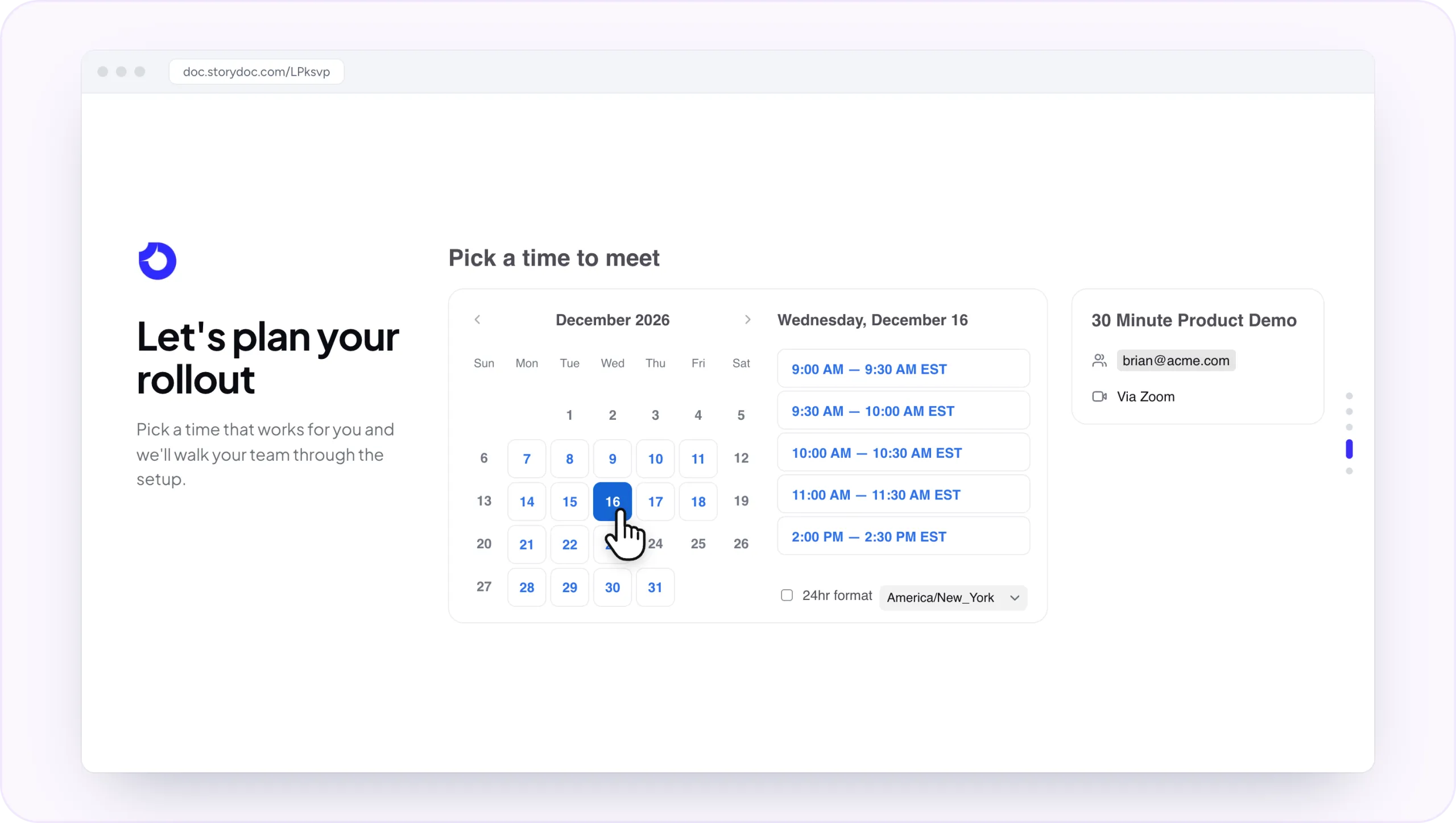
Add your Front scheduling link to a sales deck, proposal, or another Storydoc so readers can choose a time without having to go back and forth over email.
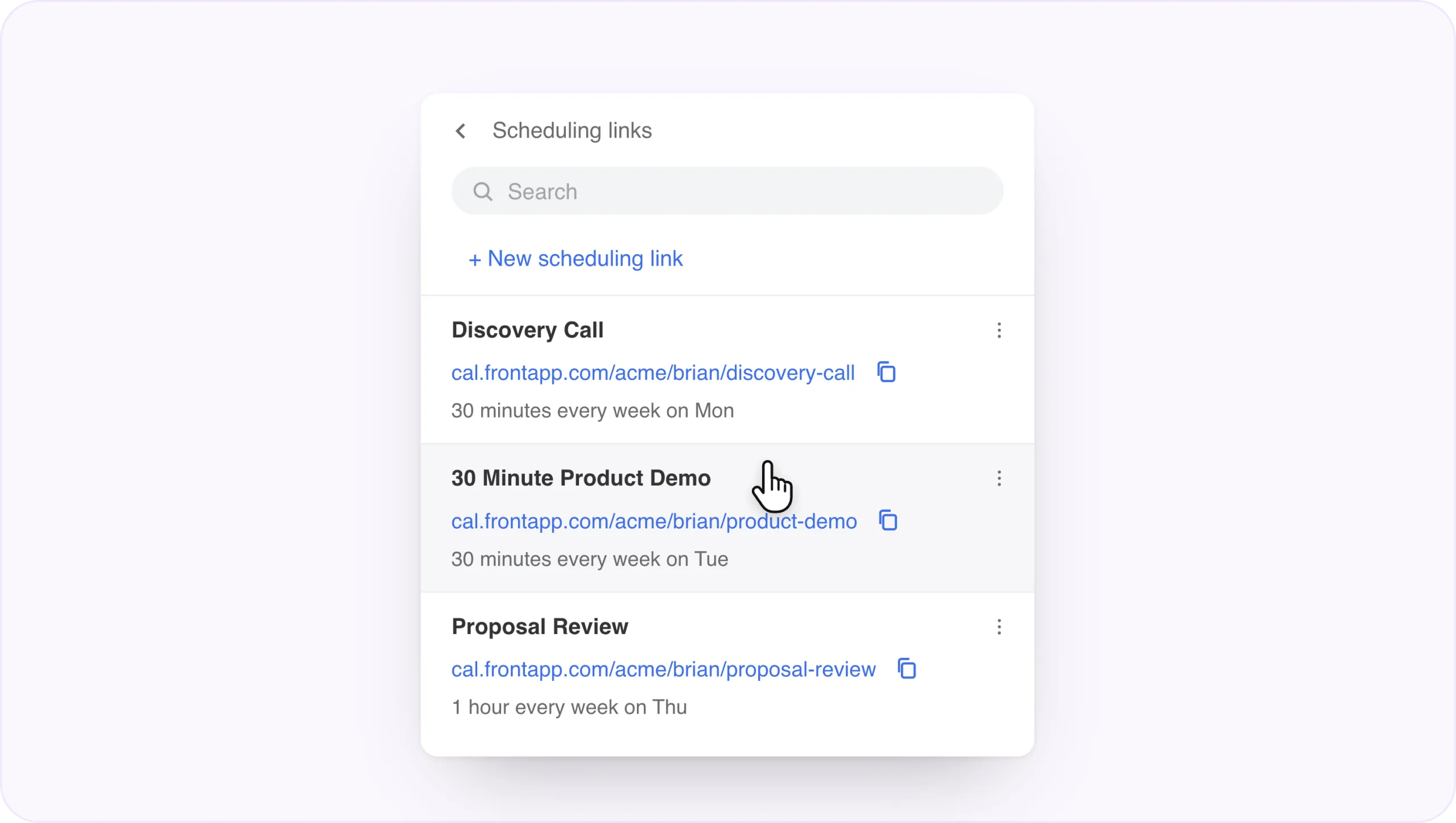
Create separate Front scheduling links for different types of meetings and add the most relevant one to each Storydoc.
For example, your sales deck could lead to a discovery call or product demo, while a proposal could offer a review meeting. Each link can have its own duration, availability, location, and other meeting settings.
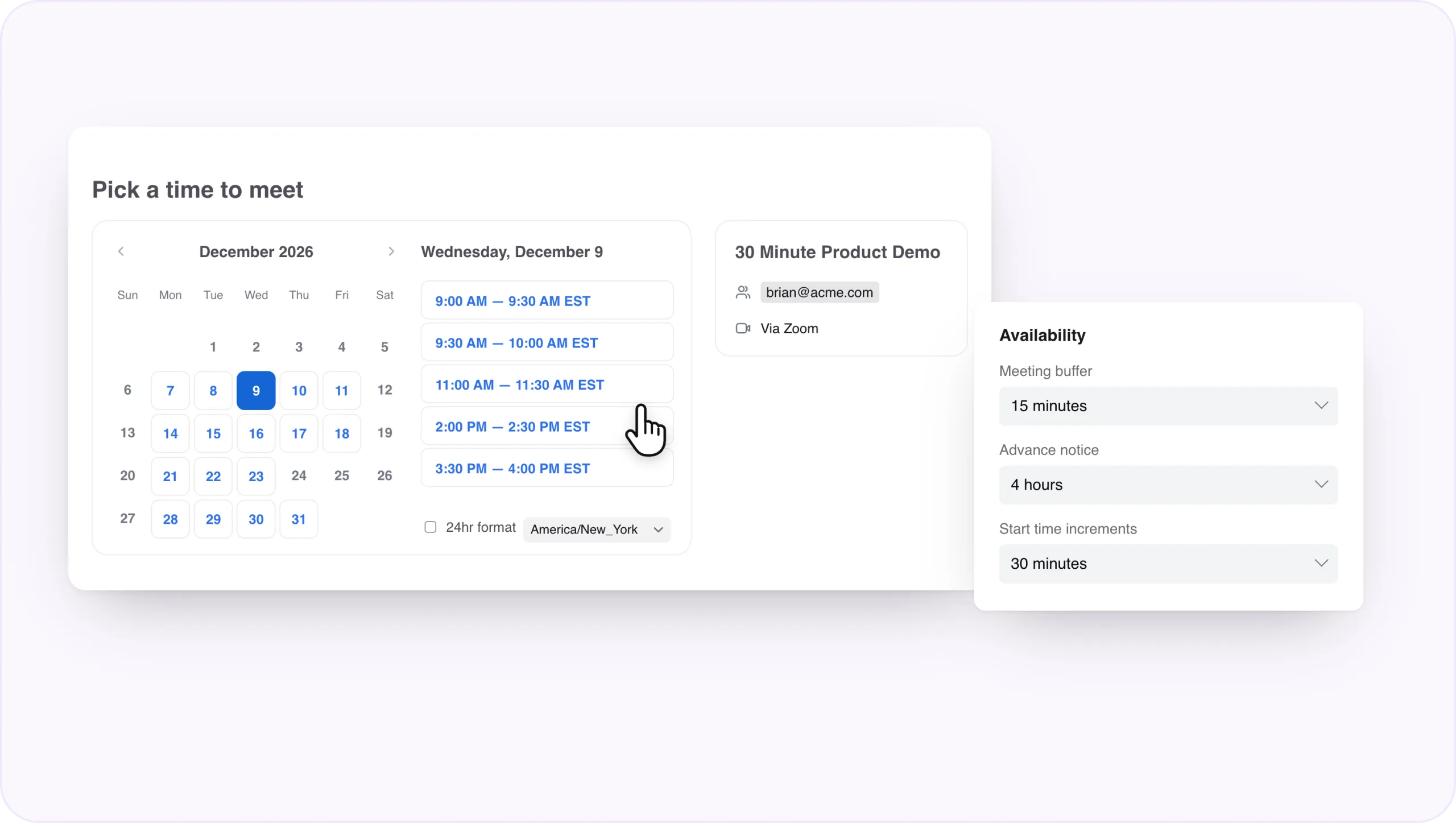
Choose when people can book and Front will automatically hide times that clash with events on your connected calendar.
You can also set buffers between meetings, require advance notice, and control which start times people can choose.
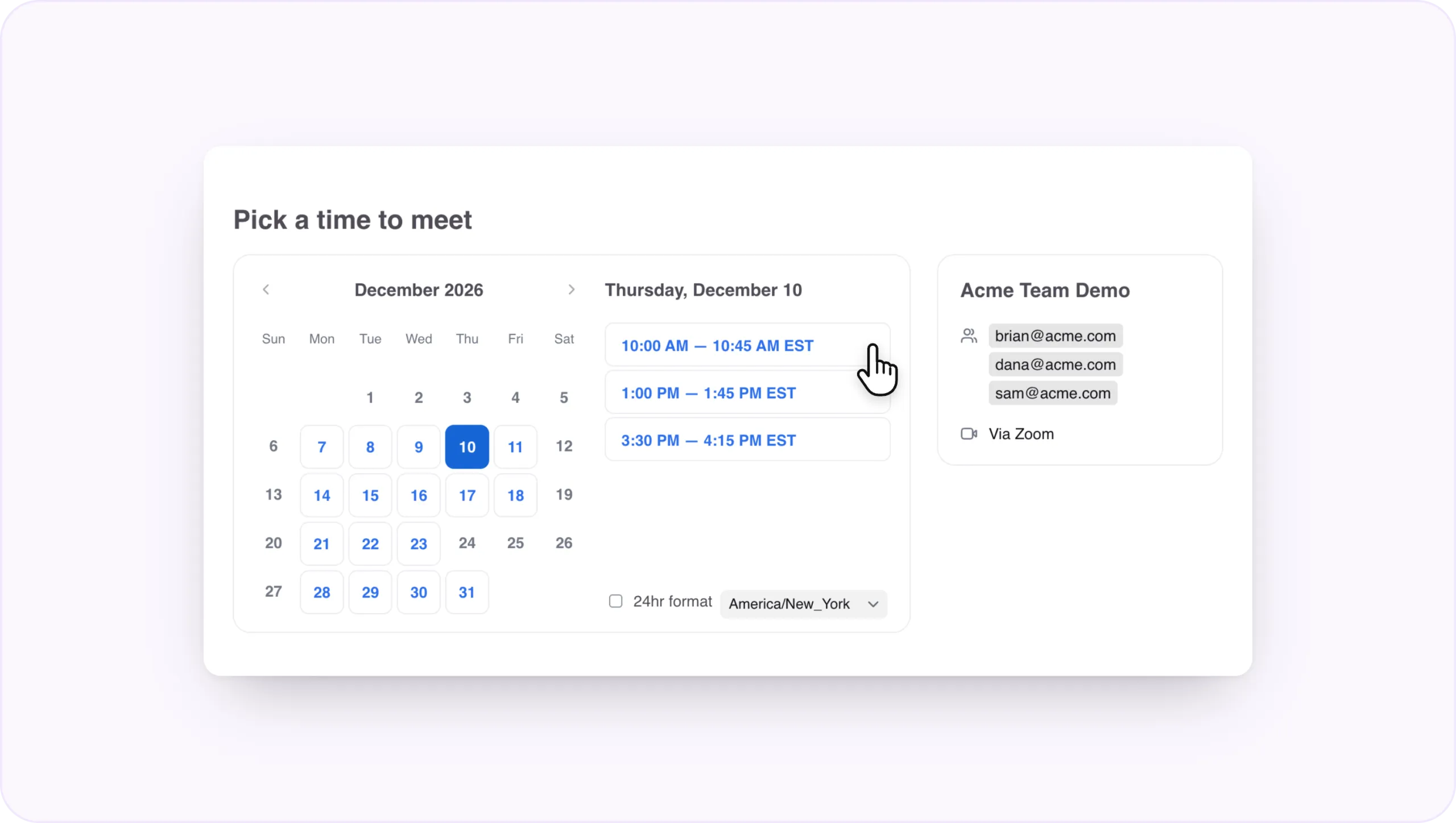
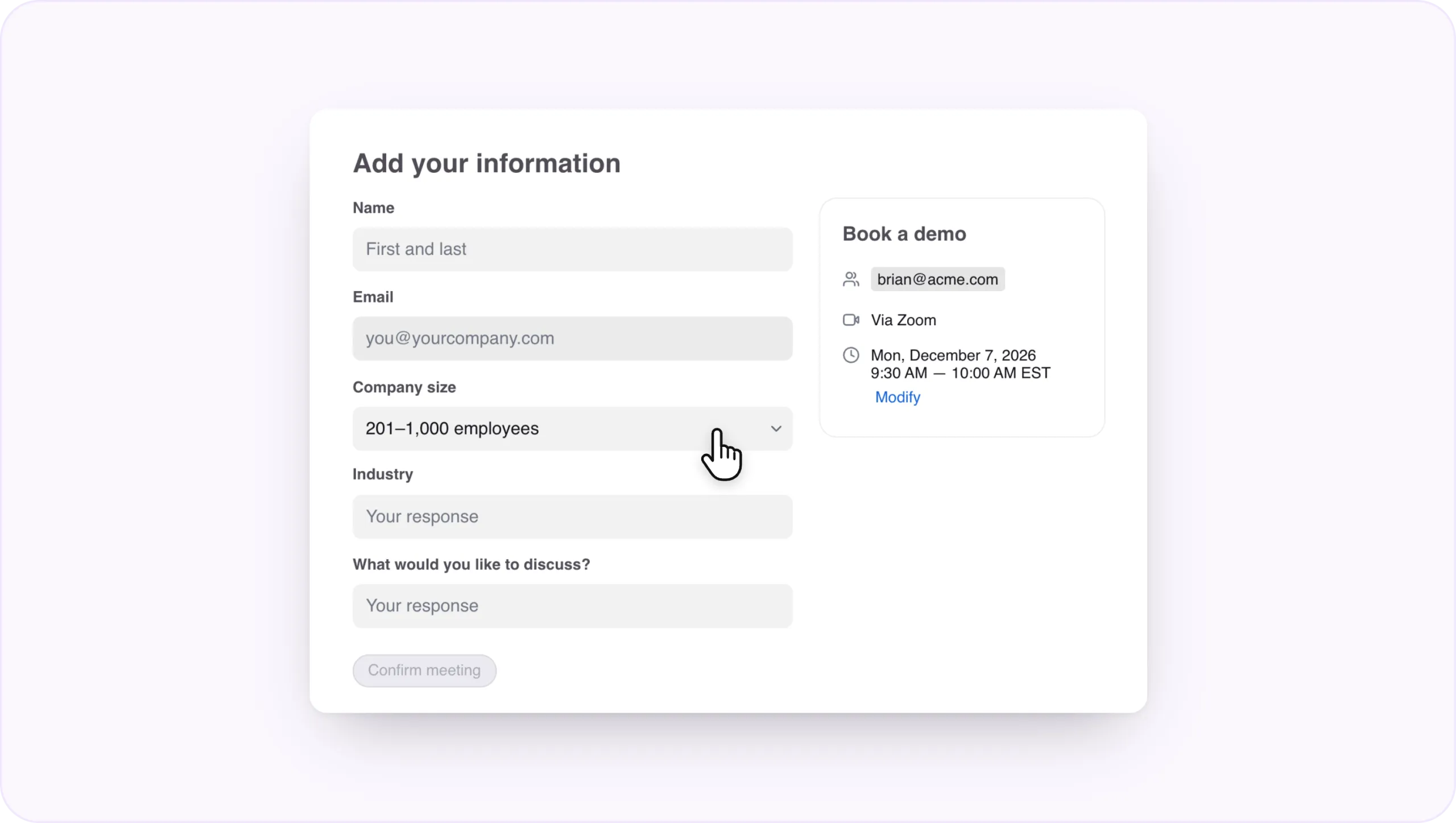
Add questions to your Front scheduling link to collect useful information before someone books.
For example, you could ask about their company size, industry, or what they’d like to discuss, giving your team more context before the call.
Choose the Front scheduling link you want to use, then add it to Storydoc so readers can book directly from your document.
1. Create your scheduling link in Front
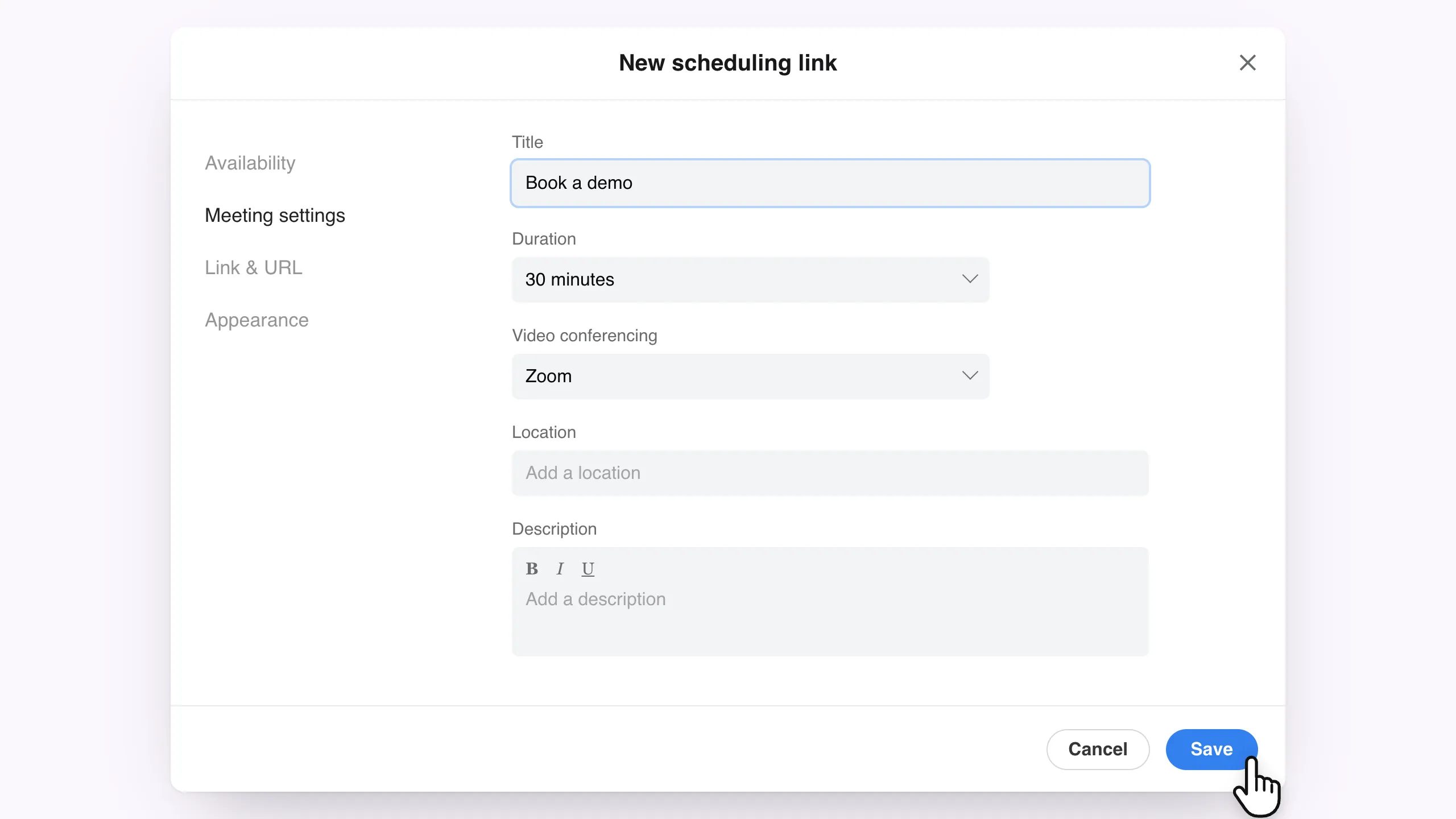
Open the Calendar in Front and create a scheduling link for the meeting you want readers to book.
Choose your availability and set details such as the meeting duration, location, video conferencing, and any questions you want people to answer before booking.
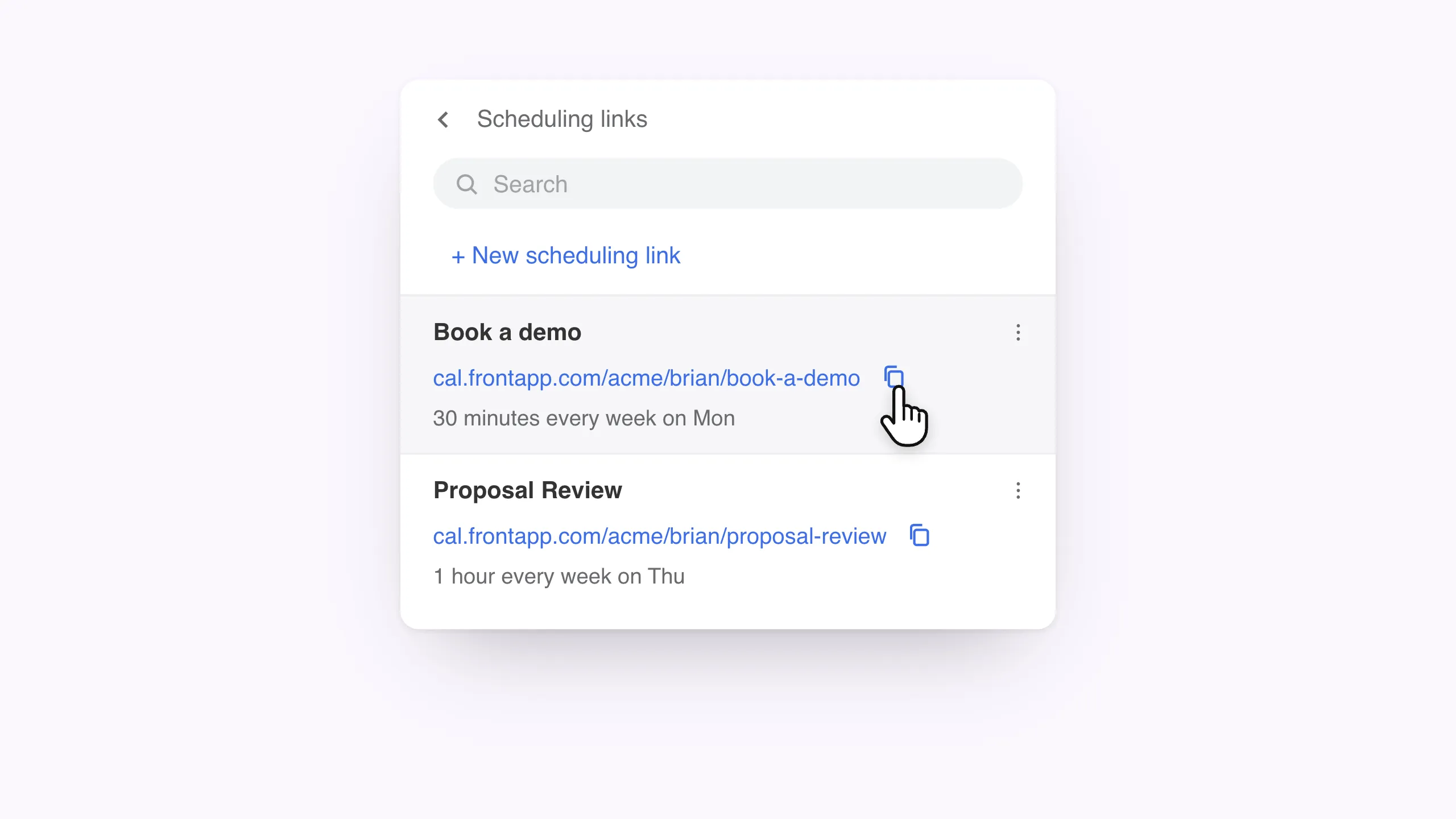
2. Copy your Front scheduling link
Once your scheduling link is ready, copy its public URL from your list of scheduling links in Front.
You can create different links for different meetings, so make sure you choose the one that fits the Storydoc you’re adding it to.
3. Add the link to your Storydoc
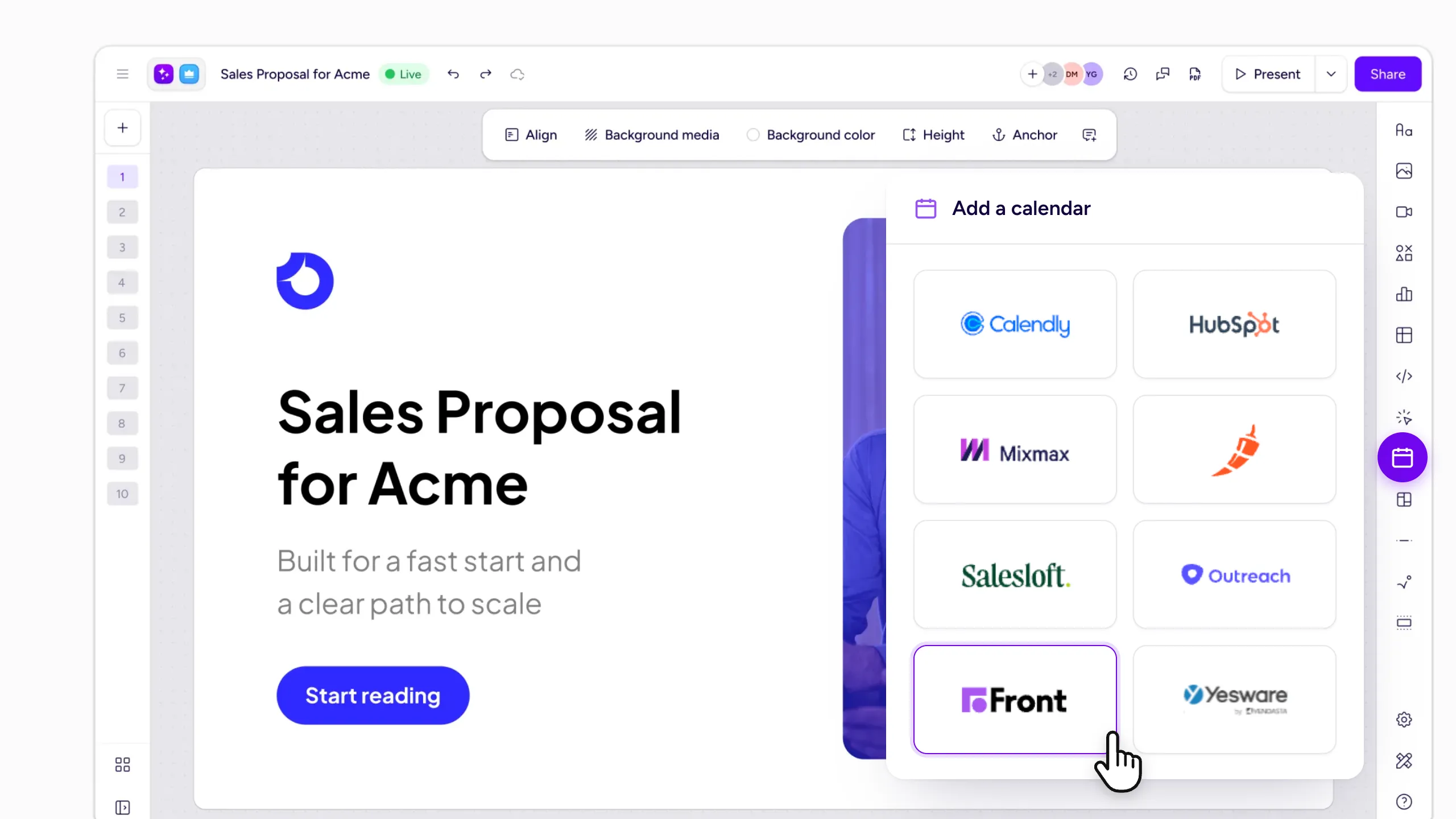
Open your Storydoc and go to the slide where you want readers to book a meeting.
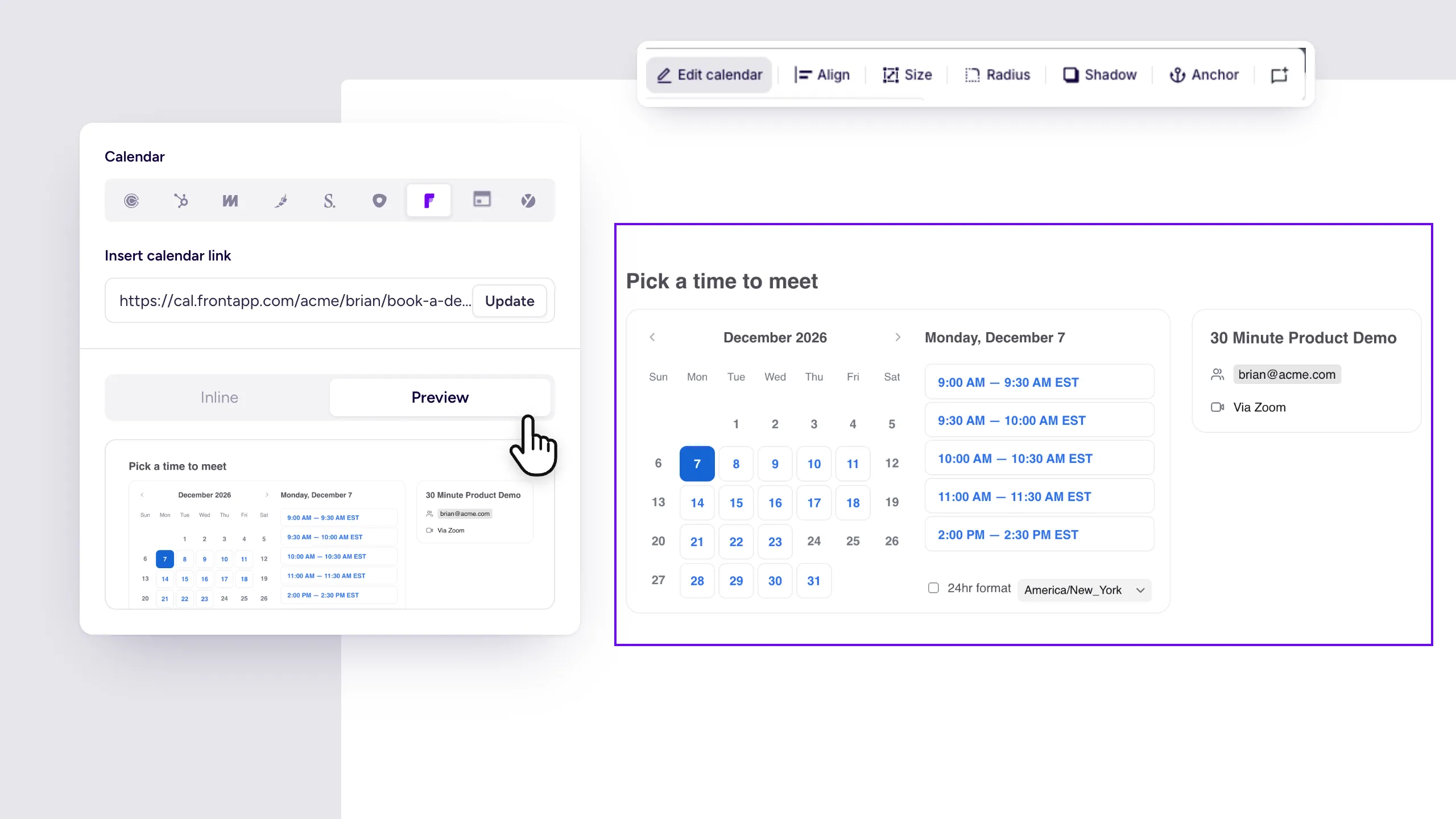
Select Calendars from the right-hand toolbar, paste your Front scheduling link into the calendar link field, and click Update.
4. Adjust how the calendar looks
Use the Inline or Preview options to check how the calendar looks in your Storydoc, then adjust its size, alignment, and design to match the rest of your slide.
5. Publish and start taking bookings
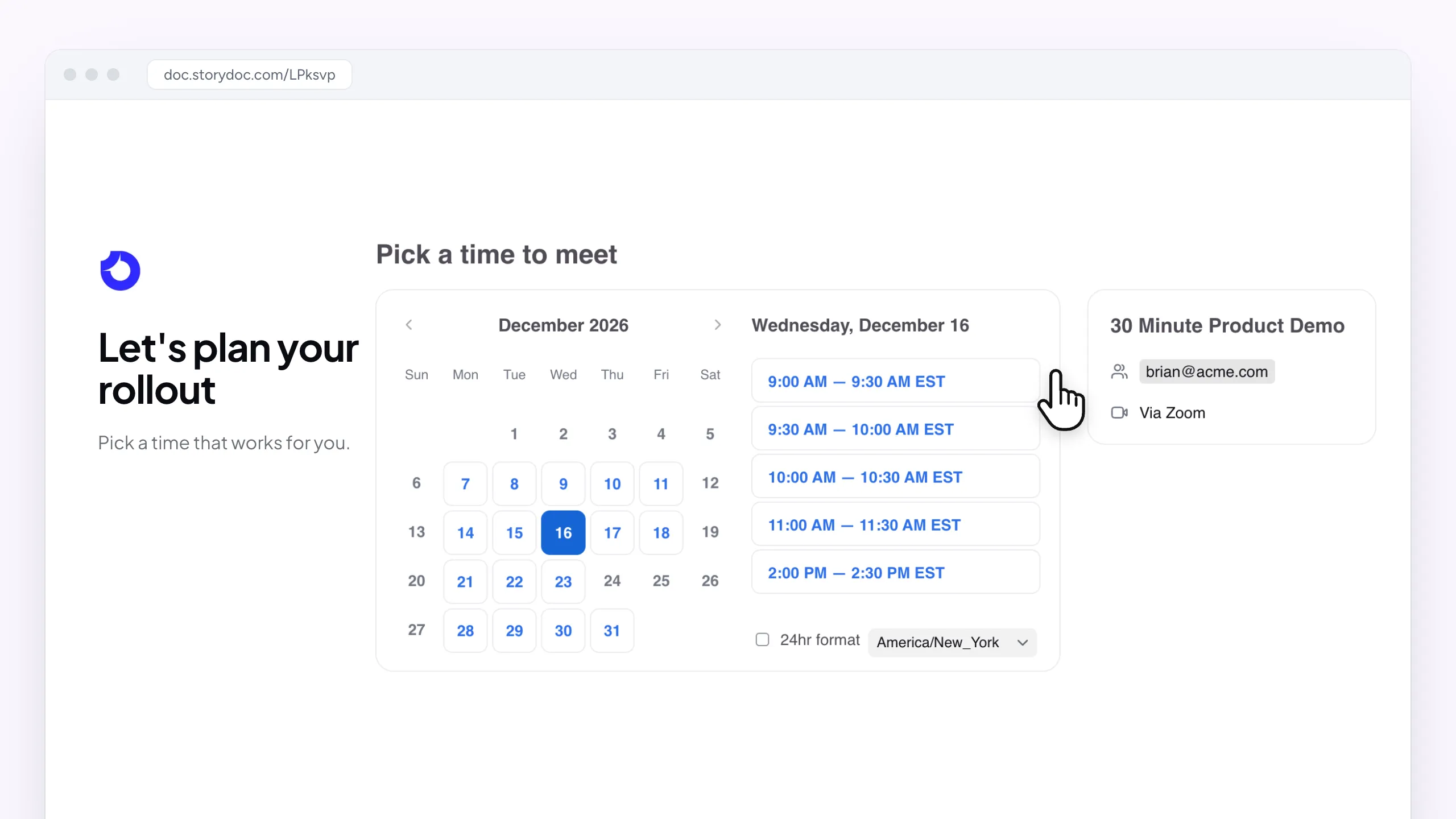
Publish your Storydoc and readers can choose an available time directly from the document. Front will check your connected calendar and only show the slots that are actually available.
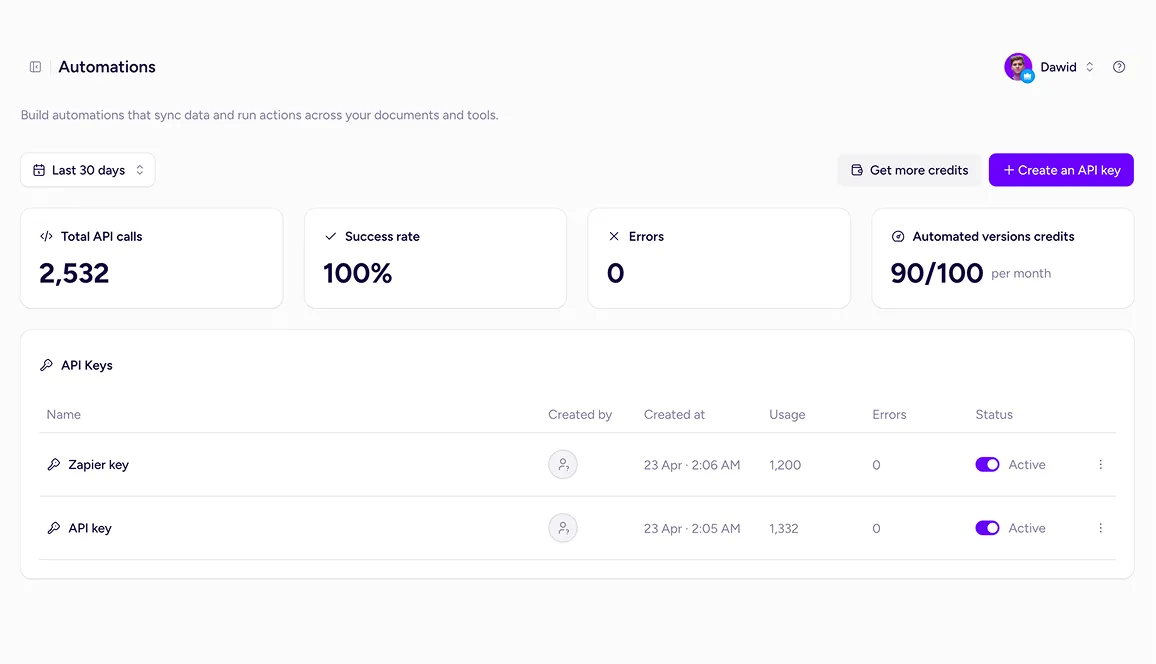
Go beyond native integrations with the Storydoc API.
Automatically generate personalized Storydocs, trigger follow-ups based on engagement, and connect everything to your go-to-market stack.
Build workflows that fit how your team works.
Yes. Front scheduling links can be embedded, so prospects can view your availability and book a meeting directly from your Storydoc.
Yes. You can create as many scheduling links as you need and give each one its own availability and meeting settings. For example, you could have separate links for discovery calls, demos, proposal reviews, and customer meetings.
Yes. Group scheduling links only show times when everyone included in the meeting is available. Once someone books, all of those team members are added to the calendar invitation.
Yes. You can add required questions to a Front scheduling link to collect information such as company size, industry, or anything else your team would find useful before the meeting.
The Front calendar integration is available on the Starter plan and above.
Still have questions?
Add Front scheduling to your Storydocs and give prospects a simple way to book the next conversation while your content is still fresh in their minds.