Connect Google Tag Manager to every Storydoc, manage all your tracking from one place, and measure how readers engage with your business documents through the tools you already use.

Trusted by 400,000+ users to automate their workflows
Manage all your marketing and analytics tags without editing individual Storydocs.
Add your GTM container once, and your tracking setup applies to all your Storydocs.
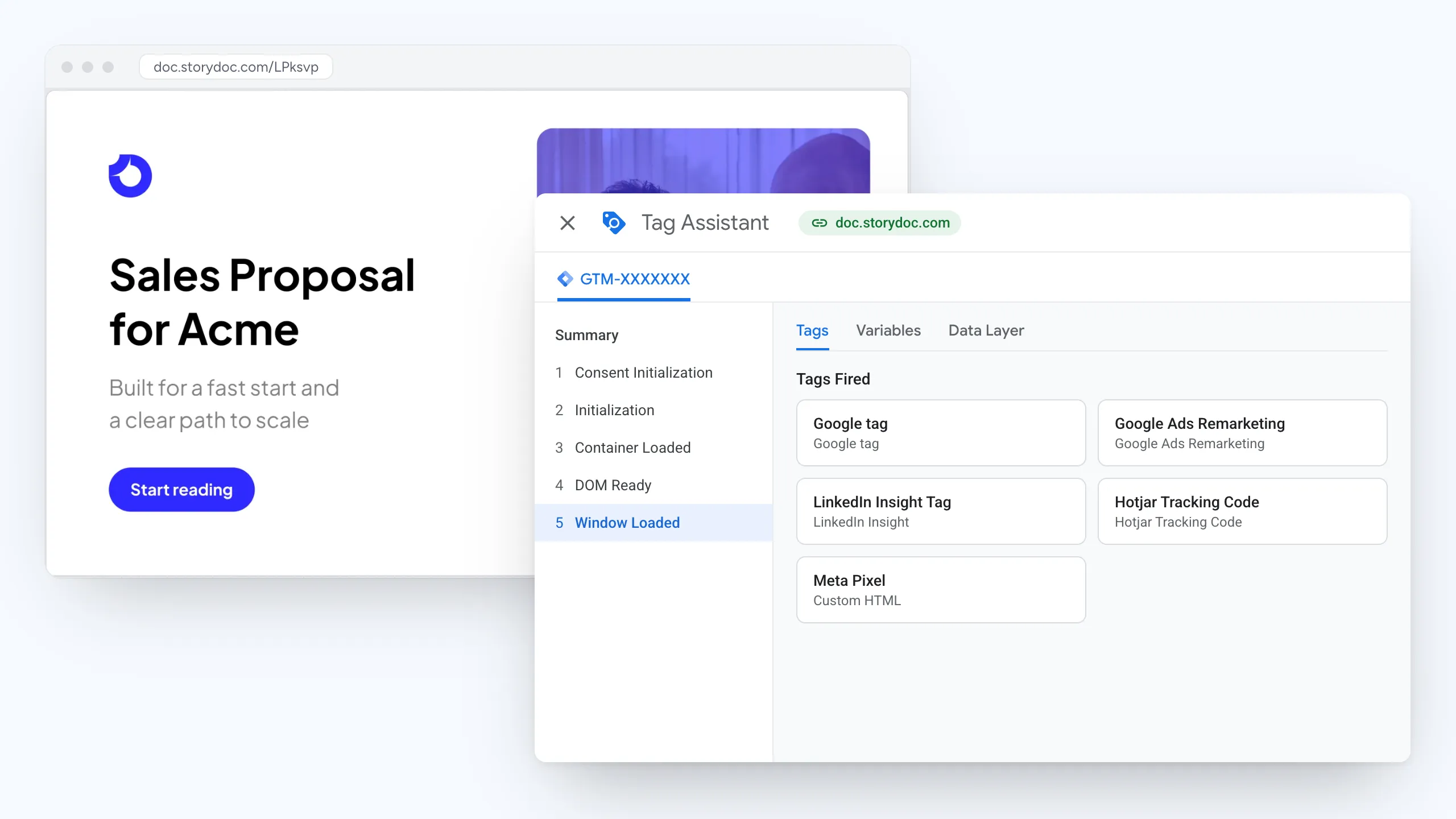
Use GTM to control Google Analytics, Google Ads, LinkedIn Insight Tag, Hotjar, and hundreds of other marketing tags without updating individual documents.
Every Storydoc uses the same tracking setup, so your marketing team can keep analytics and campaign tracking consistent across all your documents.
Need to exclude an internal presentation or confidential proposal? Turn GTM off for that Storydoc without changing your workspace-wide setup.
Combine Storydoc’s built-in engagement analytics with your GTM tracking to better understand where your visitors come from and how they engage with your Storydocs.
A one-time setup connects your GTM container to every Storydoc in your workspace.
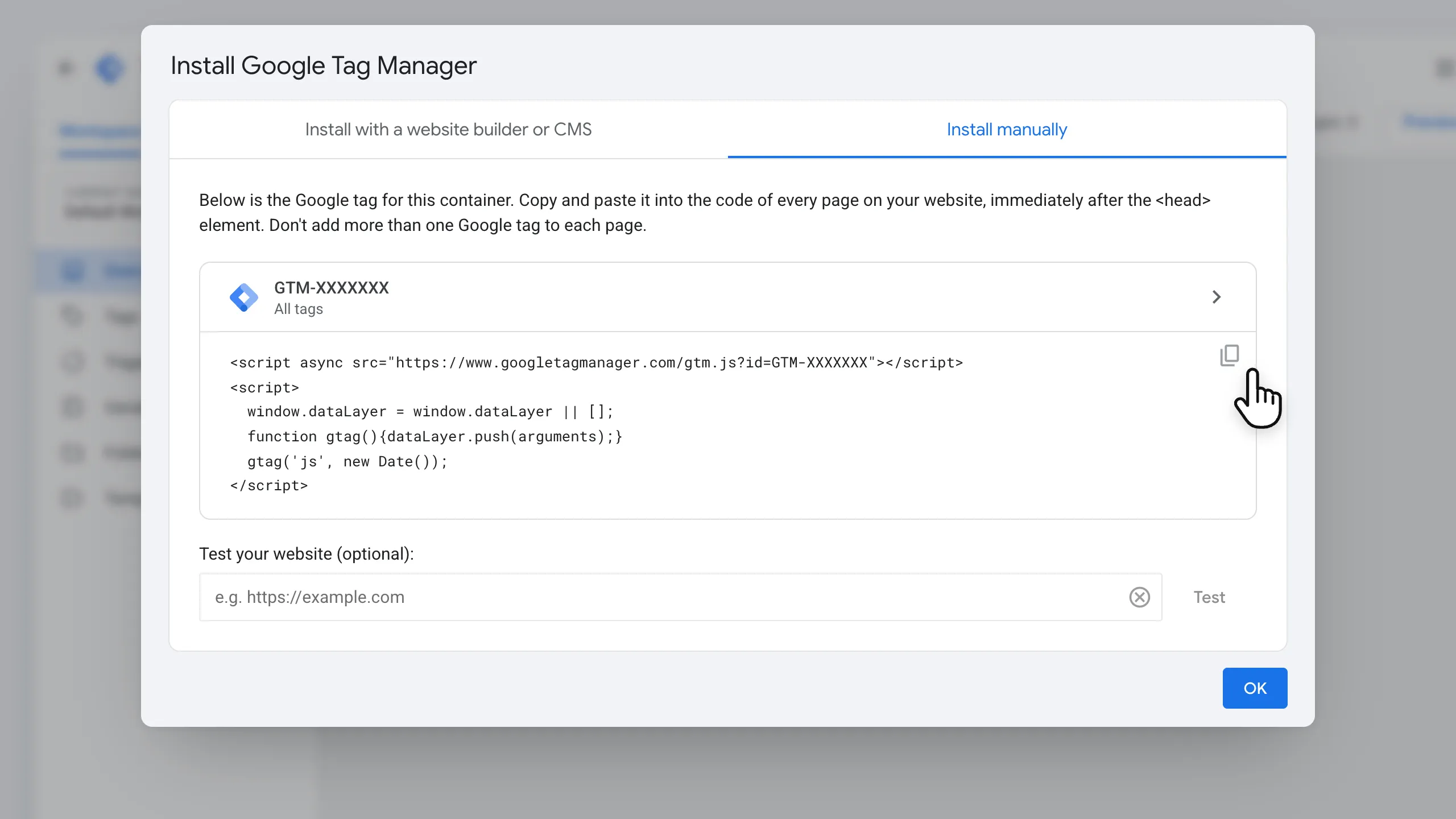
1. Get your Google Tag Manager code
Open the web container you want to use and copy the code snippet Google provides.
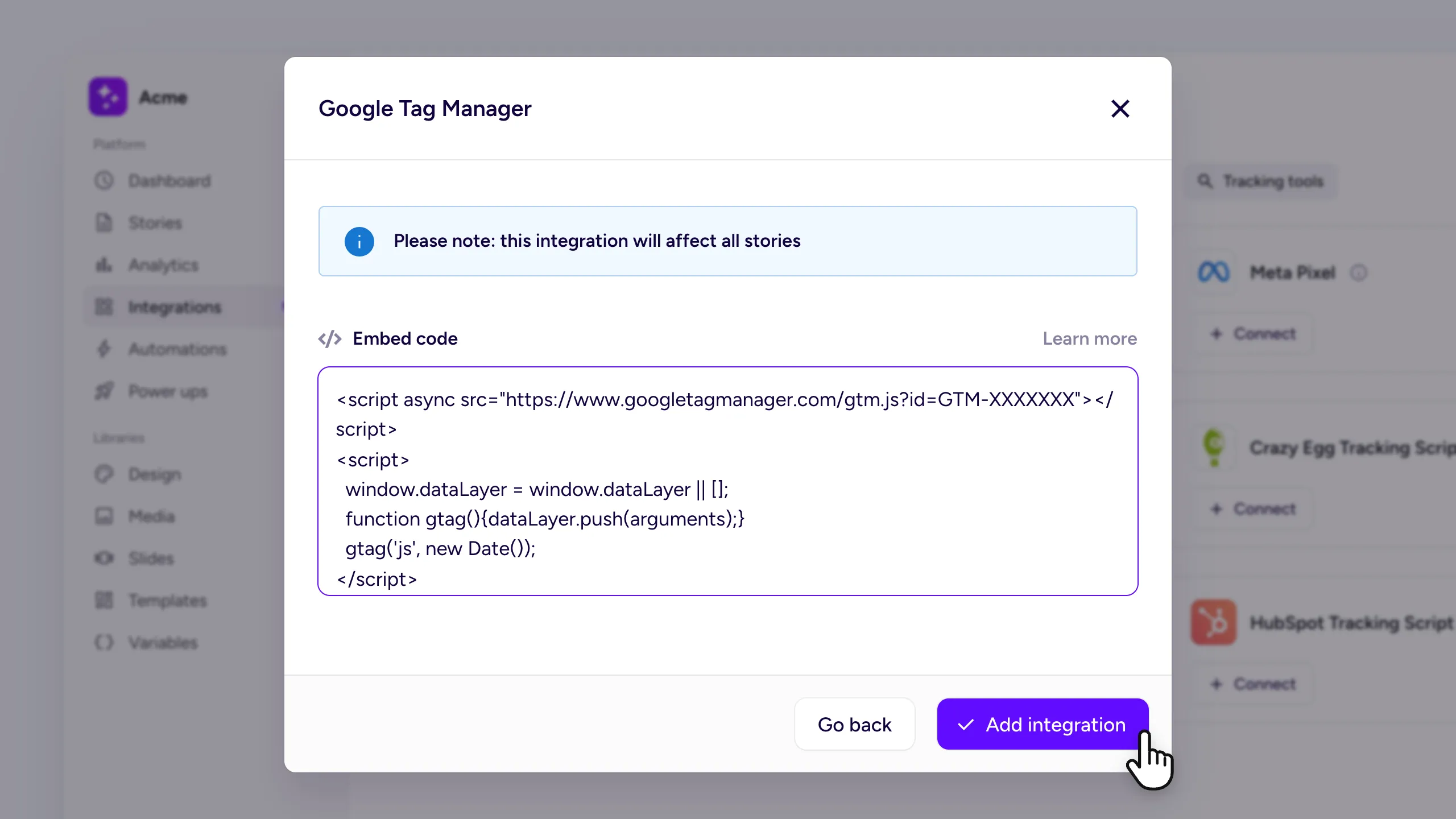
2. Add your GTM code to Storydoc
In Storydoc, go to:
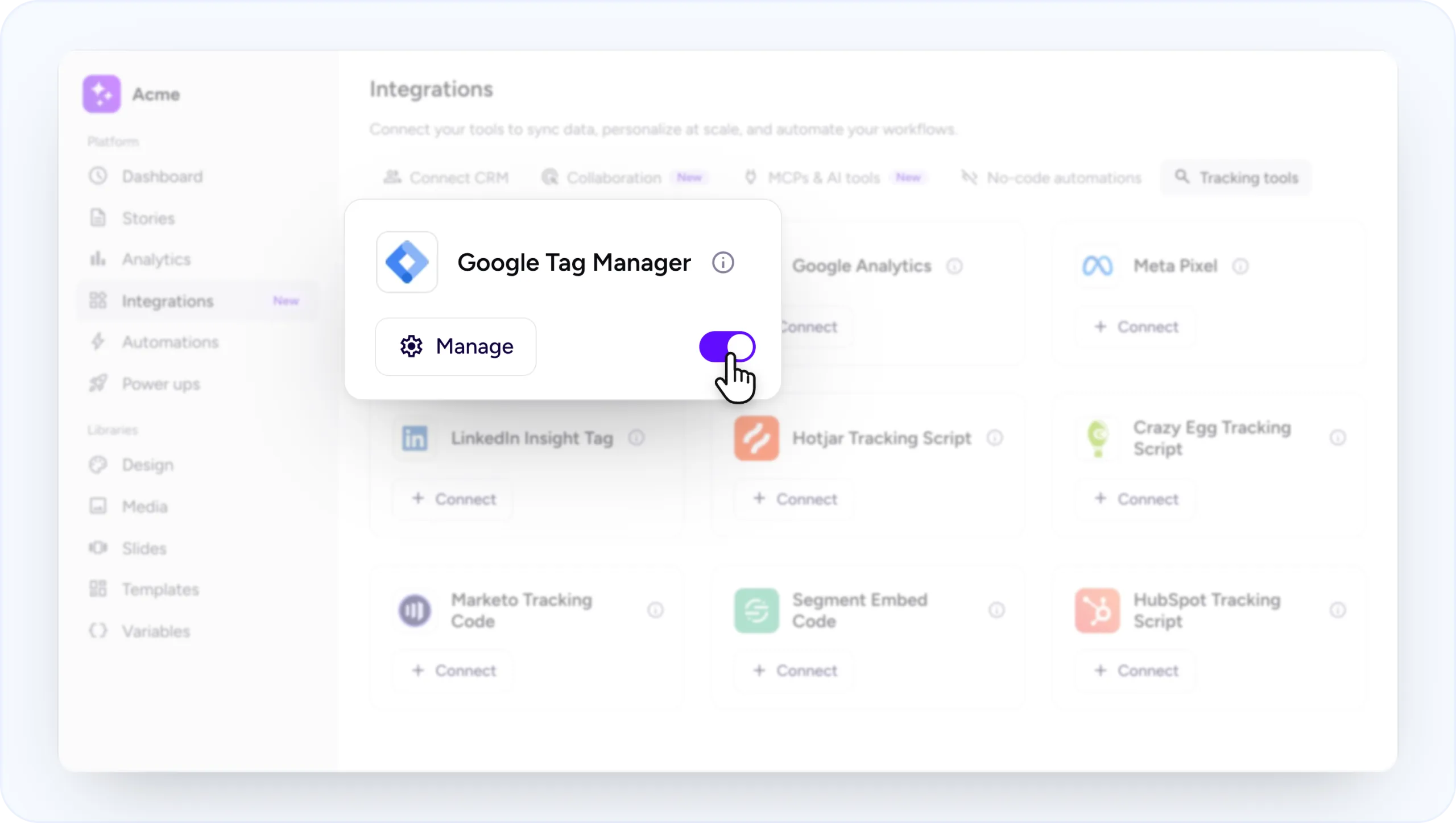
Integrations → Tracking tools → Google Tag Manager → Connect
Paste the code snippet into the Embed code field and click Add integration. Your GTM setup will apply to all your Storydocs.
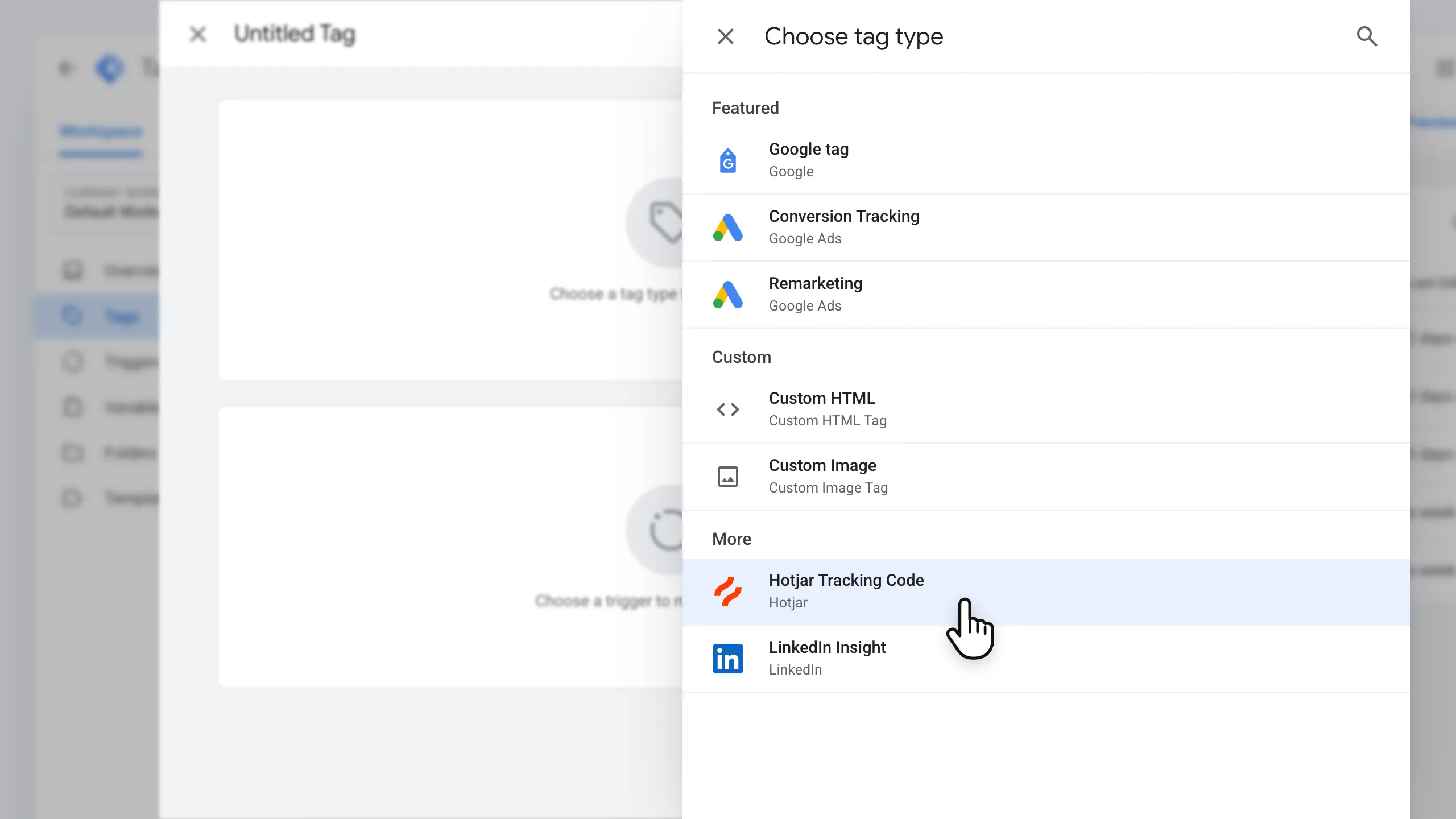
3. Manage your tags in Google Tag Manager
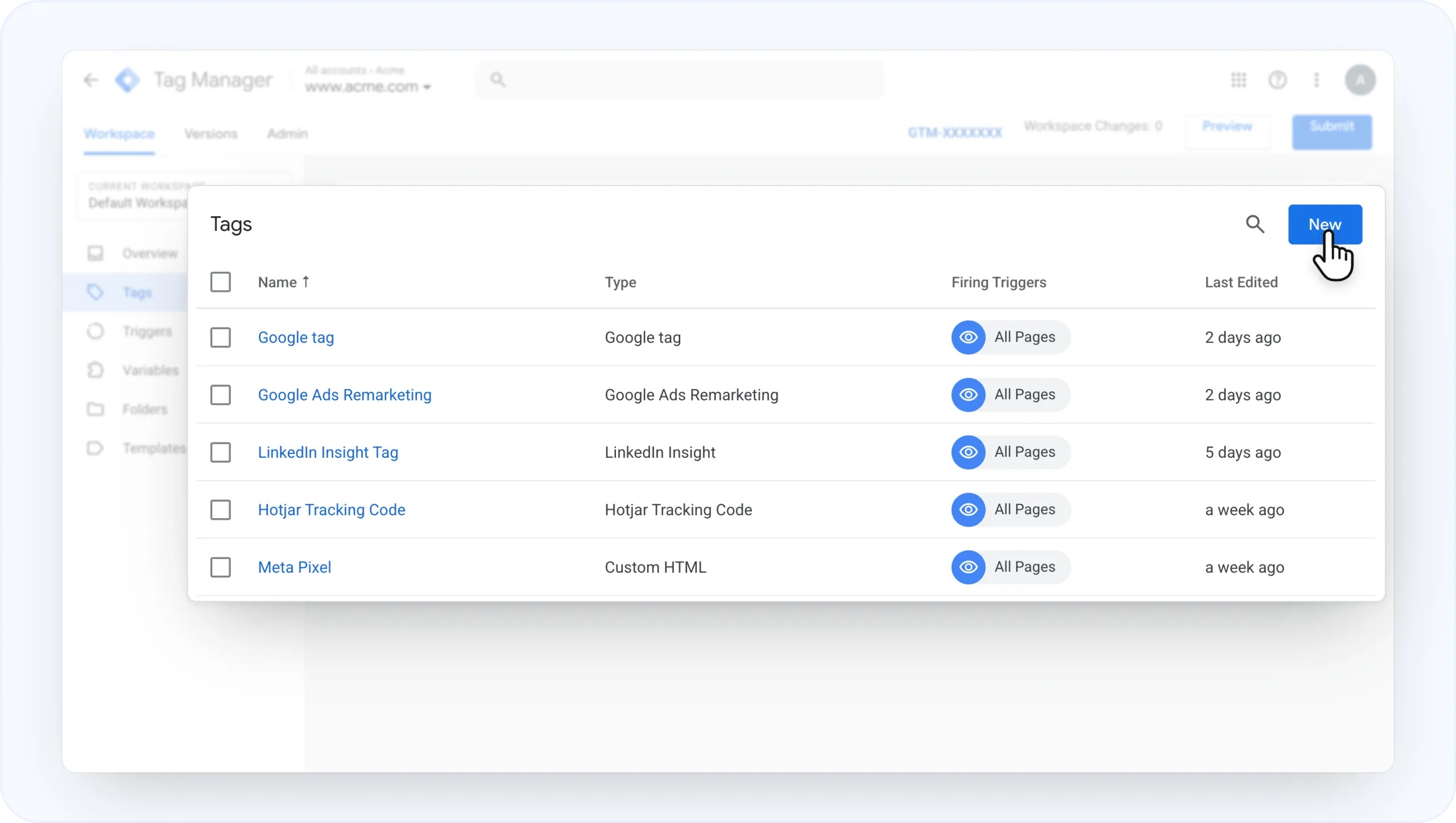
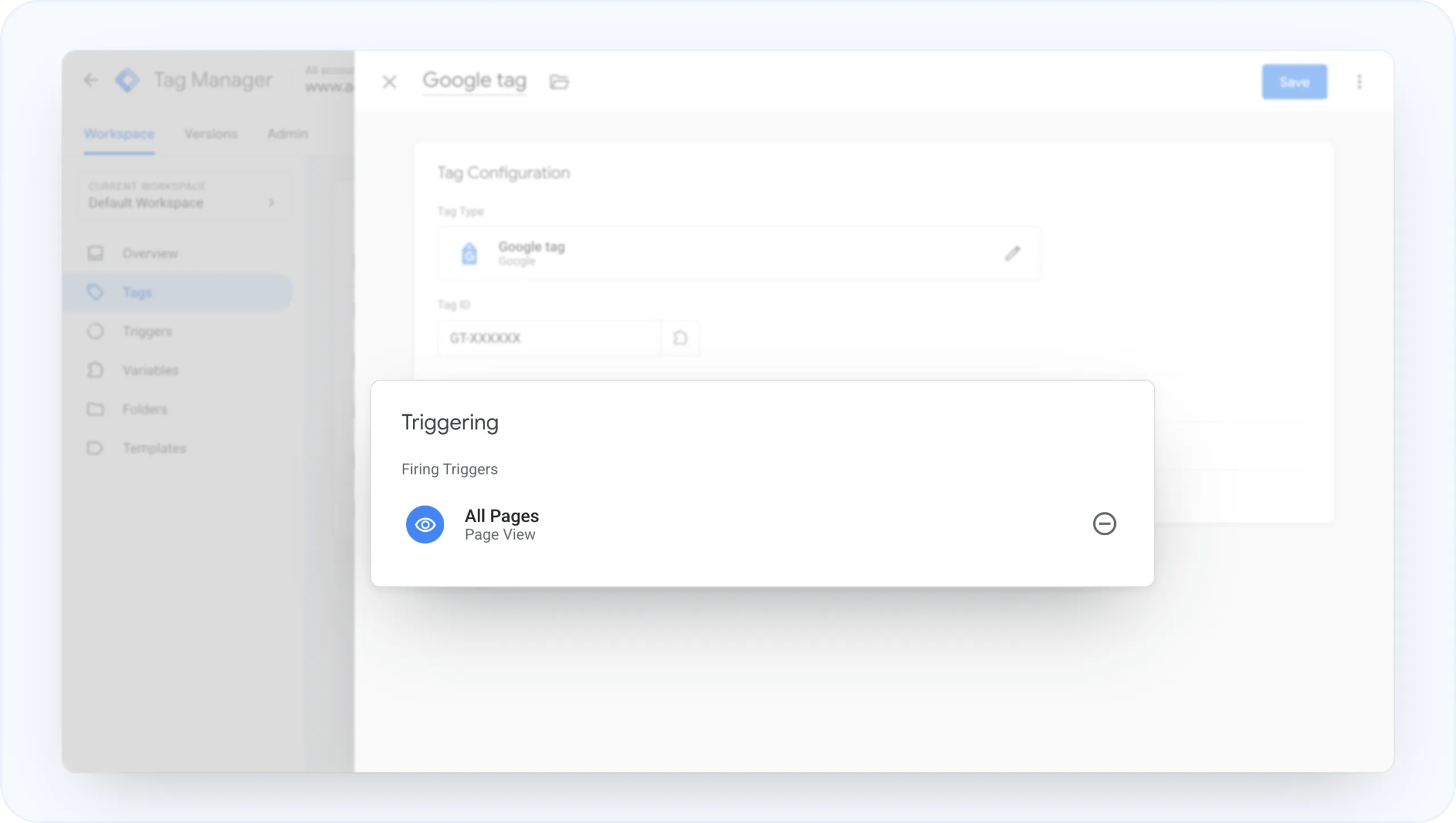
Use your GTM container to manage the Google and third-party marketing and analytics tags you want to run on your Storydocs.
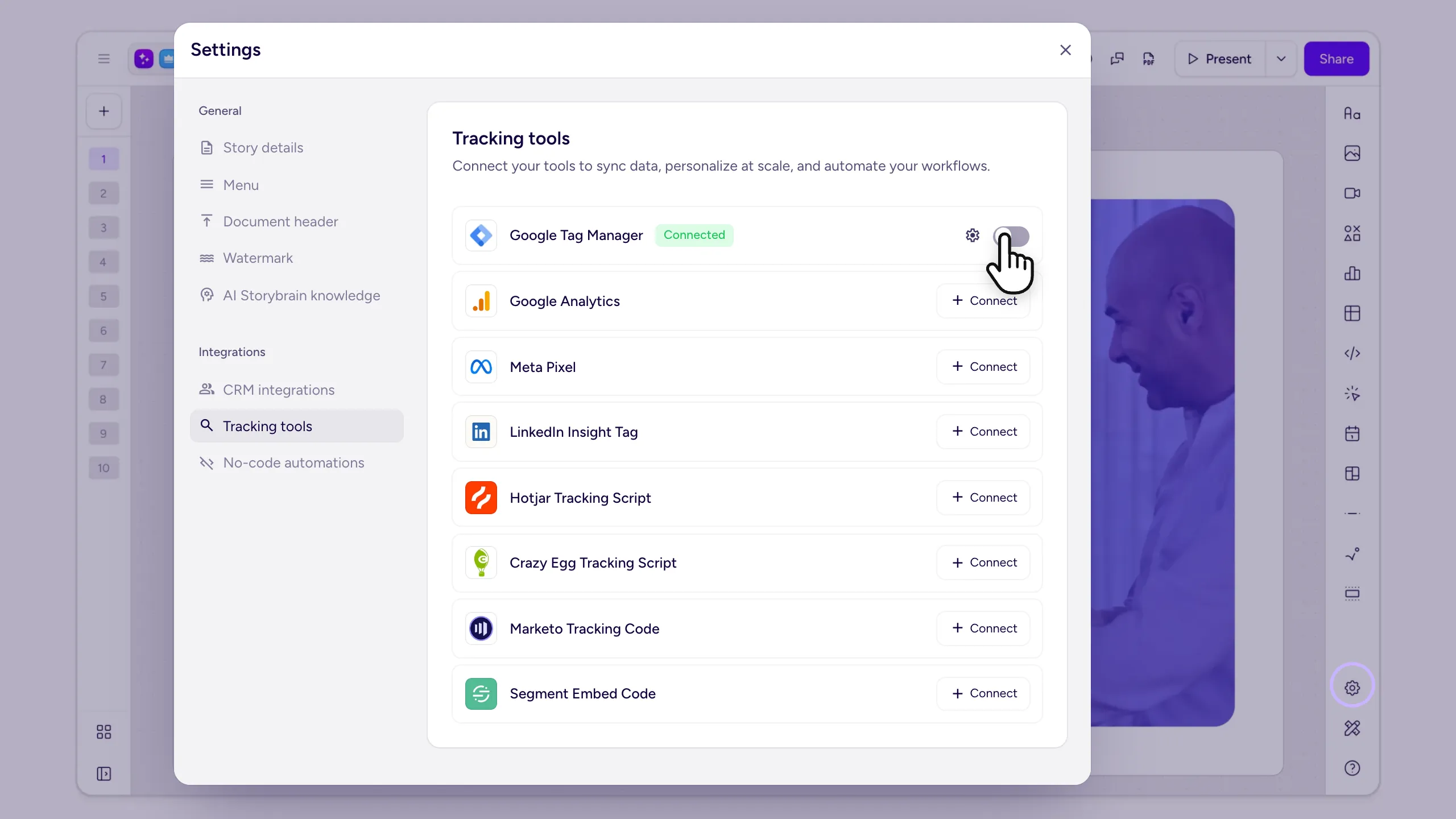
4. Disable GTM for individual Storydocs when needed
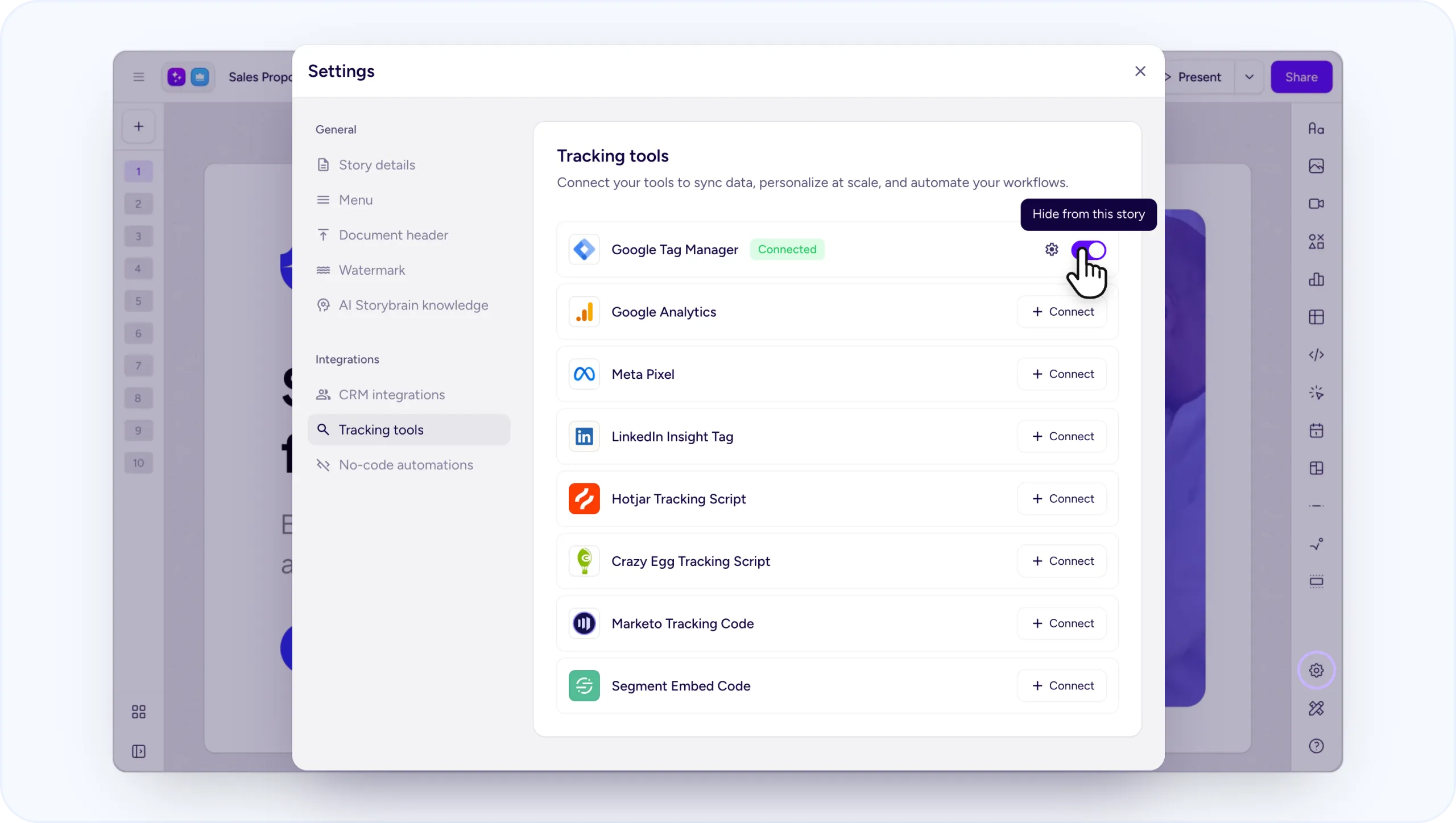
If you don’t want GTM running on a particular Storydoc, open its Integrations panel and switch Google Tag Manager off.
Your workspace connection stays active, so the change only applies to that Storydoc. If it’s already published, republish it for the change to take effect.
5. Measure performance across your marketing stack
Once published, your GTM tags can send engagement data to Google Analytics, advertising platforms, heatmaps, and any other tools managed through your container.
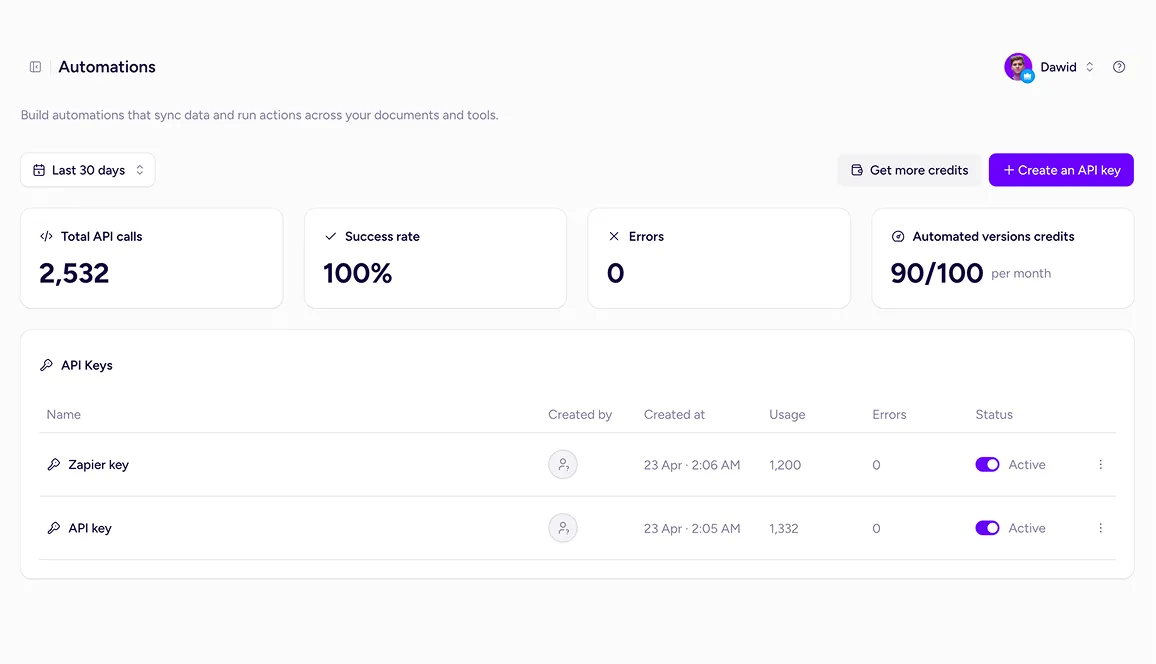
Go beyond native integrations with the Storydoc API.
Automatically generate personalized Storydocs, trigger follow-ups based on engagement, and connect everything to your go-to-market stack.
Build workflows that fit how your team works.
Open the web container you want to use in Google Tag Manager and click your container ID to access the installation code.
Make sure you copy the snippet provided by Google and add it to Storydoc.
Google Tag Manager works with Google tools like Google Analytics and Google Ads, as well as many third-party marketing and analytics tools. You can also add custom tags for tools that don’t have a built-in GTM integration.
This means you can manage tracking across multiple platforms from GTM while keeping a single Google Tag Manager connection in Storydoc.
Yes. Your GTM container is set up at the workspace level, so it applies to all your Storydocs.
You can turn it off for individual Storydocs whenever you need to. If you turn it off for a Storydoc that’s already published, republish it for the change to take effect.
Tracking tags don’t fire on Storydoc preview links. To test your GTM setup, publish your Storydoc and use the live link instead.
No. If you already have a Google Tag Manager container, copy the GTM snippet from Google Tag Manager and paste it into Storydoc under Integrations → Tracking tools → Google Tag Manager.
Yes. Storydoc supports workspace-level tracking integrations and gives you control over which tools are enabled. You can also disable GTM for individual Storydocs when needed.
If the Storydoc is already published, you’ll need to republish it for the change to take effect.
Still have questions?
Keep all your marketing tags in one place, measure engagement with the analytics tools you already use, and add GTM to every Storydoc with a single workspace-wide setup.