
Storydoc + HubSpot Forms: Capture leads from your Storydocs
Embed HubSpot forms in your Storydocs to collect lead information, sync submissions with HubSpot, and keep your follow-up moving without sending readers elsewhere.

Embed HubSpot forms in your Storydocs to collect lead information, sync submissions with HubSpot, and keep your follow-up moving without sending readers elsewhere.
Trusted by 400,000+ users to automate their workflows


Bring your HubSpot forms into the content your prospects are already reading and send the information you collect back to HubSpot.
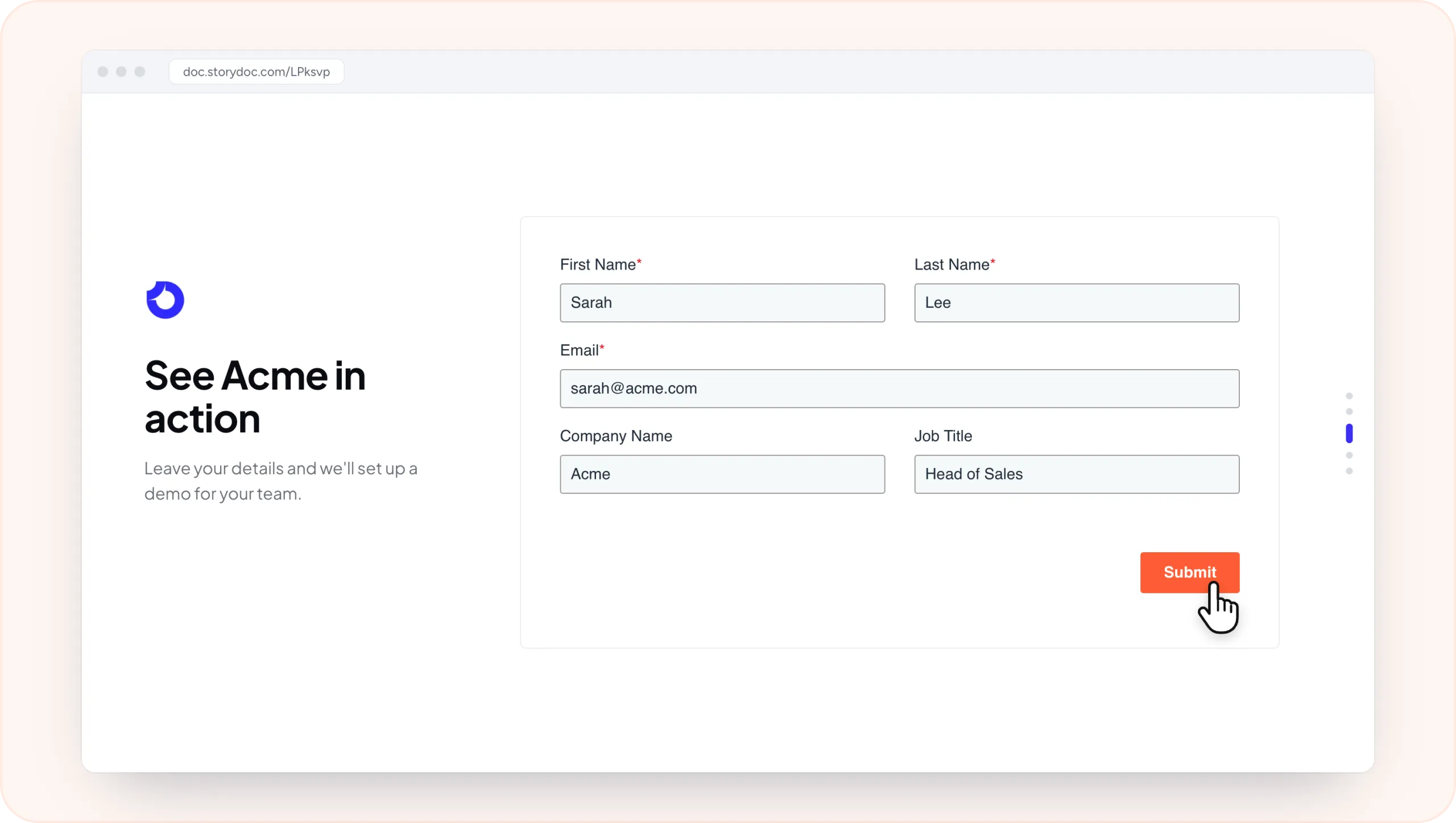
Embed an existing HubSpot form into your Storydoc so prospects can submit their details without being redirected to another page.
Use forms for demo requests, contact forms, event registrations, content downloads, feedback, or any other information you want to collect from readers.
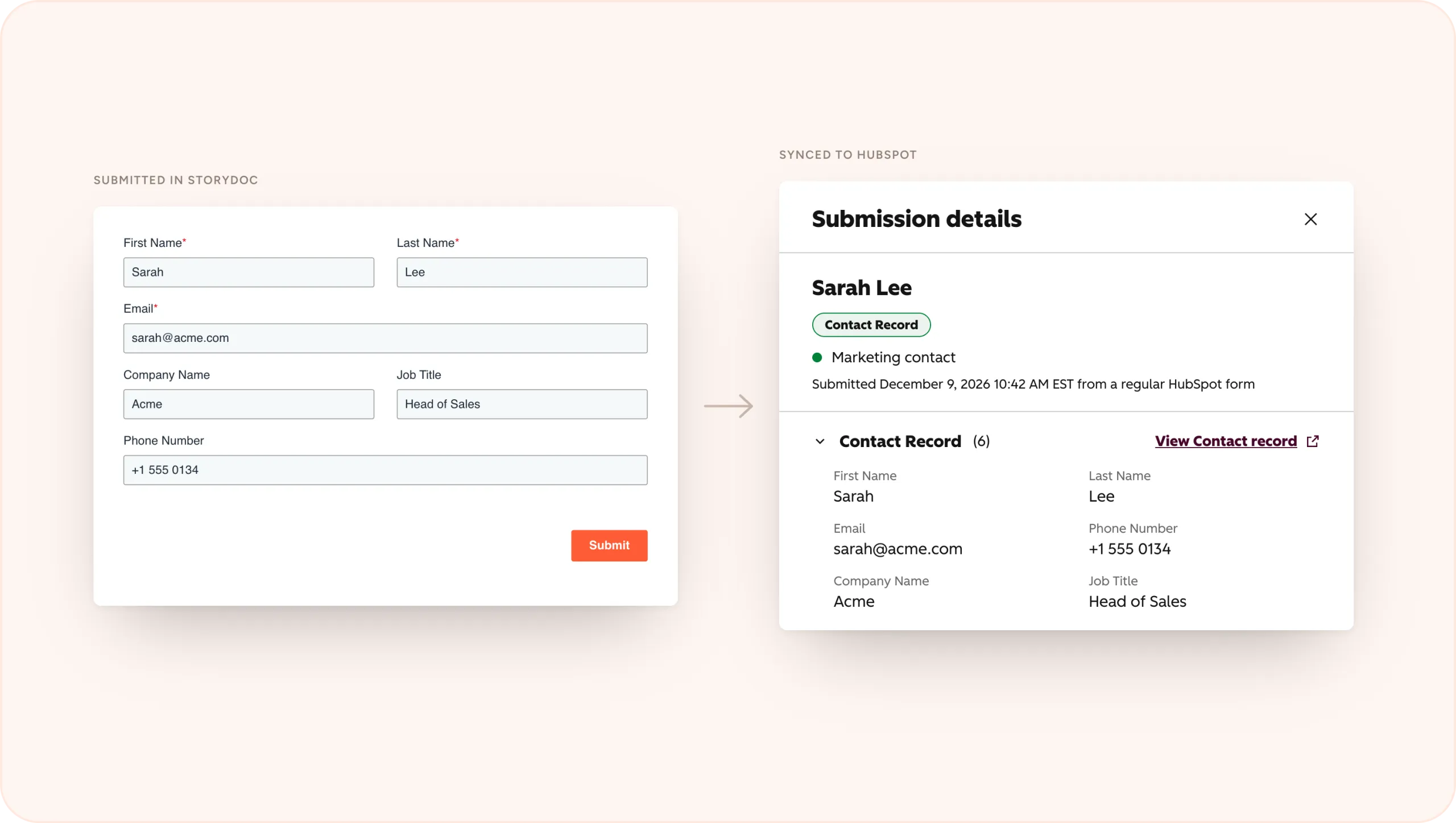
Information submitted through an embedded HubSpot form is synced to your HubSpot account, so you can manage the contact and their form activity from the same place as your other HubSpot leads.
For example, you could ask for a reader’s name, work email, company, job title, phone number, or other information relevant to your sales process.
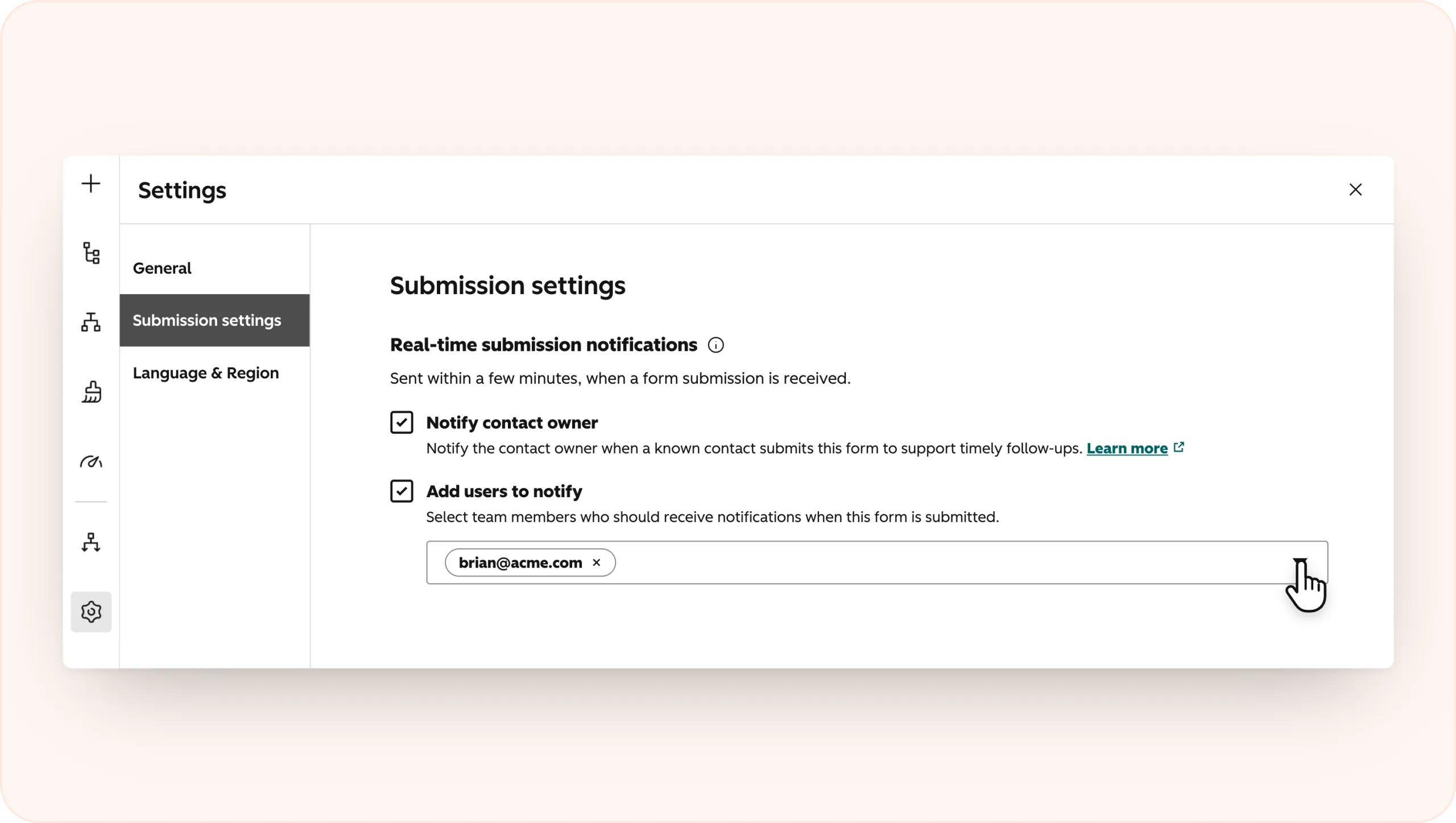
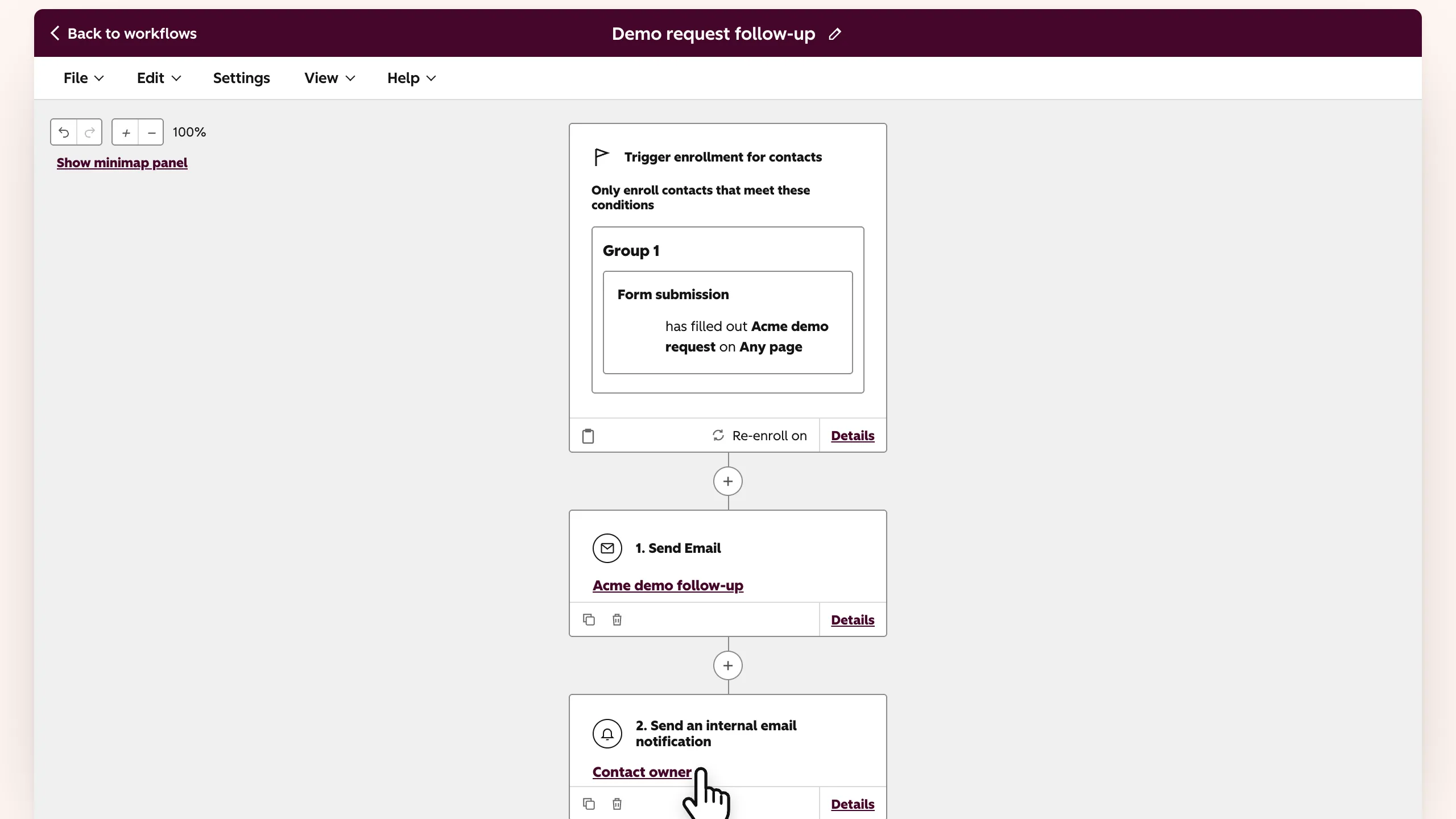
Use HubSpot’s automation features to decide what happens after someone completes your form.
Depending on your HubSpot setup, a submission can trigger actions such as a follow-up email, an internal notification, or a workflow, helping your team respond without manually checking for new submissions.
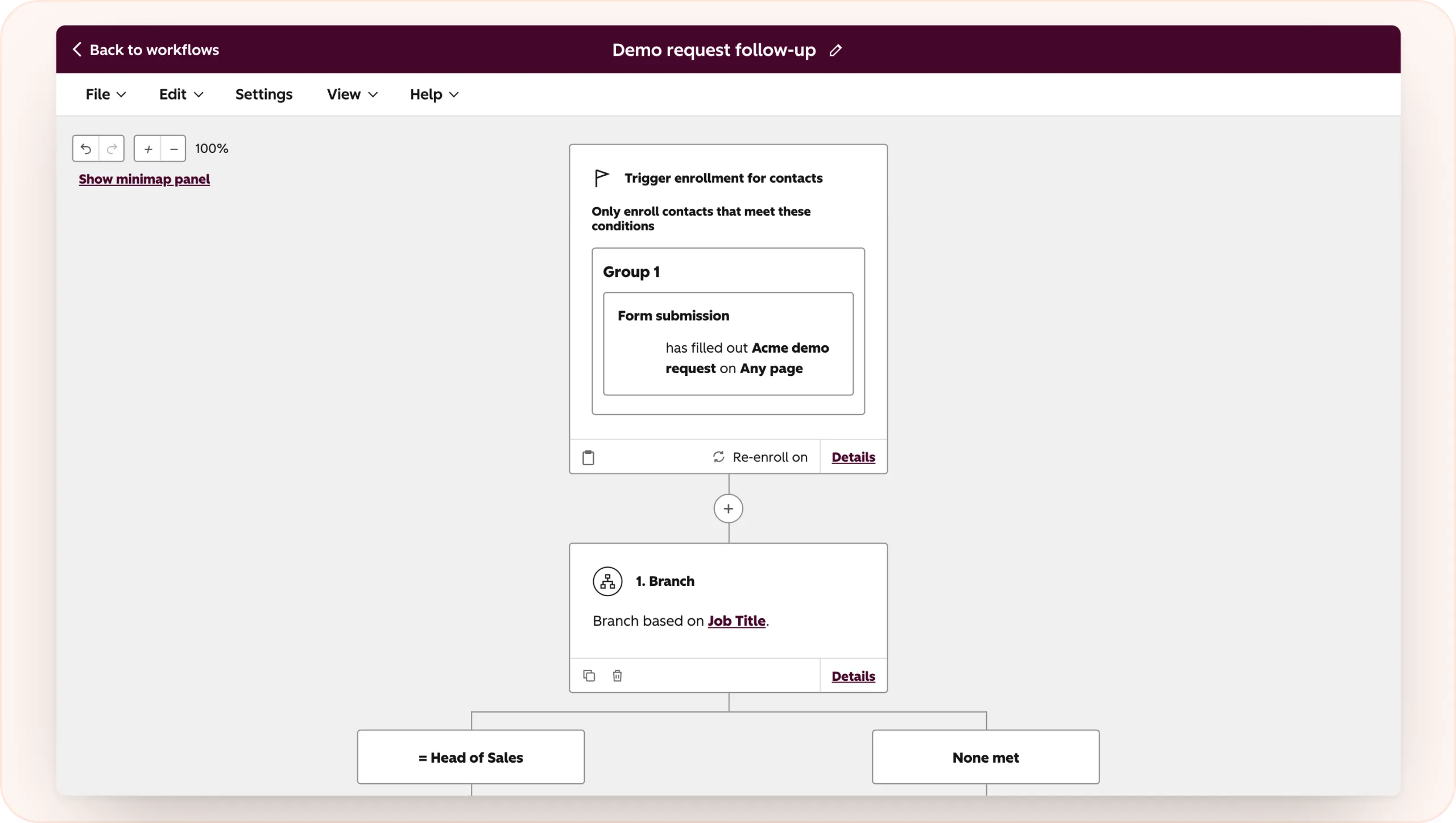
Once someone submits the form, their information is available in HubSpot for the processes your team already has in place.
You can use the data you collect to segment contacts, enrol them in relevant workflows, and give your sales or marketing team more context for the next conversation.
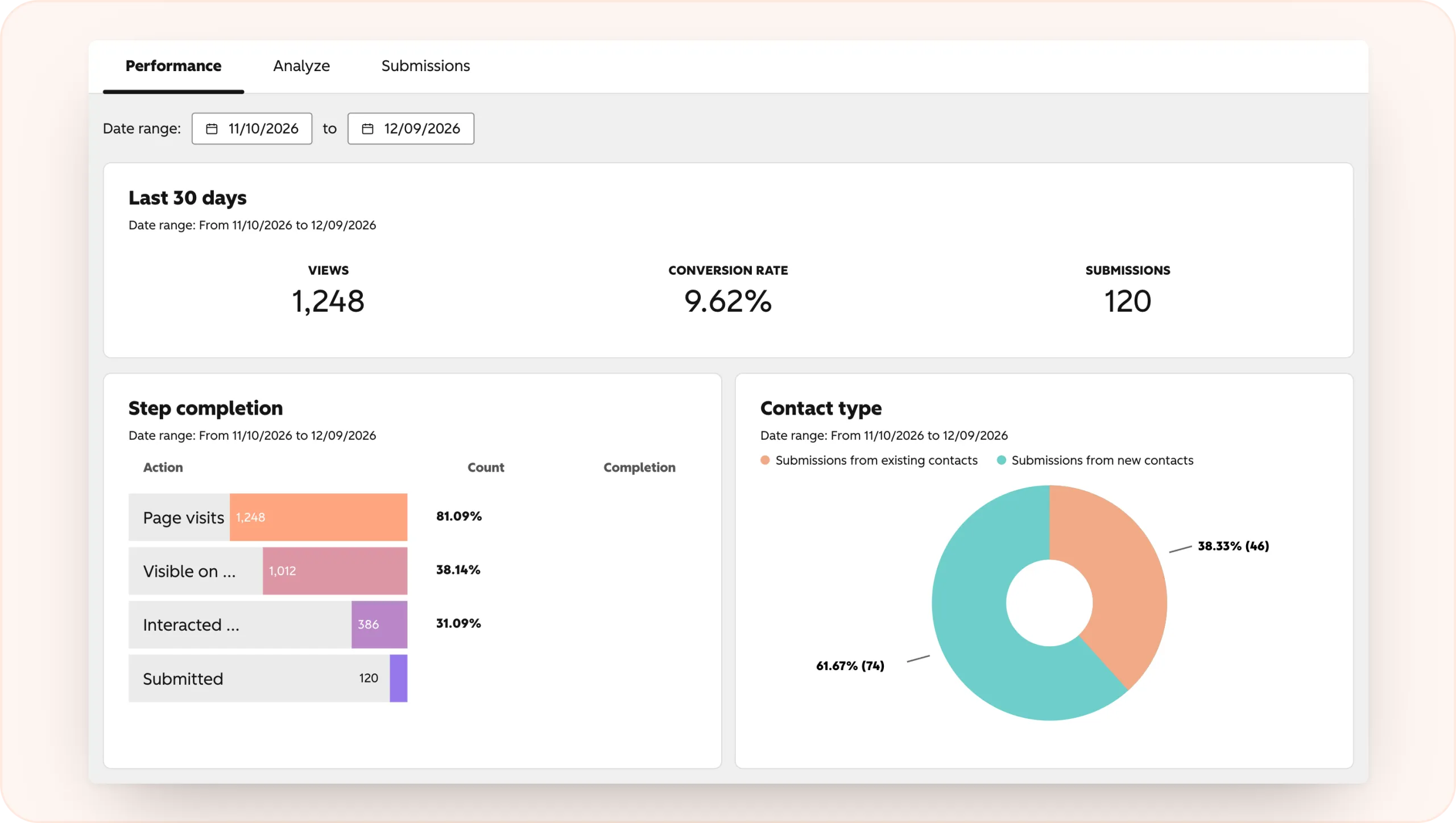
Keep using HubSpot’s form analytics to understand how your embedded forms are performing and how many submissions they’re generating. To track analytics for an externally embedded form, make sure the HubSpot tracking code is installed on the page where the form appears.
Create and manage your form in HubSpot, then embed it directly in your Storydoc so responses flow into your existing HubSpot setup.
1. Create your form in HubSpot
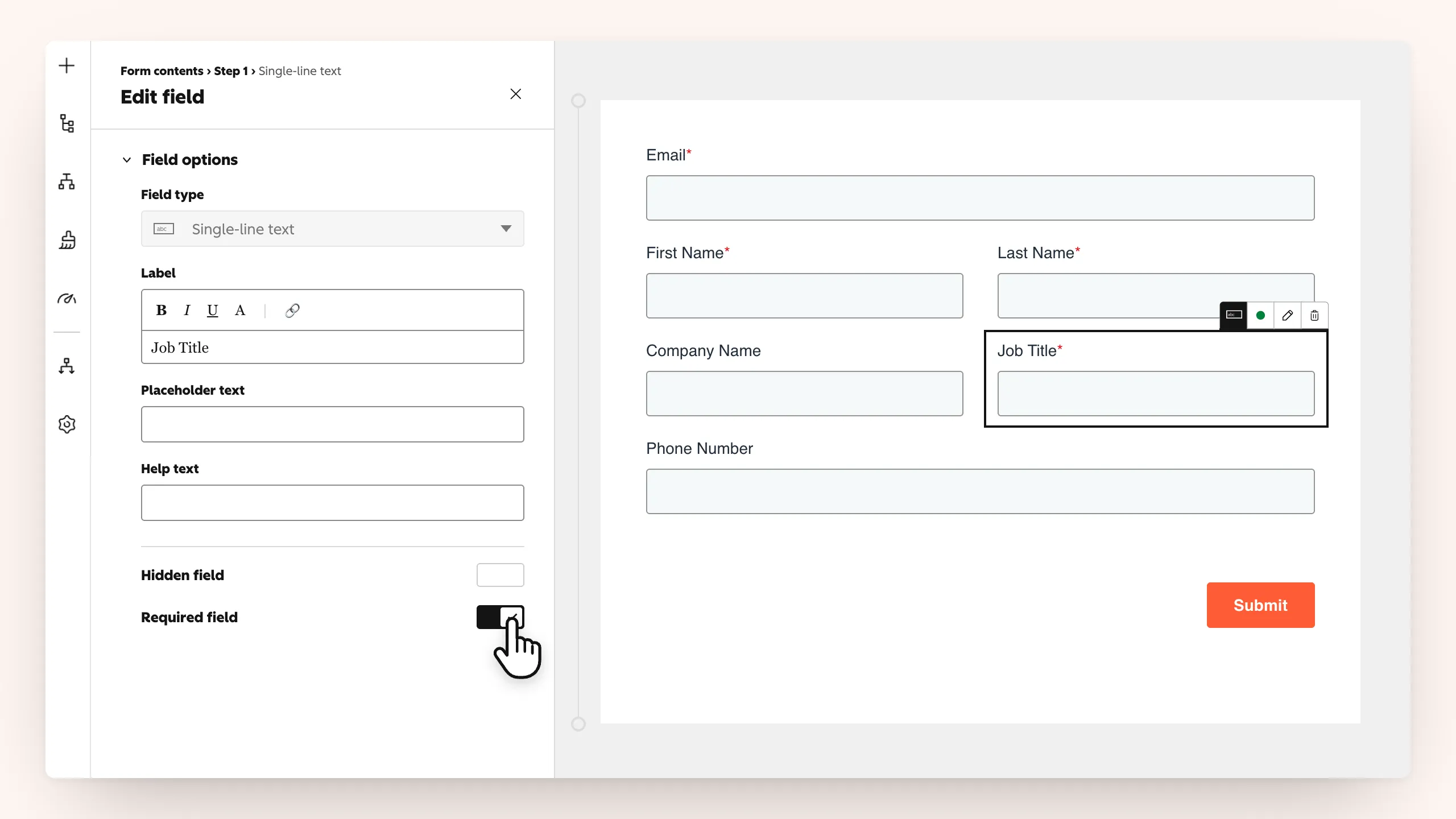
Create a new HubSpot form or choose one you already use, with the fields you want Storydoc readers to complete.
You can customize the questions and fields in HubSpot based on what you need to collect.
2. Get your HubSpot form embed code
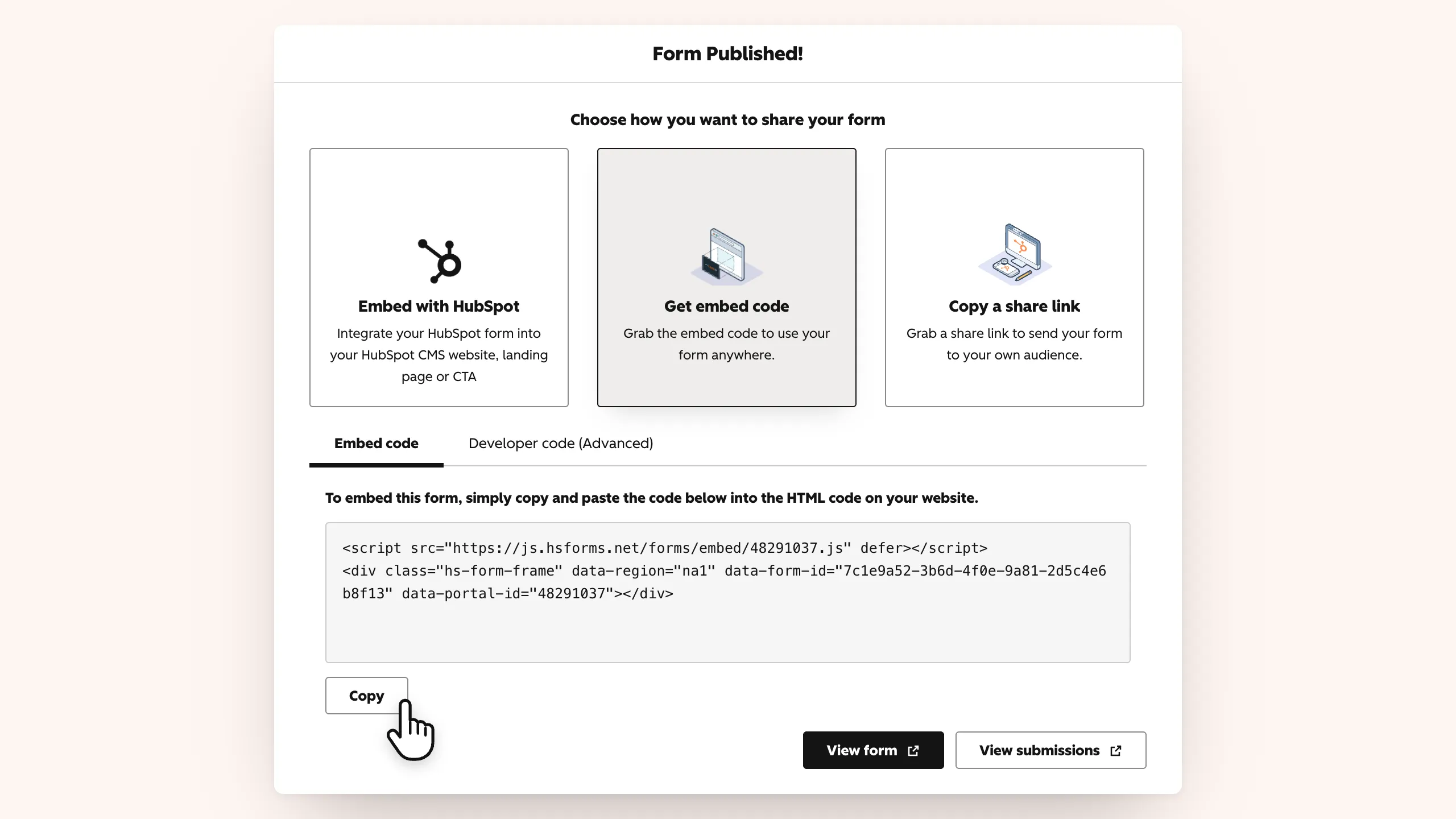
Publish or update your form and copy the embed code HubSpot provides for externally hosted pages.
3. Add the form to Storydoc
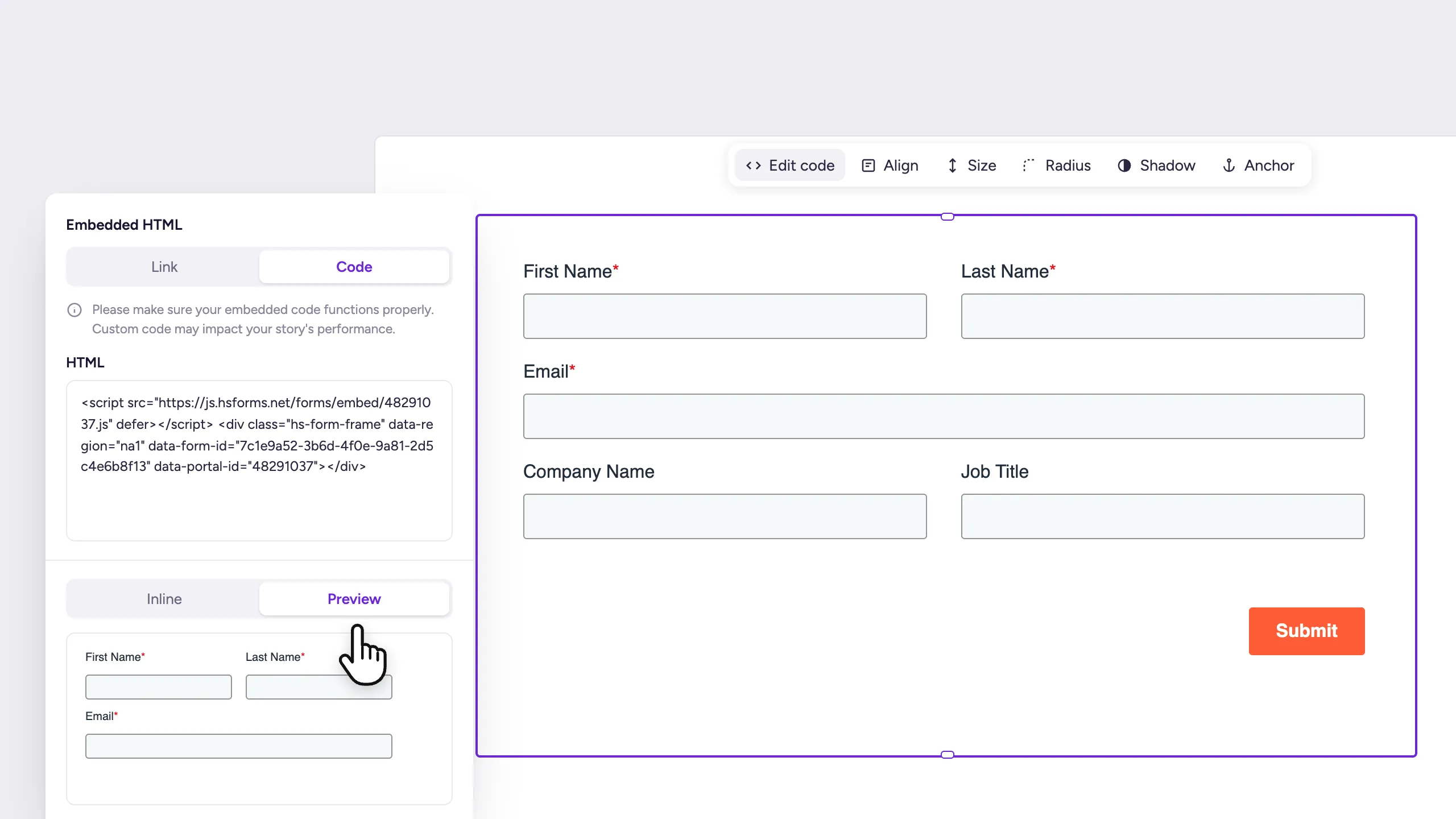
In the Storydoc editor, select Add an embedded tool from the right-hand toolbar and choose Form.
Open the Code tab, paste the complete HubSpot embed code, and adjust the form height if needed.
4. Publish and test your Storydoc
Preview the form to check how it looks, then publish your Storydoc and submit a test response to make sure the information reaches HubSpot as expected.
5. Set up your follow-up in HubSpot
Once submissions are reaching HubSpot, use your existing HubSpot tools to manage what happens next.
For example, you could send a follow-up email after a demo request, notify a sales rep when a high-intent prospect submits the form, or enrol the contact in a relevant workflow.

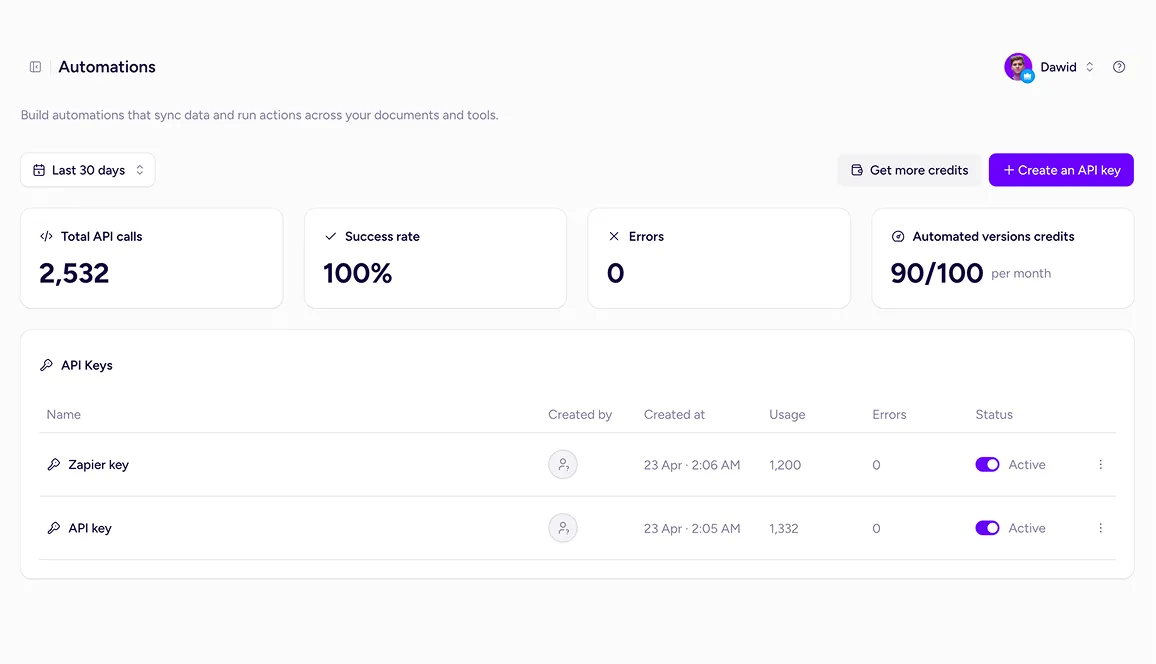
Go beyond native integrations with the Storydoc API.
Automatically generate personalized Storydocs, trigger follow-ups based on engagement, and connect everything to your go-to-market stack.
Build workflows that fit how your team works.
Yes. HubSpot provides embed code for forms used on externally hosted pages. Copy that code and add it using the Add an embedded tool option in Storydoc.
Any future changes you publish to the form in HubSpot are reflected in the embedded version, so you don’t need to re-embed it every time you edit the form.
HubSpot provides the embed code when you publish or update your form. Copy the code intended for an externally hosted page and paste the complete snippet into Storydoc.
That depends on the fields you add to your form. You could collect basic contact details such as name, email, company, job title, and phone number, or ask additional questions that help qualify the lead or understand what they’re interested in.
Submissions from an externally embedded HubSpot form sync directly to your HubSpot account. From there, you can manage contacts, use the information in your follow-up processes, and analyze form performance.
A submission from the embedded form is still a HubSpot form submission, so you can use HubSpot’s available form automation and workflow functionality to determine what happens afterwards. The exact automation options available depend on your HubSpot subscription and setup.
Yes. You can embed the same HubSpot form wherever you need it. Because the form itself is managed in HubSpot, changes you publish there are reflected wherever that form has been embedded.
HubSpot requires the domain of an externally hosted page containing a HubSpot form to be added as a site domain. Submissions from domains that haven’t been added can be marked as spam.
If this happens, add the domain your Storydoc is published on in HubSpot’s domain settings.
See HubSpot’s setup requirements for externally embedded forms
The HubSpot Forms integration is available on the Starter plan and above.
Still have questions?
Embed your HubSpot forms in Storydoc to capture prospect information and move every submission into the follow-up processes your team already uses.