
Storydoc + HubSpot Meetings: Book more meetings from your Storydocs
Add your HubSpot meeting calendar to Storydoc so prospects can choose a time and book their next meeting while they’re still engaging with your content.

Add your HubSpot meeting calendar to Storydoc so prospects can choose a time and book their next meeting while they’re still engaging with your content.
Trusted by 400,000+ users to automate their workflows


Use your existing HubSpot scheduling setup to turn interest in your Storydocs into meetings that fit naturally into your sales process.
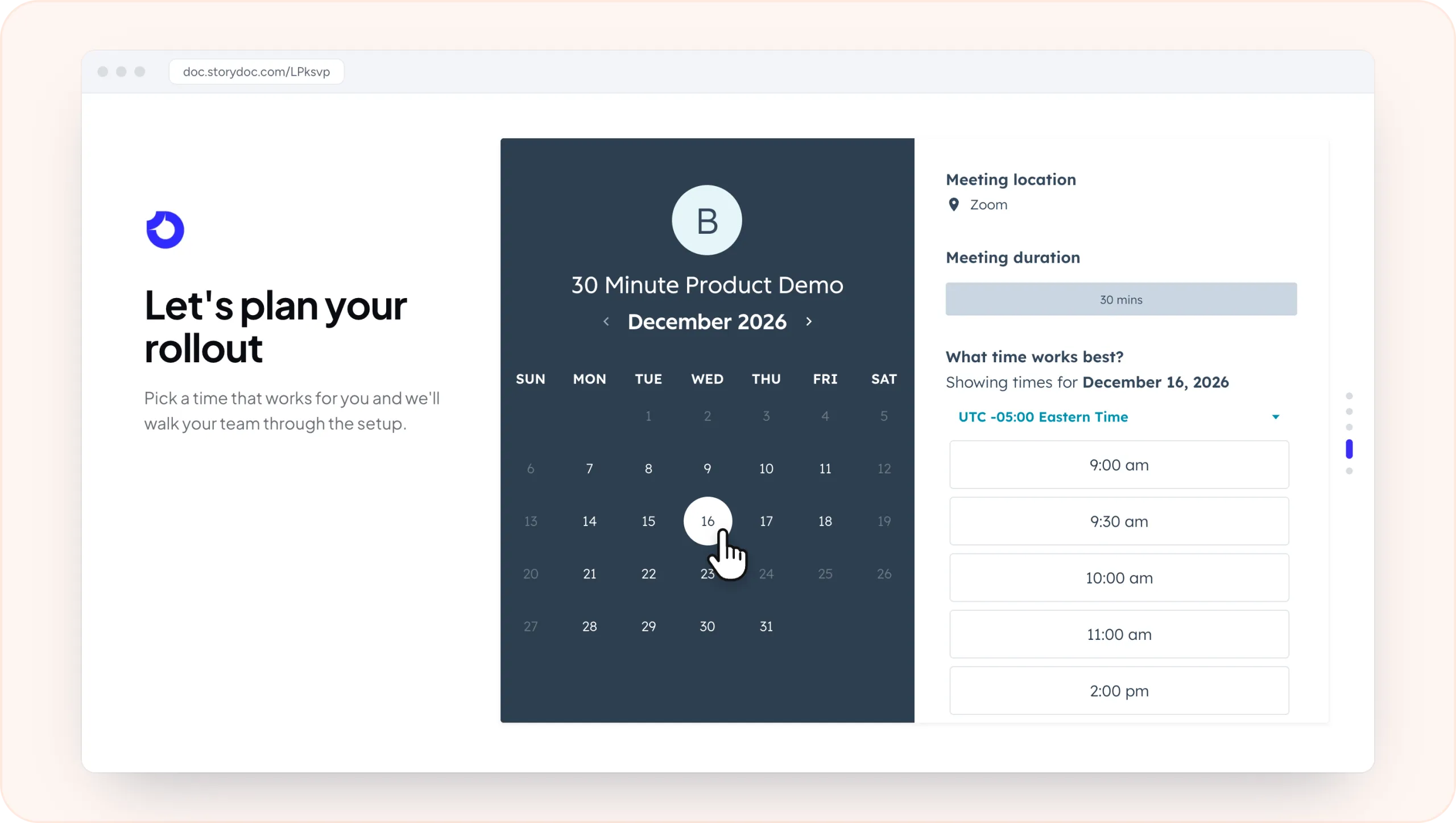
Add your HubSpot meeting calendar to a sales deck, proposal, one-pager, or another Storydoc and give prospects an easy way to take the next step.
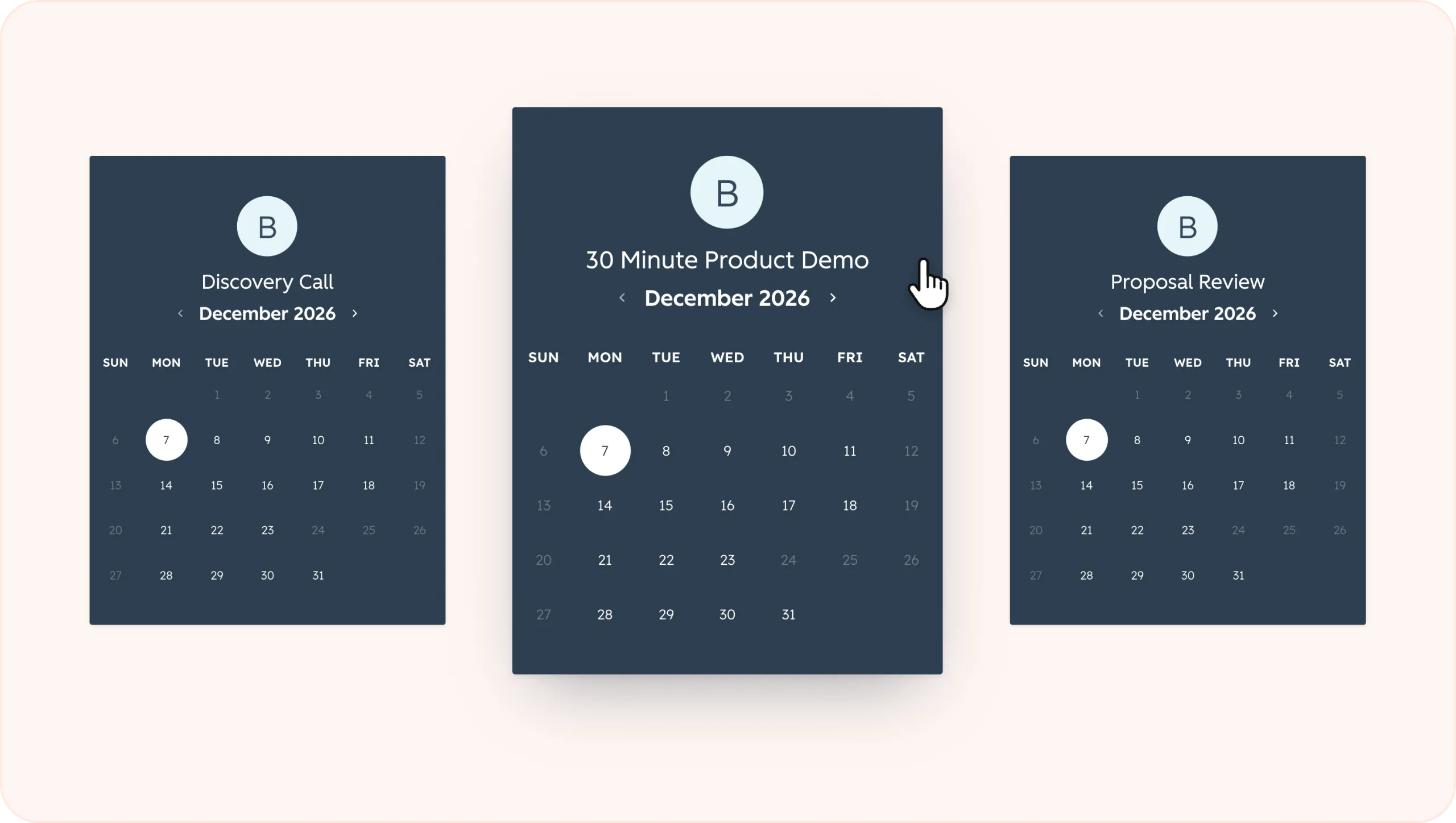
Create different HubSpot scheduling pages depending on what you want readers to book.
For example, you could add a discovery call to an introductory sales deck, a demo to a personalized pitch, or a proposal review to a proposal. You can set the duration, availability, location, booking questions, and other details for each scheduling page.
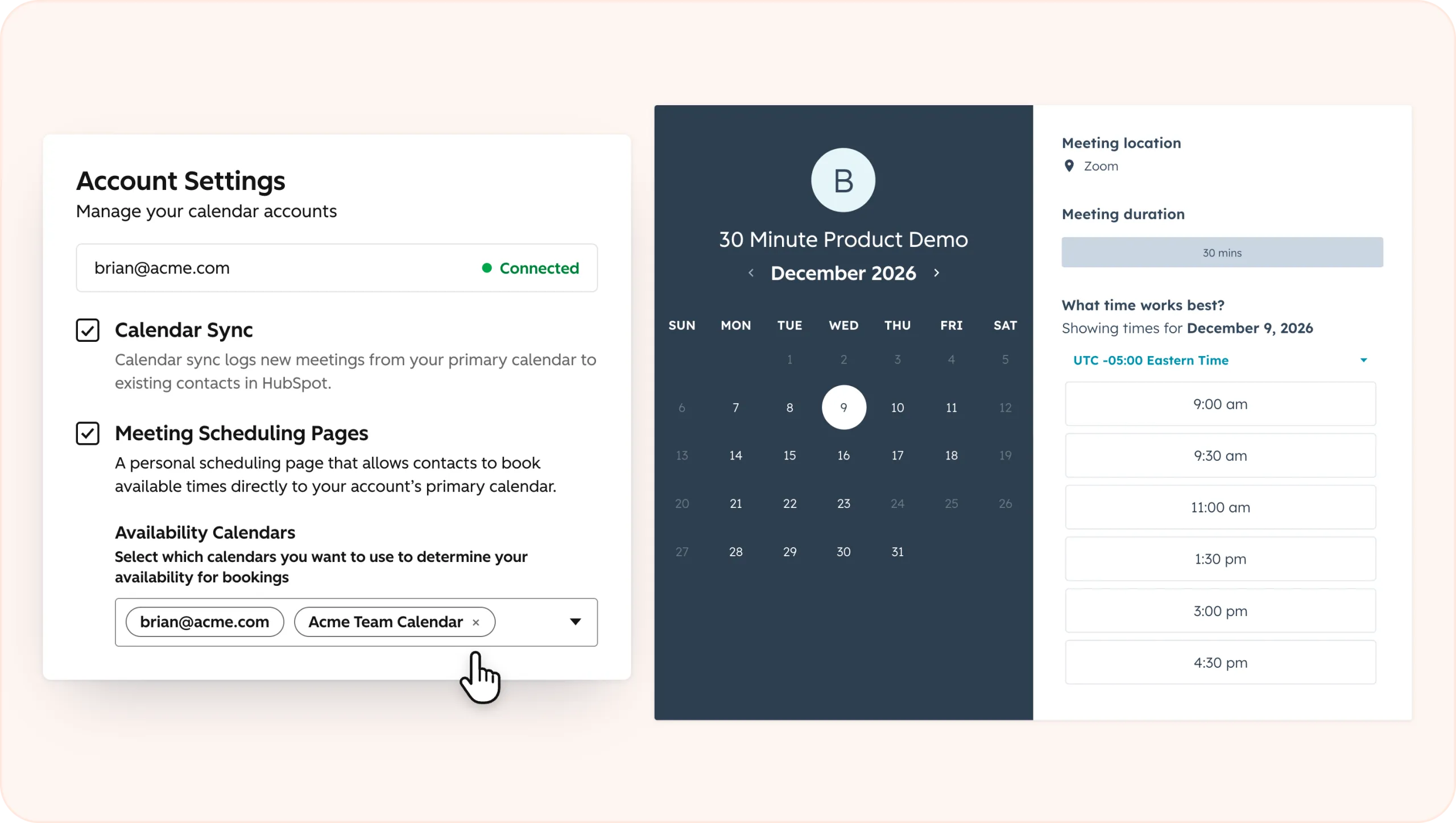
Connect your Google or Office 365 calendar to HubSpot and it will take your existing events into account when showing available times.
Once someone books, the meeting is automatically added to your connected calendar, helping you avoid double bookings and keep everything in sync.
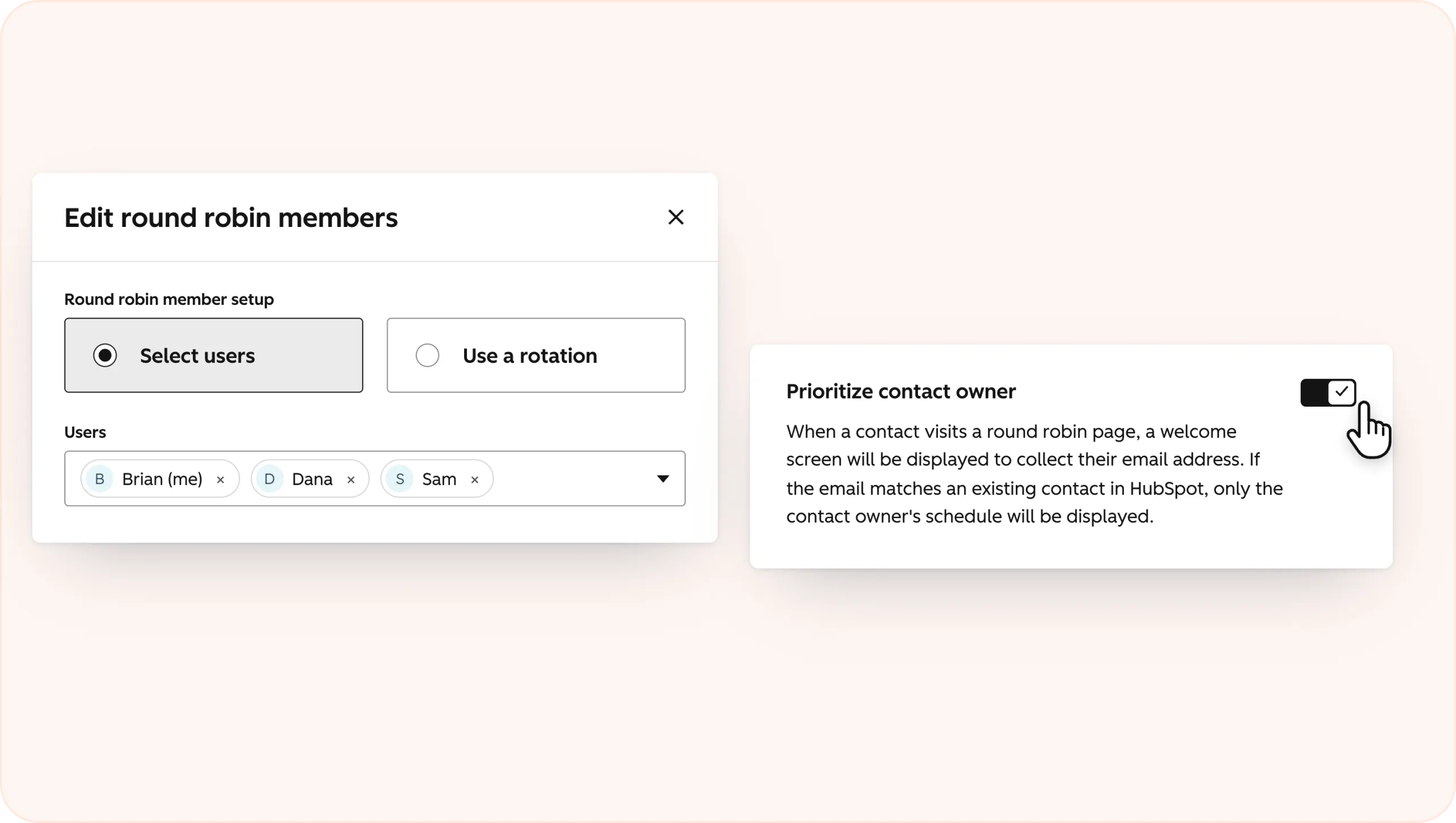
Use round-robin scheduling when you want prospects to book with whichever team member is available.
You can also prioritize the prospect’s existing contact owner, helping you keep established relationships with the same rep when they’re available.
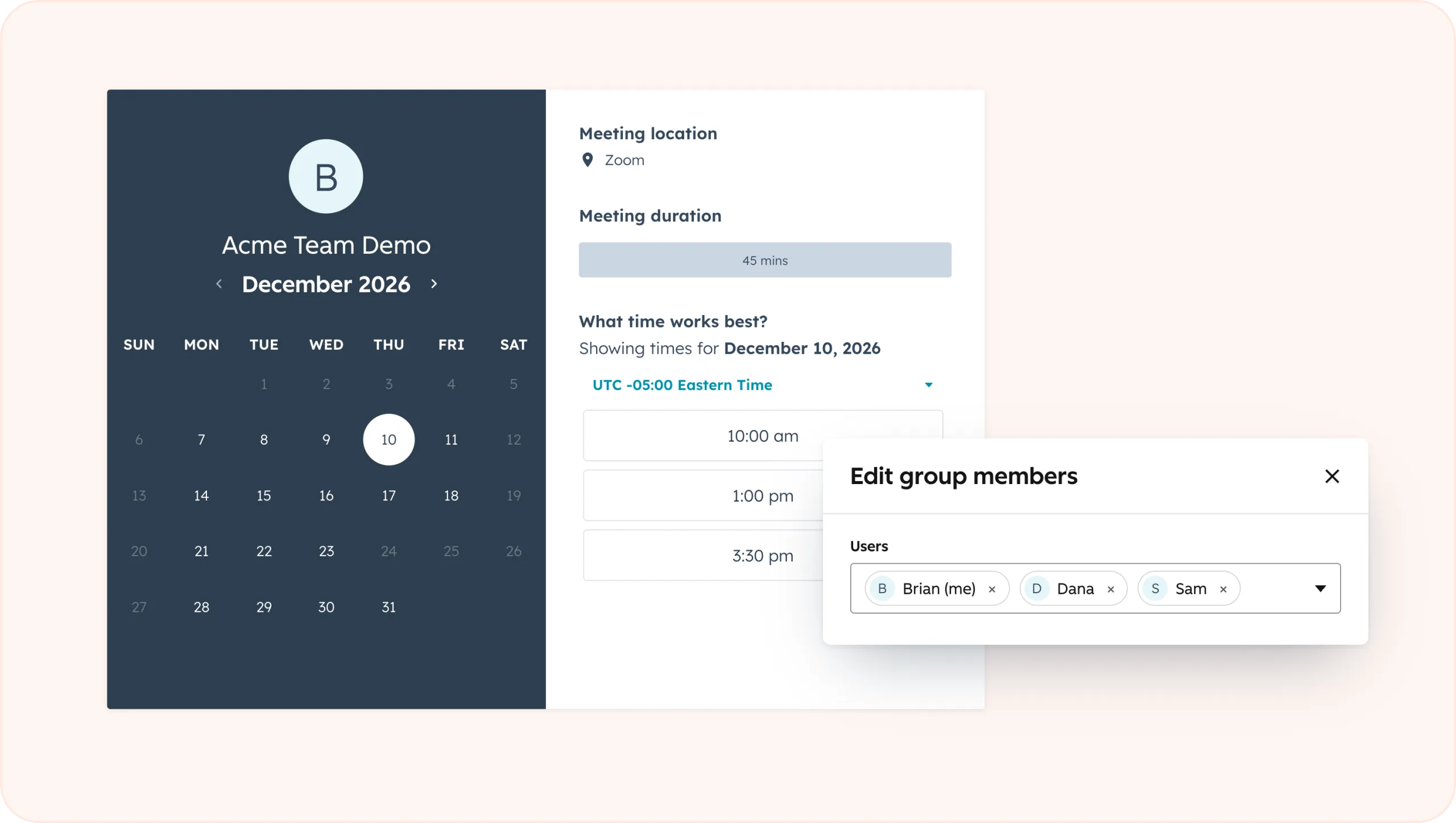
For meetings that need several people from your team, use a group scheduling page. HubSpot will show prospects times when everyone included in the meeting is available.
Create the HubSpot scheduling page you want to use, then add its meeting link to Storydoc so readers can book directly from your document.
1. Create your scheduling page in HubSpot
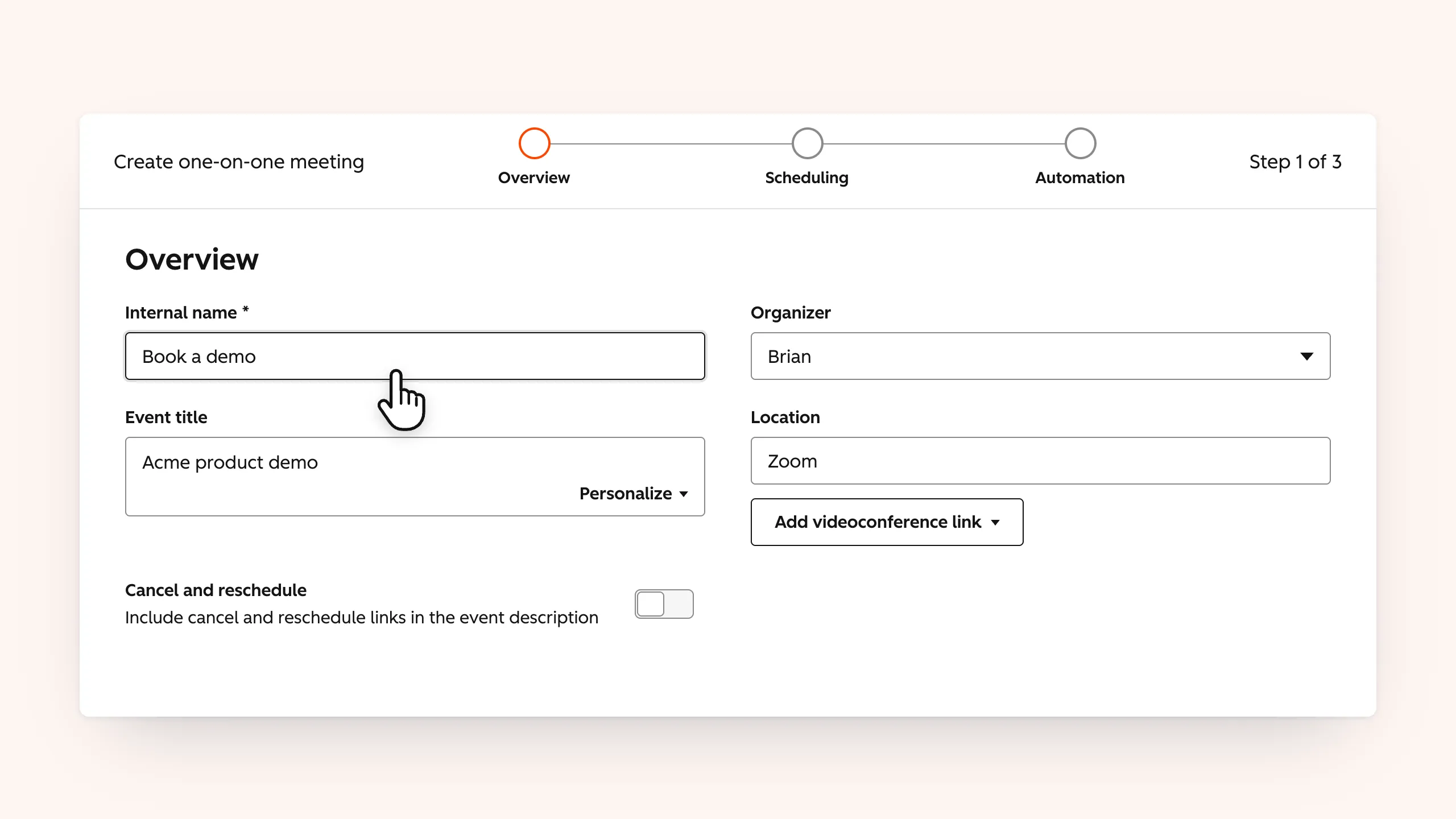
Set up the meeting you want to offer in HubSpot. You can create a one-to-one meeting or use group or round-robin scheduling when you want prospects to book with your team.
2. Set your availability and meeting details
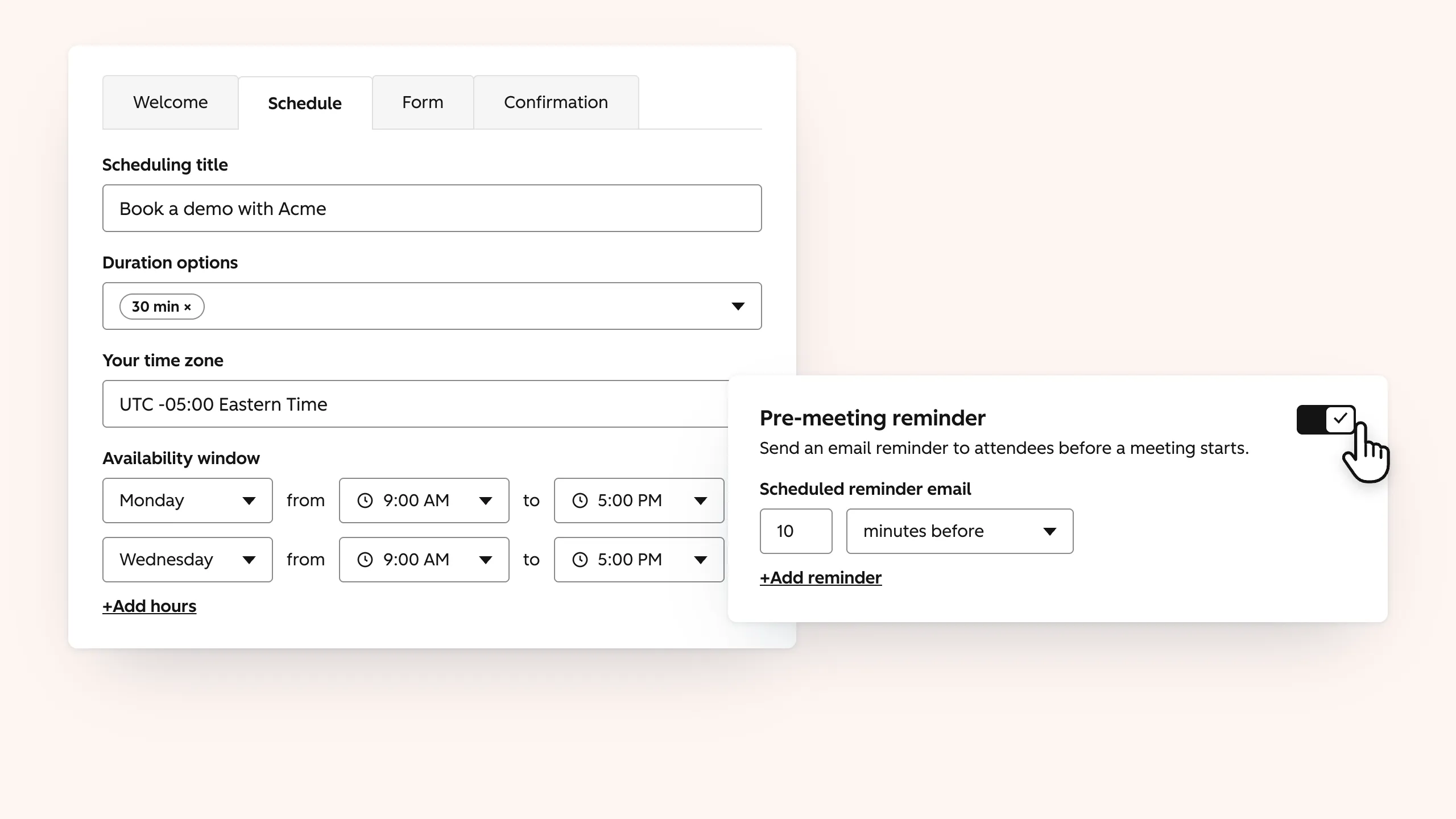
Choose when people can book and add details such as the meeting duration, location, booking questions, and confirmation settings.
You can also set up confirmation and reminder emails to keep people informed after they book.
3. Copy your HubSpot meeting link
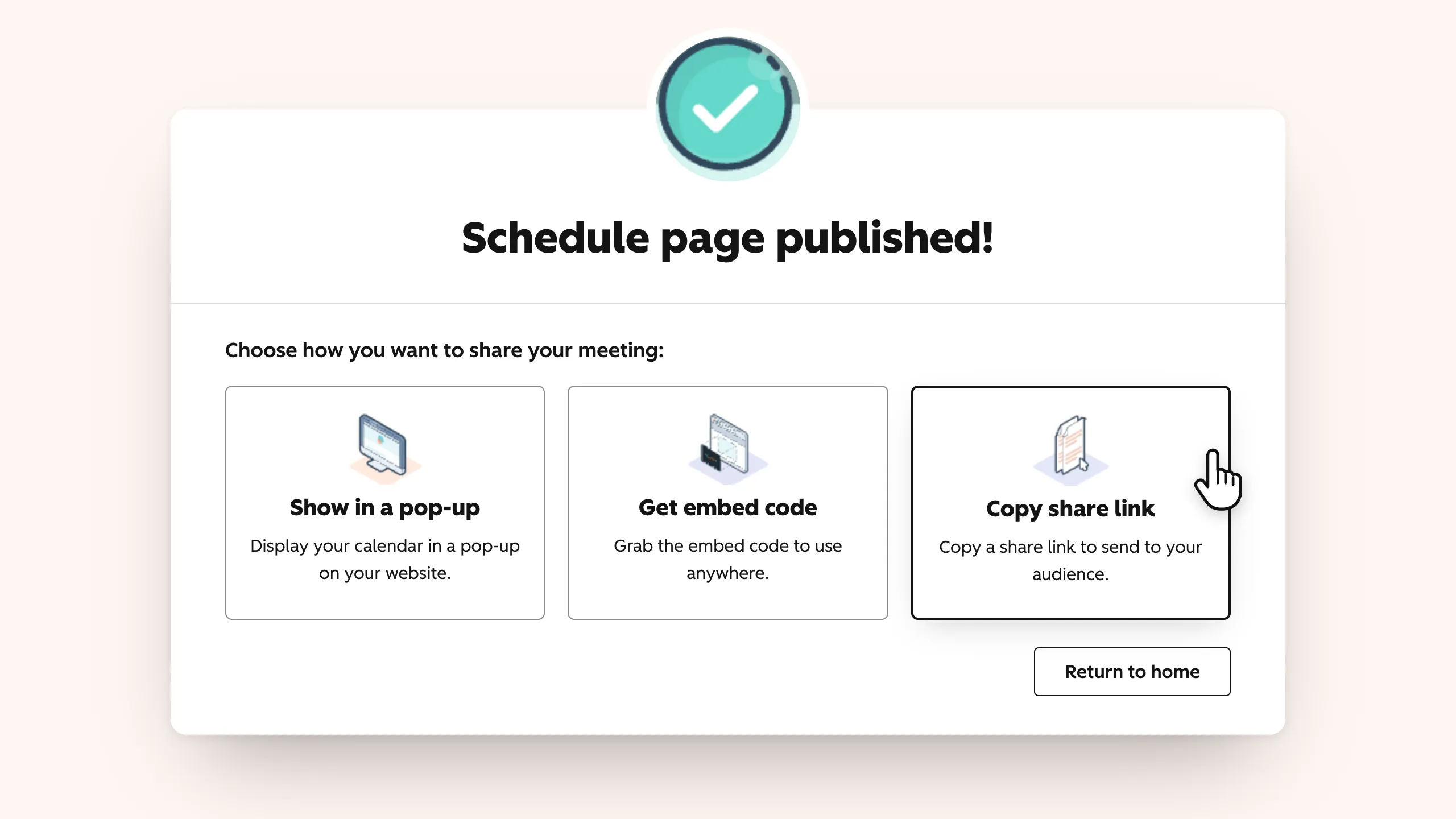
Once your scheduling page is ready, find the meeting you want to use in HubSpot and copy its scheduling link.
4. Add the meeting link to your Storydoc
Open your Storydoc and go to the slide where you want readers to book.
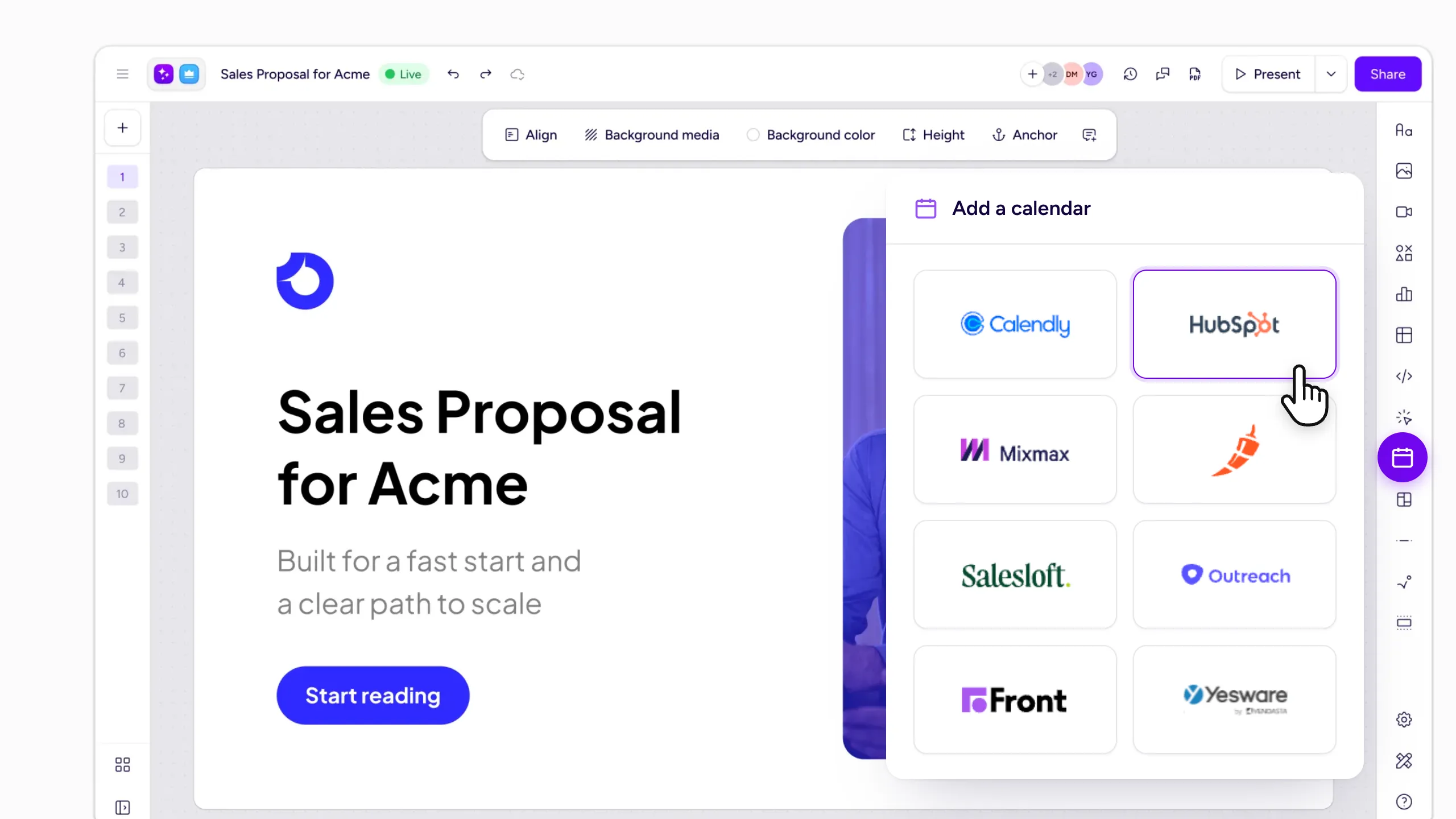
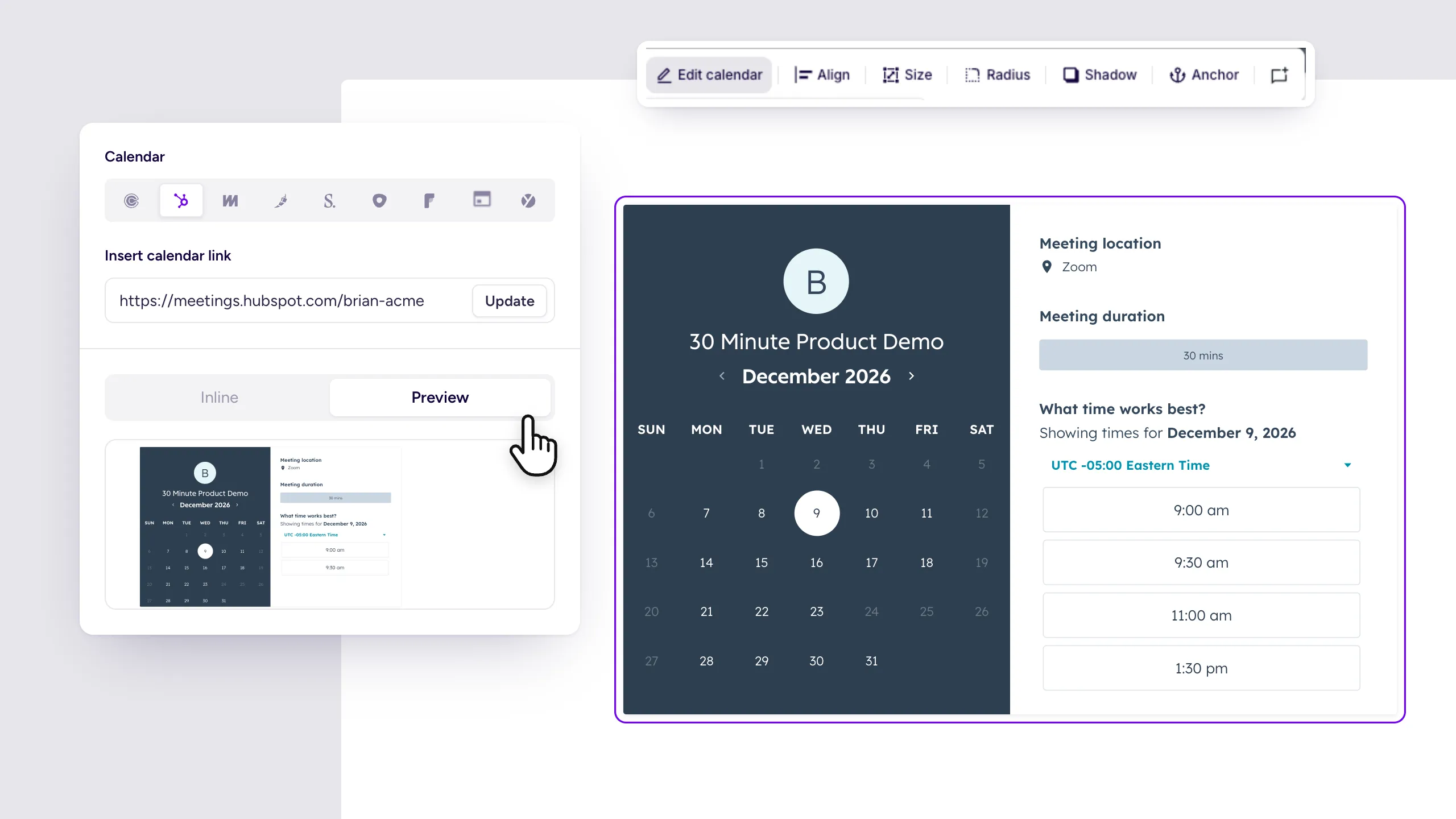
Select Calendars from the right-hand toolbar, choose HubSpot, paste your meeting link, and click Update.
5. Adjust the calendar and publish
Use the Inline or Preview options to check how the calendar looks, then adjust its size, alignment, and design to fit your slide.
Once you publish, readers can choose an available time and book their meeting directly from the Storydoc.
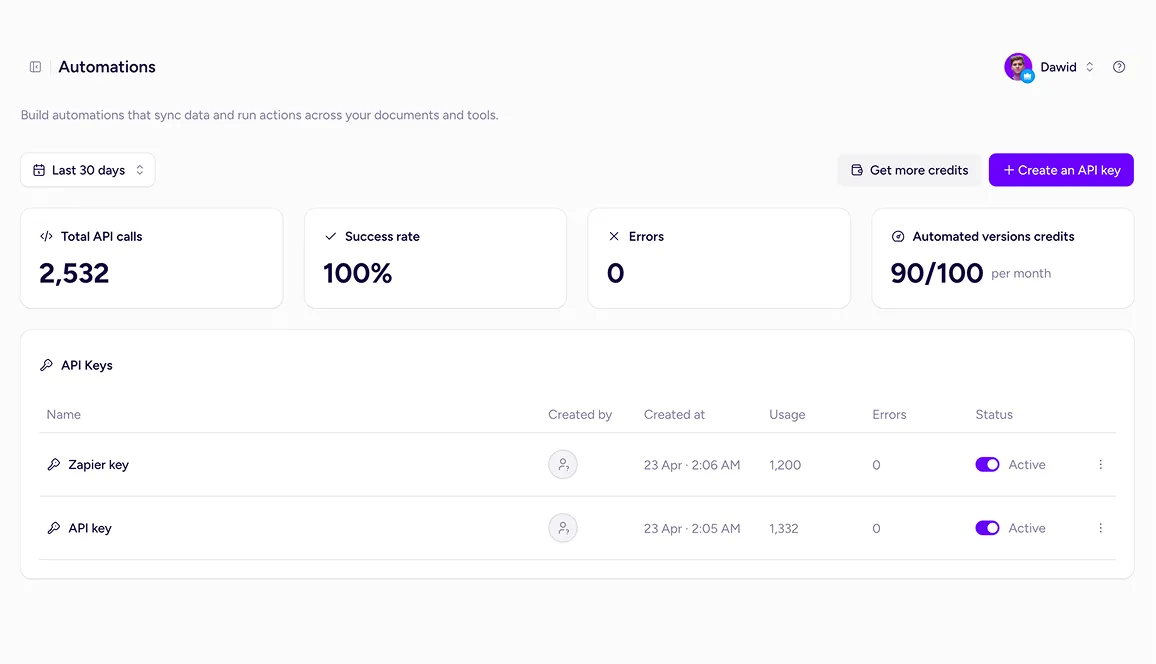
Go beyond native integrations with the Storydoc API.
Automatically generate personalized Storydocs, trigger follow-ups based on engagement, and connect everything to your go-to-market stack.
Build workflows that fit how your team works.
Yes. HubSpot scheduling pages can be embedded, allowing prospects to see your availability and book from within your Storydoc.
Yes. Depending on your HubSpot plan and seat, you can create multiple scheduling pages with different availability and meeting settings. This means you could use separate links for demos, discovery calls, proposal reviews, onboarding calls, and other meetings.
Yes. Group scheduling pages show times when all the team members included in the meeting are available.
Yes. HubSpot scheduling pages include a booking form where you can collect contact details and add custom questions.
Yes, provided you’ve connected a supported calendar. HubSpot can connect to Google, Office 365, or Exchange calendars and use your existing events to prevent people from booking over busy times.
The HubSpot calendar integration is available on the Starter plan and above.
Still have questions?
Add HubSpot scheduling to your Storydocs and give interested prospects a direct path from reading your content to getting a meeting on the calendar.