
Storydoc + Jotform: Collect responses directly from your Storydocs
Embed Jotform forms in your Storydocs to capture leads, collect feedback, qualify prospects, and keep readers engaged without sending them to another page.

Embed Jotform forms in your Storydocs to capture leads, collect feedback, qualify prospects, and keep readers engaged without sending them to another page.
Trusted by 400,000+ users to automate their workflows


Add the forms you've built in Jotform directly to your Storydocs and collect the information you need while readers are still engaged with your content.
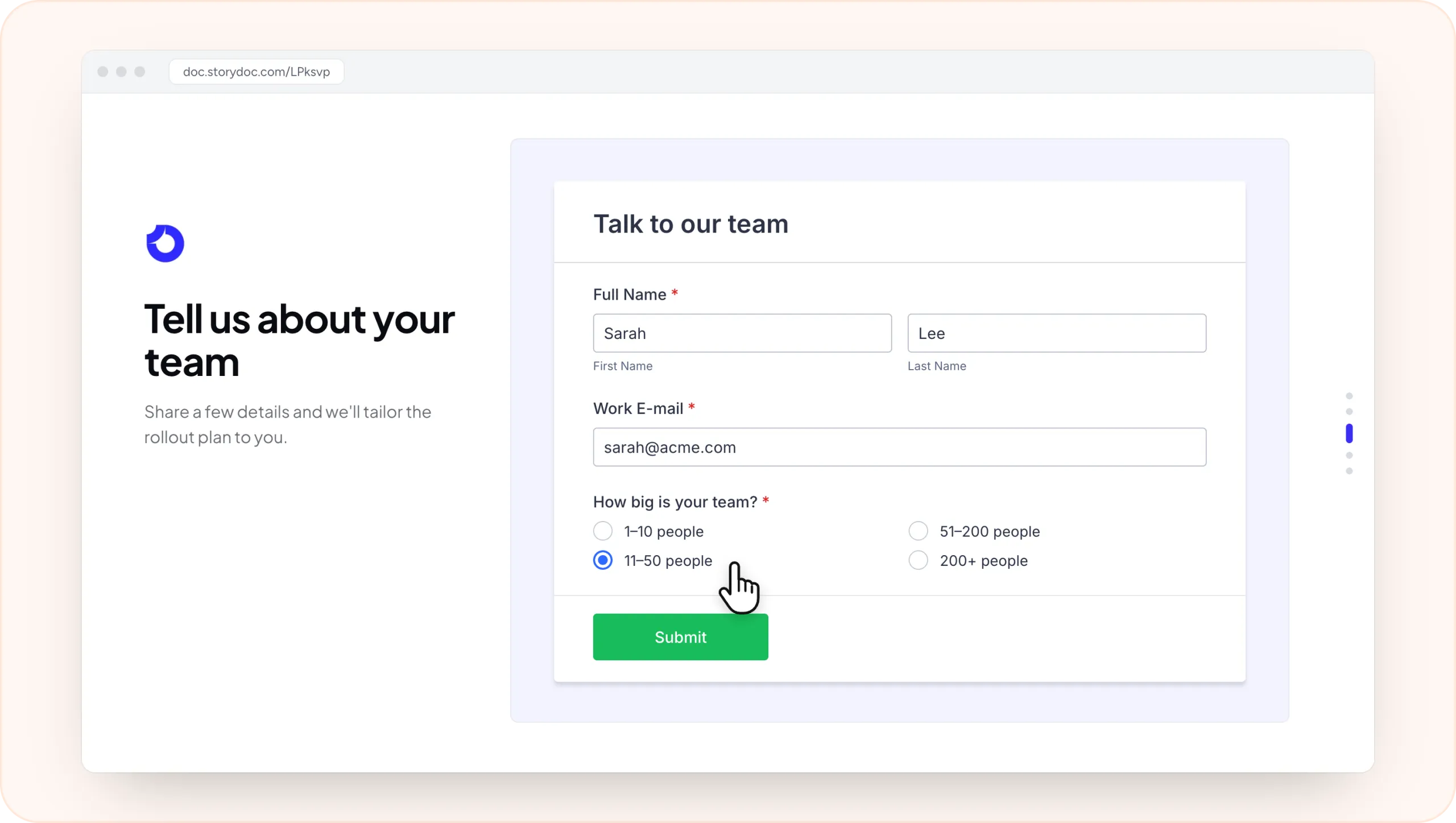
Embed your Jotform directly into a Storydoc so readers can complete it as part of the document experience.
Use it for lead capture, demo requests, event registrations, surveys, questionnaires, applications, feedback, or other information you need to collect.
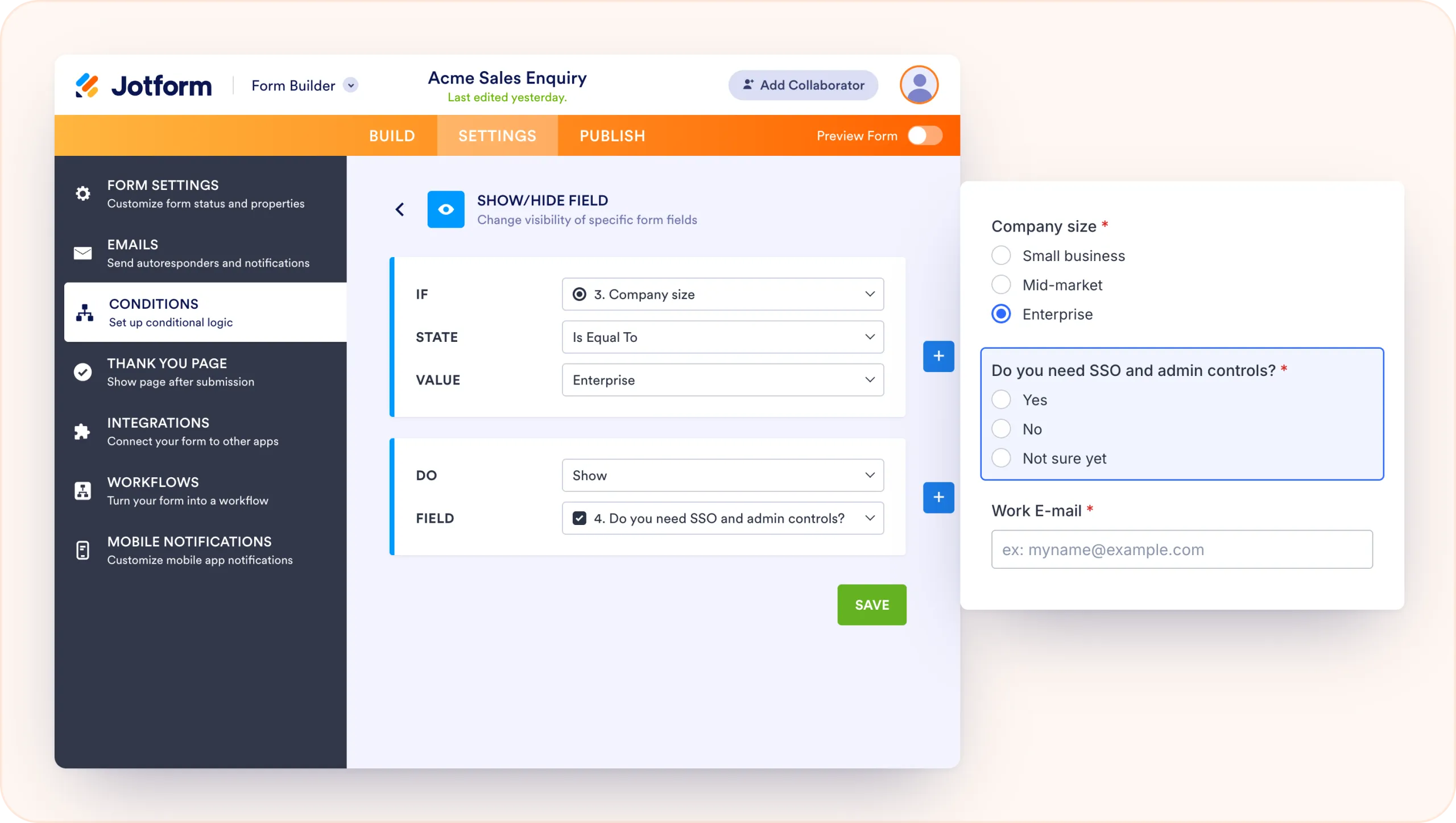
Use Jotform’s conditional logic to adapt the form based on the answers someone gives.
For example, you could ask different qualification questions depending on a prospect’s company size, show additional fields when someone selects a particular service, or tailor the rest of a questionnaire around their initial response.
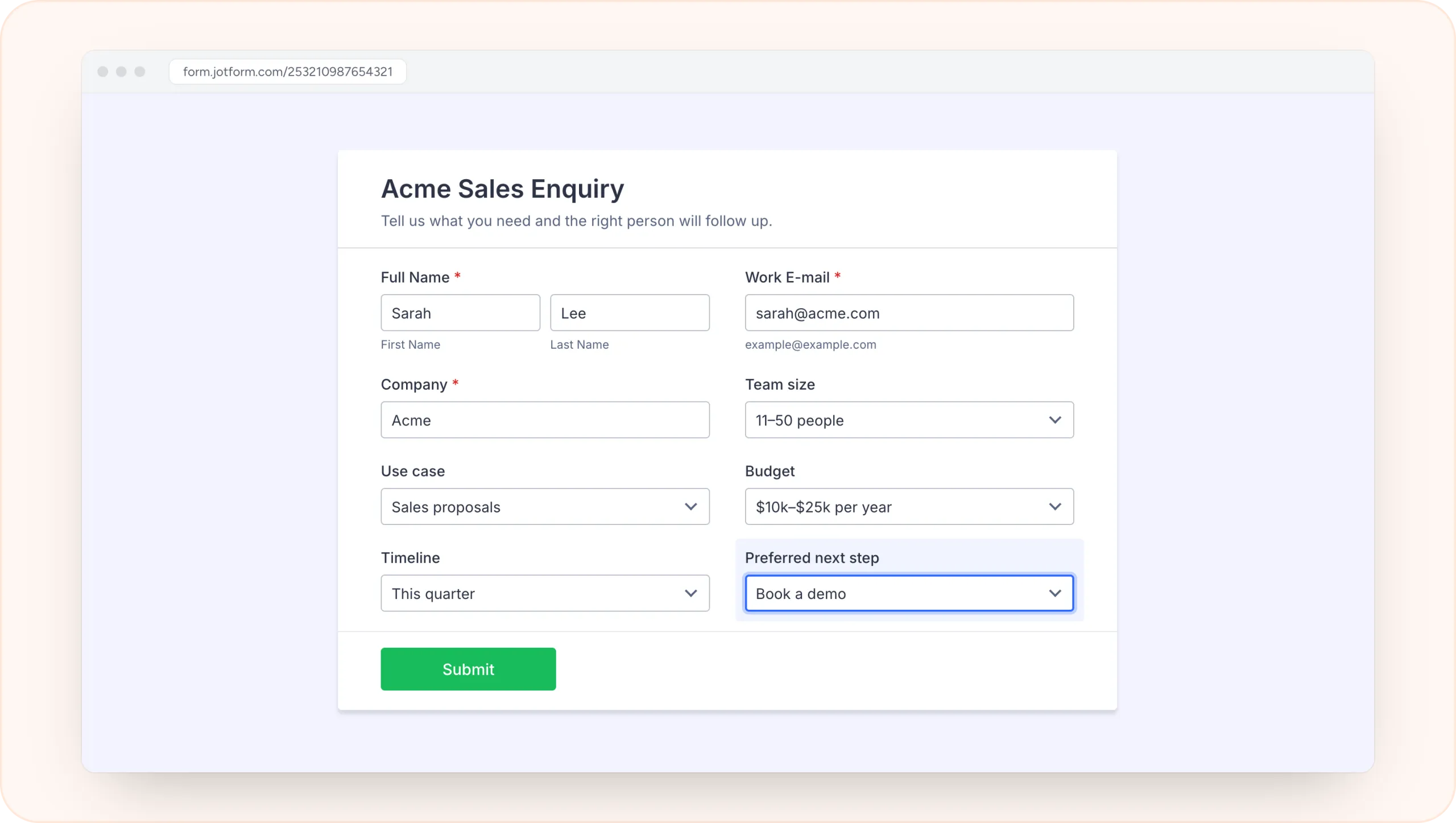
Build your form with the fields that matter to your workflow, from basic contact details to more detailed questions about someone’s needs.
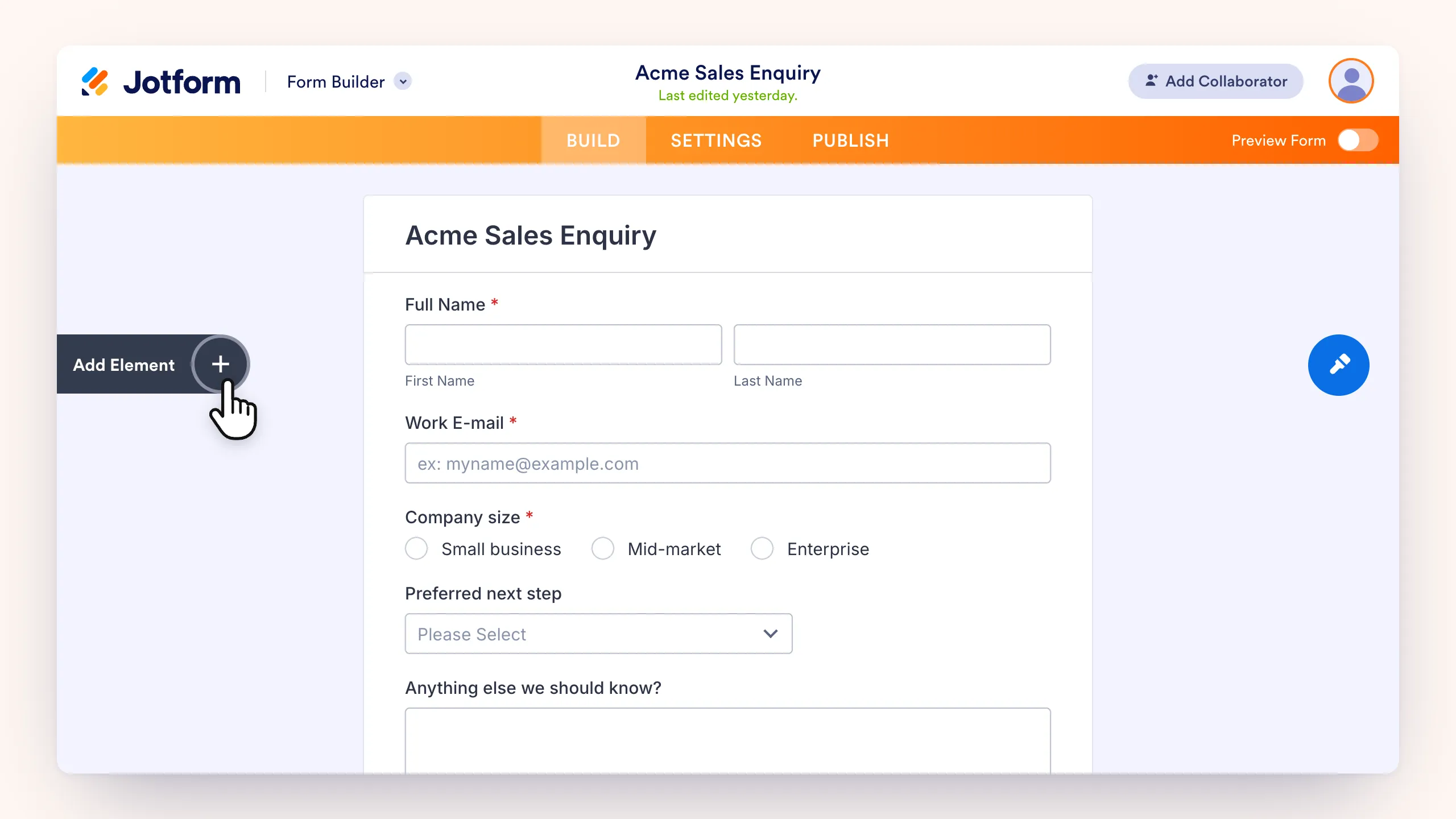
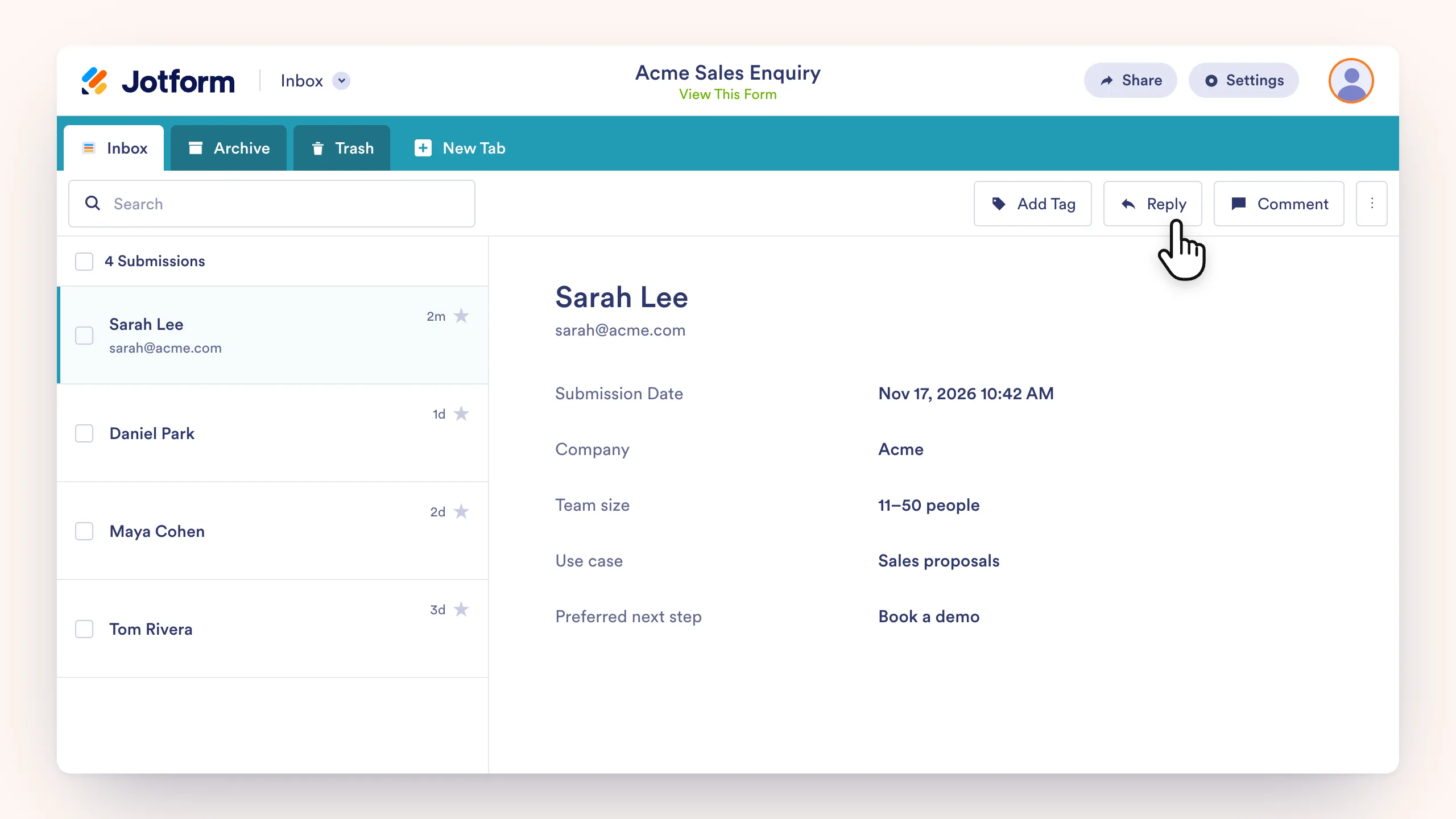
For a sales enquiry, that could include name, work email, company, team size, use case, budget, timeline, or preferred next step.
For a customer survey, you might collect feedback, ratings, product preferences, or open-ended responses.
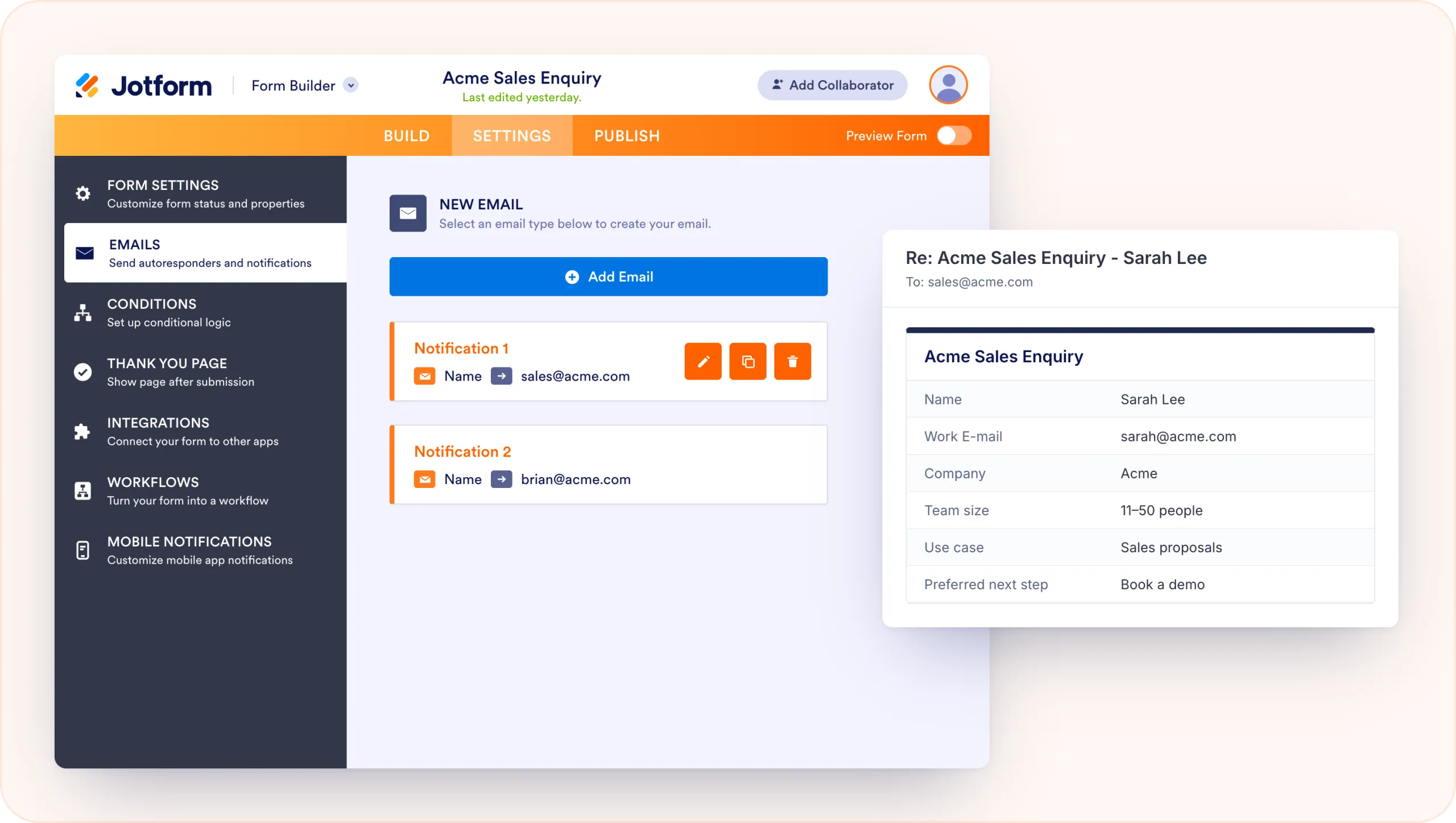
Keep your team informed when new responses come in using Jotform’s notification options.
Jotform supports email notifications as well as options such as mobile push notifications, SMS, Slack, and Microsoft Teams, so the right person can pick up a new submission quickly.
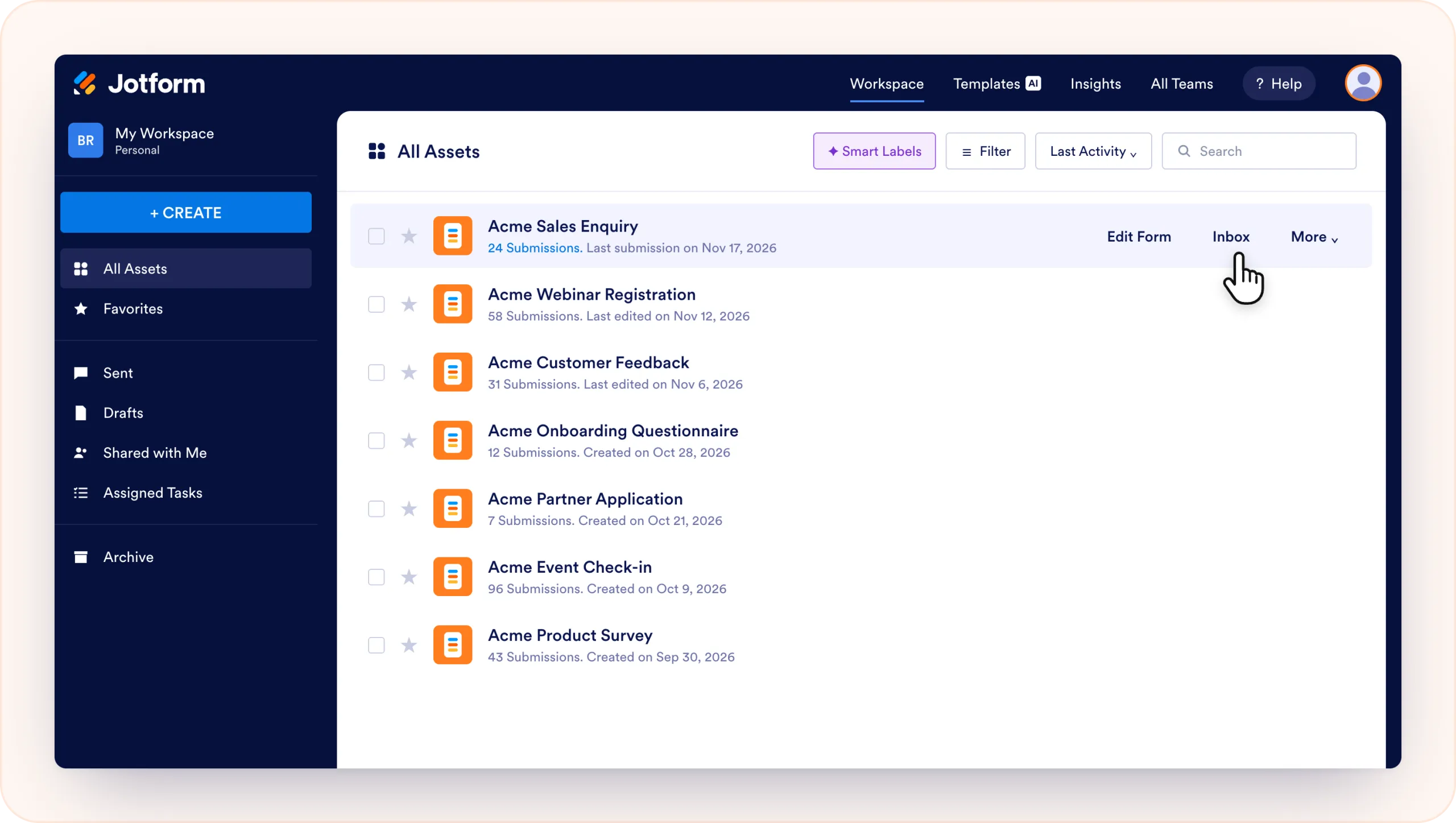
Your form remains a Jotform form after you embed it in Storydoc, so you can continue managing the form and its submissions through Jotform.
Changes you make to the form in Jotform are also reflected in the embedded version without needing to copy a new embed code.
Create and manage your form in Jotform, then add its embed code to Storydoc so readers can complete it directly inside your business document.
1. Create your form in Jotform
Build the form you want to use and add the fields, questions, and conditional logic you need.
You could create a simple contact form or build something more detailed that changes its questions based on the reader’s answers.
2. Get your Jotform embed code
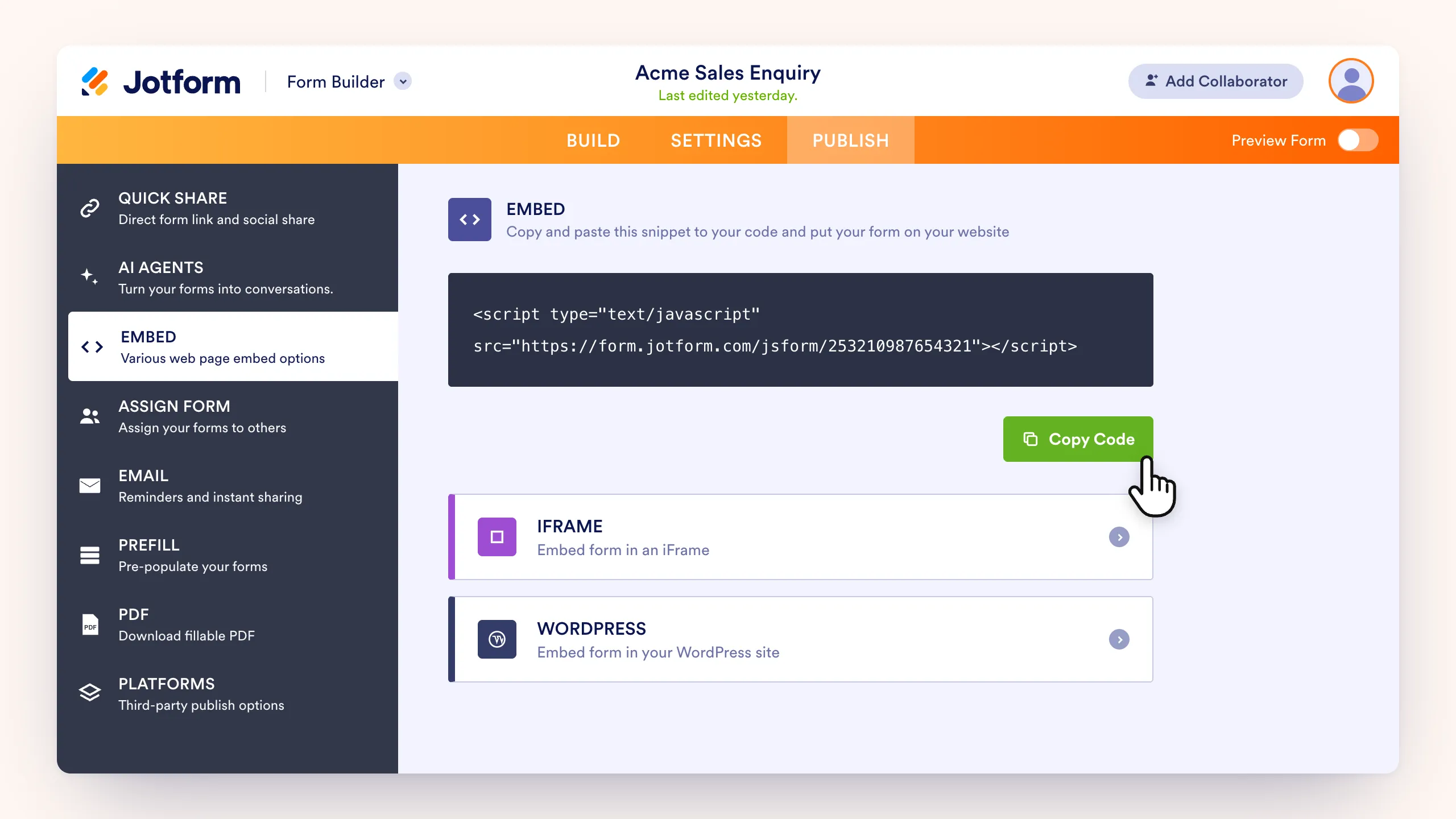
Once your form is ready, use Jotform’s publishing options to get the code for embedding it on an external page. Jotform offers several embed methods, including JavaScript and iFrame.
3. Add the form to Storydoc
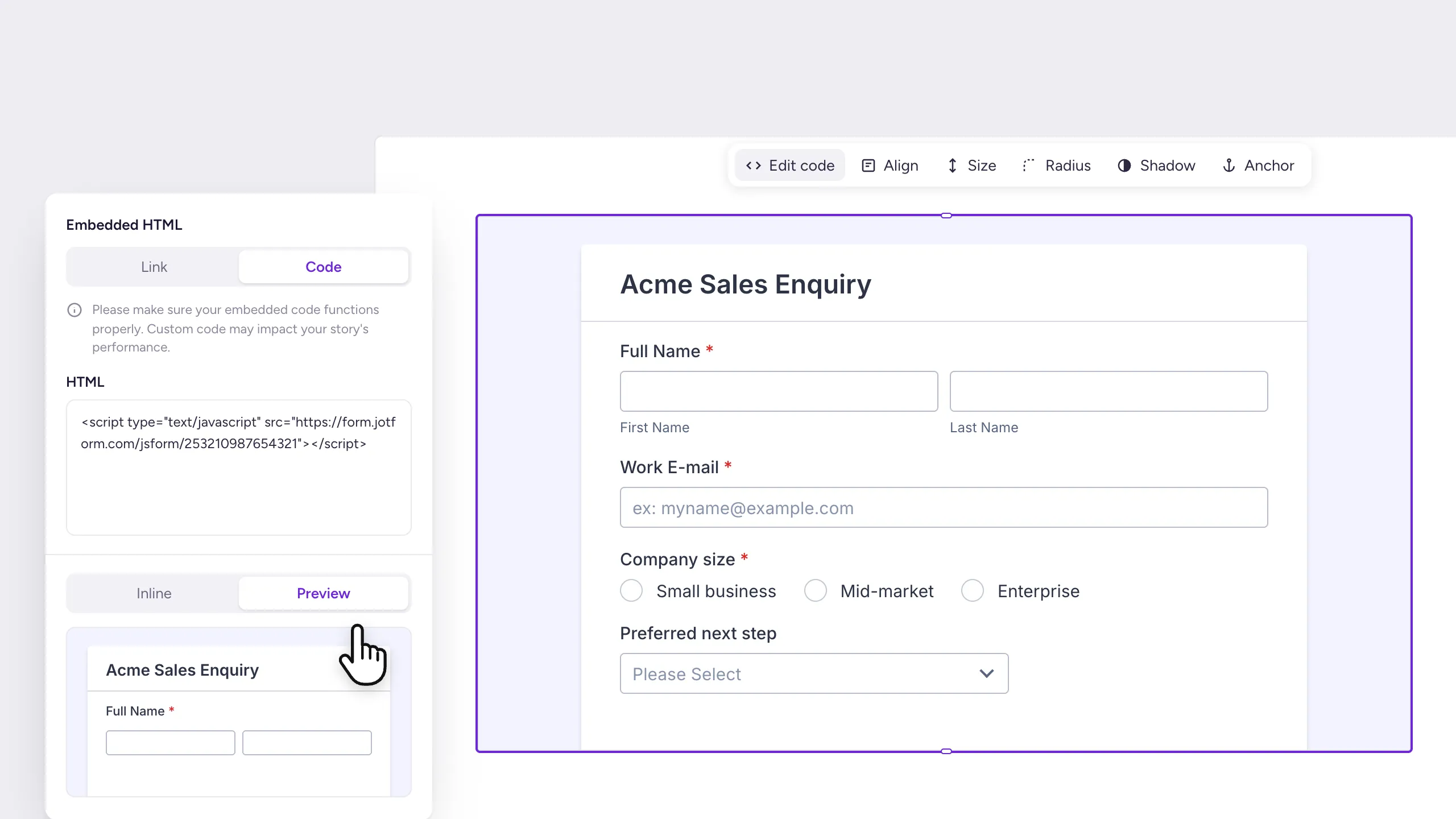
In the Storydoc editor, select Add an embedded tool from the right-hand toolbar and choose Form.
Open the Code tab, paste the complete embed code from Jotform, and adjust the height if necessary. Keep the width at 100% for the best fit.
4. Preview and publish your Storydoc
Preview your Storydoc to check that the form displays properly and is easy to complete, then publish it and test a submission.
5. Manage responses and follow-up in Jotform
Once readers start submitting the form, manage their responses in Jotform and use your existing notifications and integrations to decide what happens next.
For example, you could alert your sales team about a new enquiry, send a notification to Slack, or use the submission in another Jotform-connected workflow.

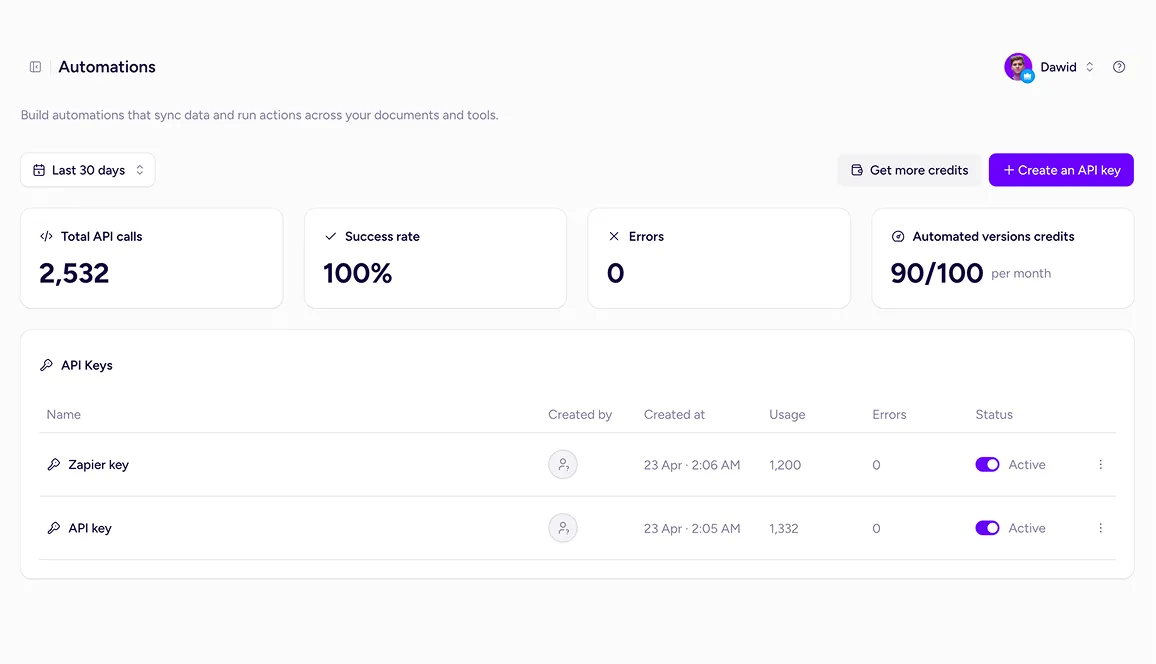
Go beyond native integrations with the Storydoc API.
Automatically generate personalized Storydocs, trigger follow-ups based on engagement, and connect everything to your go-to-market stack.
Build workflows that fit how your team works.
Yes. Storydoc supports external forms using HTML embed code. Copy the embed code provided by Jotform and paste it into the Add an embedded tool embed option in your Storydoc.
Jotform provides the embed code through the publishing options for your form. Copy the code for the embed method you want to use and paste the complete snippet into Storydoc.
That depends entirely on the form you create.
For example, you could collect contact details, company information, qualification criteria, project requirements, event registrations, survey answers, customer feedback, or application information.
Yes. Jotform supports conditional logic, which lets you show or hide fields and take other actions based on someone’s previous answers.
For example, selecting Enterprise as company size could reveal additional qualification questions, while selecting a particular service could show questions specific to that service.
No. The embedded form is loaded from Jotform, so updates you make to its layout, colors, spacing, or content are reflected in the embedded form.
No coding is required. Jotform generates the embed code for you, and you paste the complete snippet into Storydoc’s Add an embedded tool embed option.
The Jotform integration is available on the Starter plan and above.
Still have questions?
Embed Jotform in your Storydocs to collect the information your team needs while readers are already engaged with your content.