
Storydoc + Salesloft Meetings: Let prospects book meetings from your Storydocs
Add your Salesloft meeting calendar to Storydoc so prospects can find a time that works and book their next meeting directly from your document.

Add your Salesloft meeting calendar to Storydoc so prospects can find a time that works and book their next meeting directly from your document.
Trusted by 400,000+ users to automate their workflows


Give interested readers a direct path to booking their next meeting while keeping everything connected to your existing sales workflow.
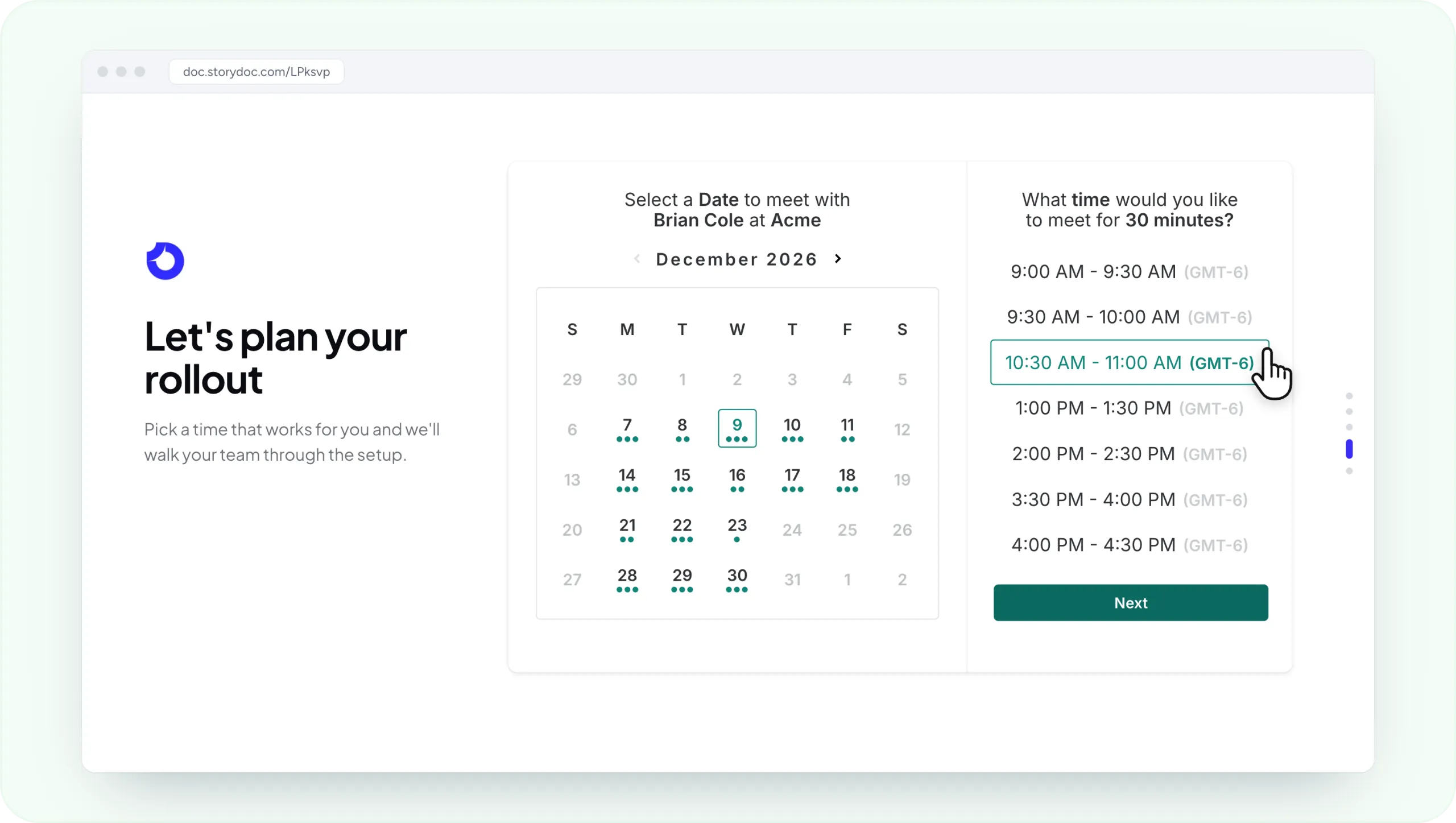
Add your Salesloft meeting calendar to a sales deck, proposal, or another Storydoc and give prospects an easy way to take the next step.
Place it after your pitch, pricing, proposal, or wherever you want to encourage readers to continue the conversation.
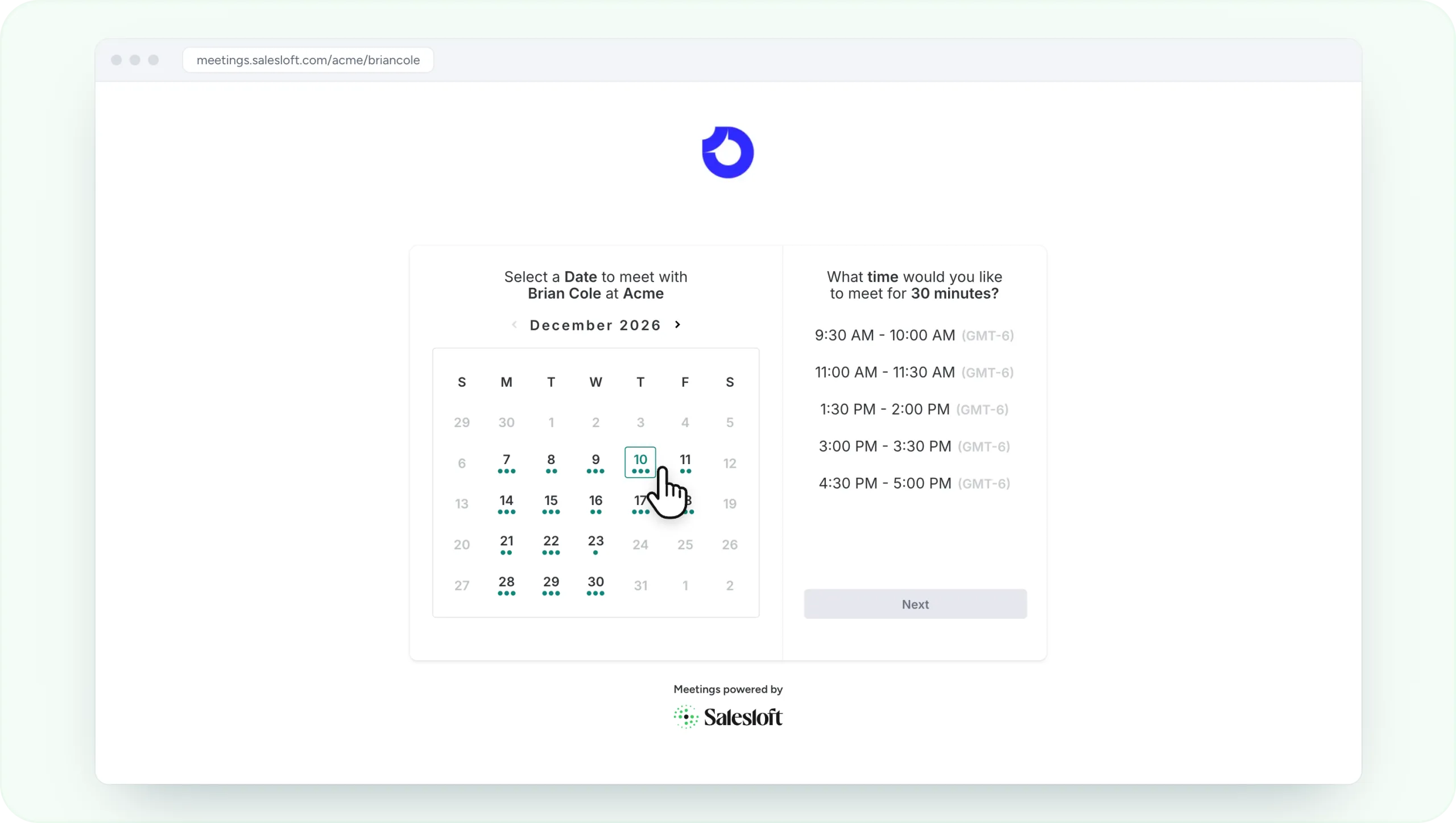
Salesloft uses your calendar availability to show prospects the times they can book, so they can choose a suitable slot themselves rather than going back and forth with your team.
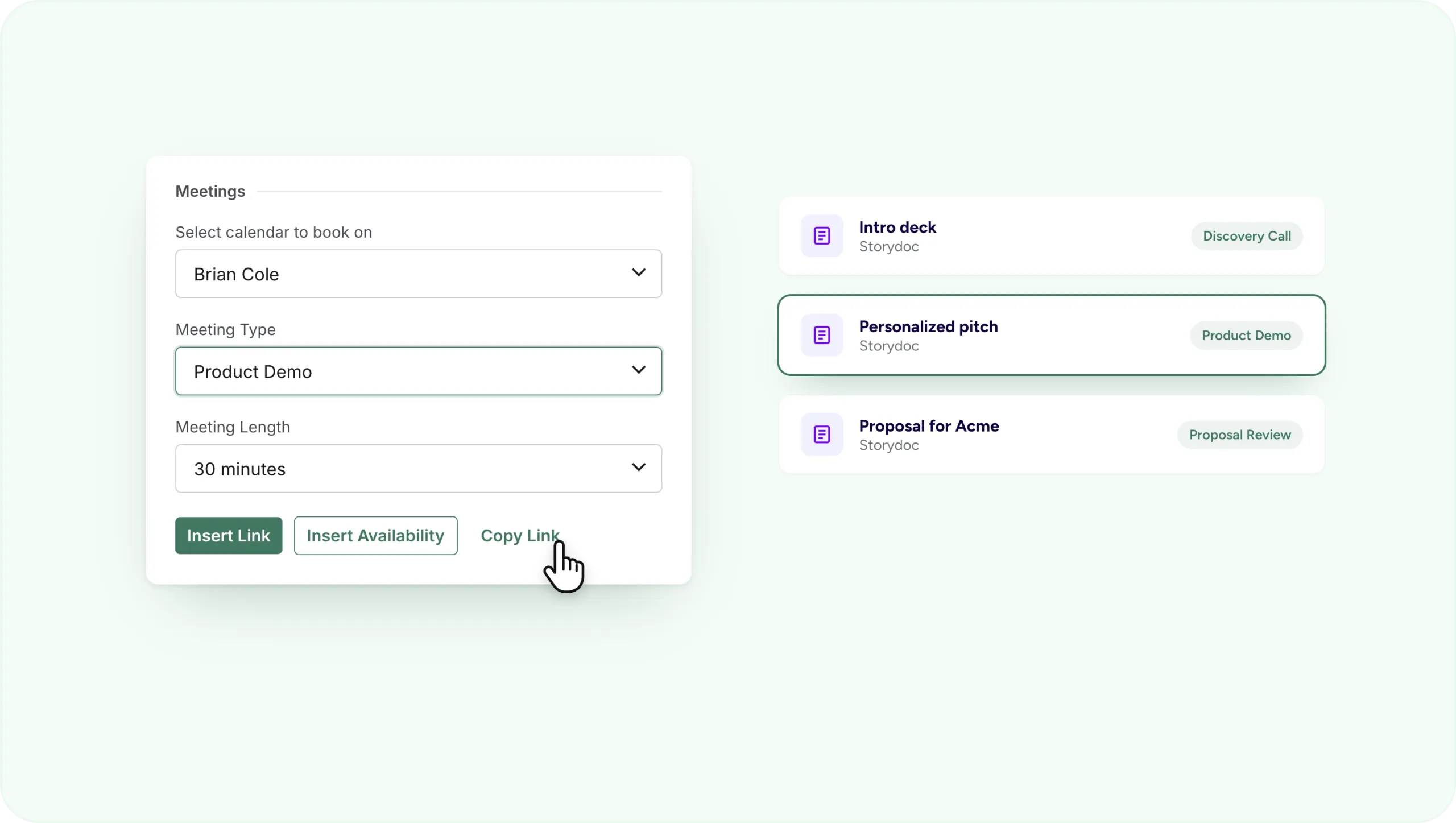
Add the Salesloft meeting link that best matches the Storydoc you’re sharing.
For example, you could lead from an introductory sales deck to a discovery call, from a personalized pitch to a demo, or from a proposal to a proposal review.
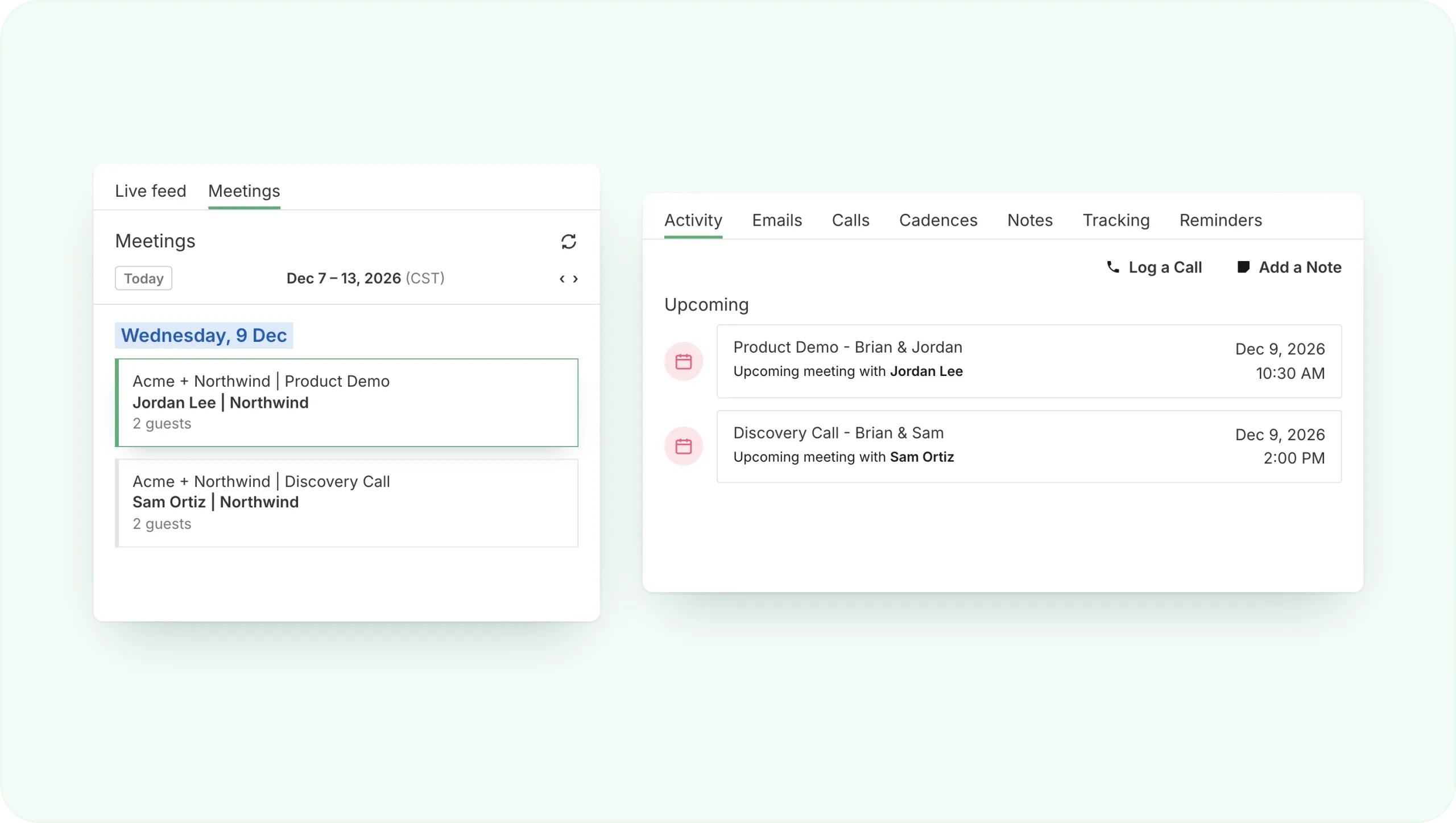
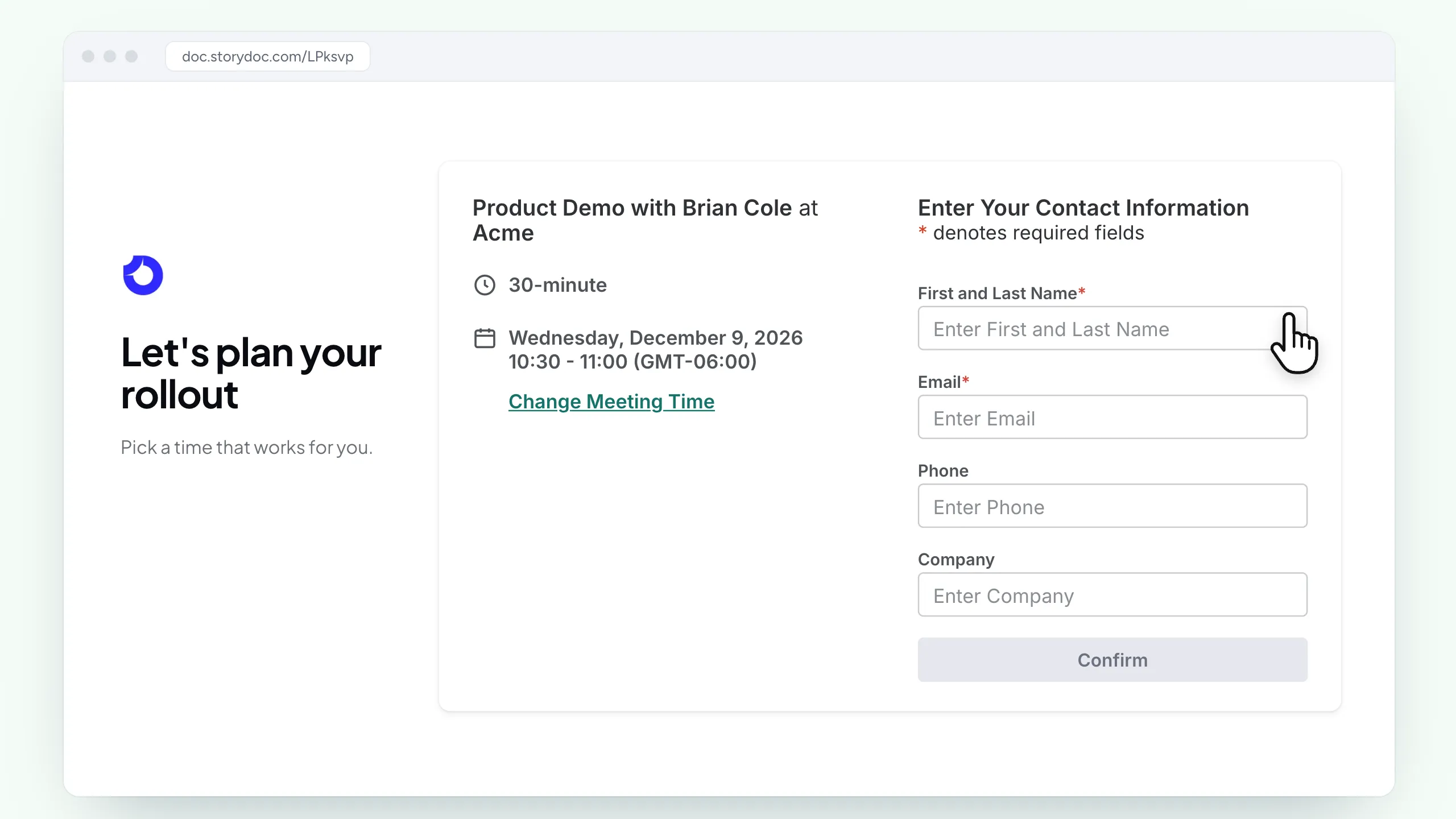
Once a meeting is booked, it can appear in your CRM sync, Analytics, and Activity Feed, giving your team visibility into meeting activity alongside the rest of the prospect journey.
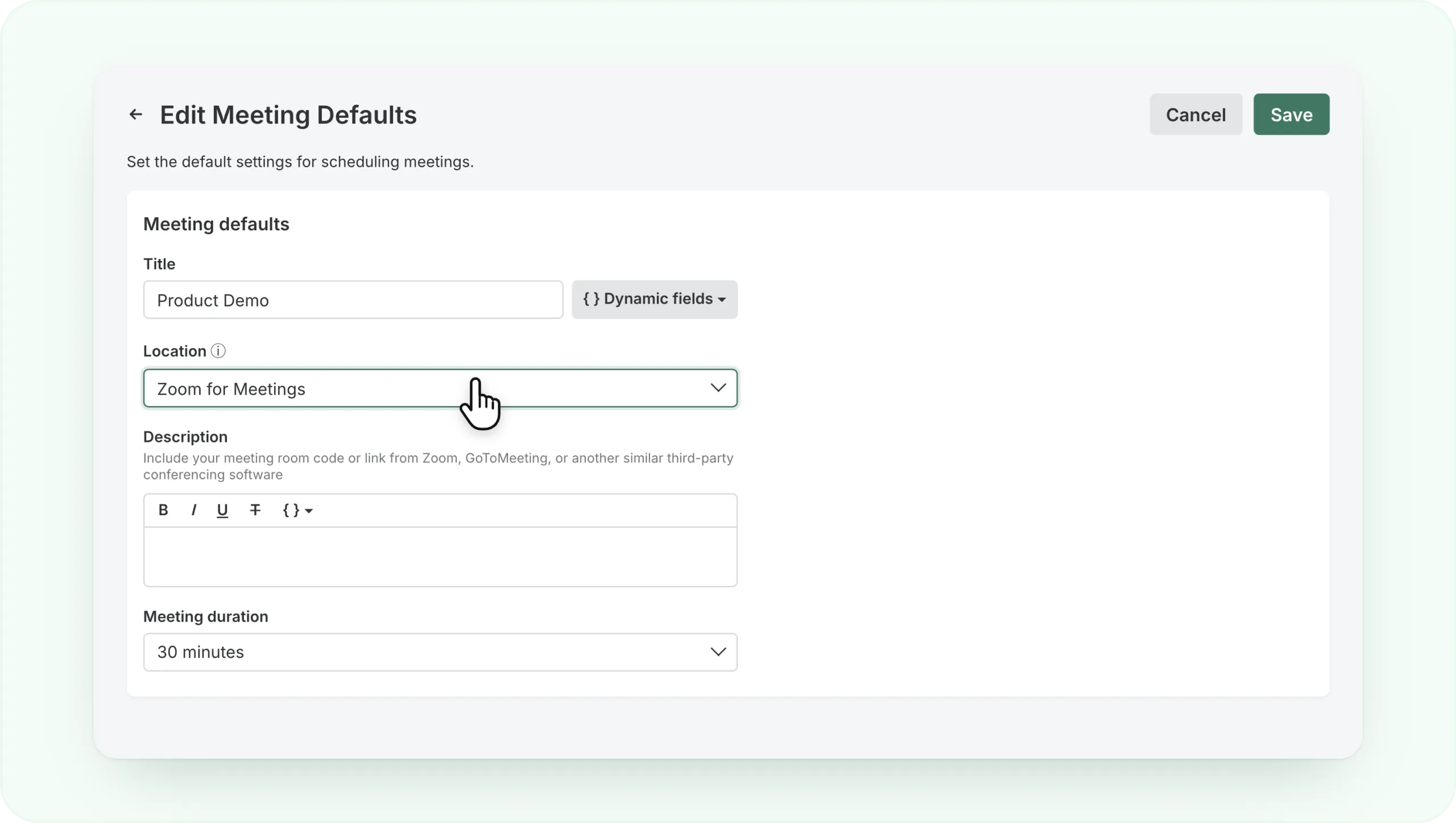
Automatically add video call details when someone books. For example, if you connect Zoom to Salesloft, the meeting can be created with the Zoom link already included.
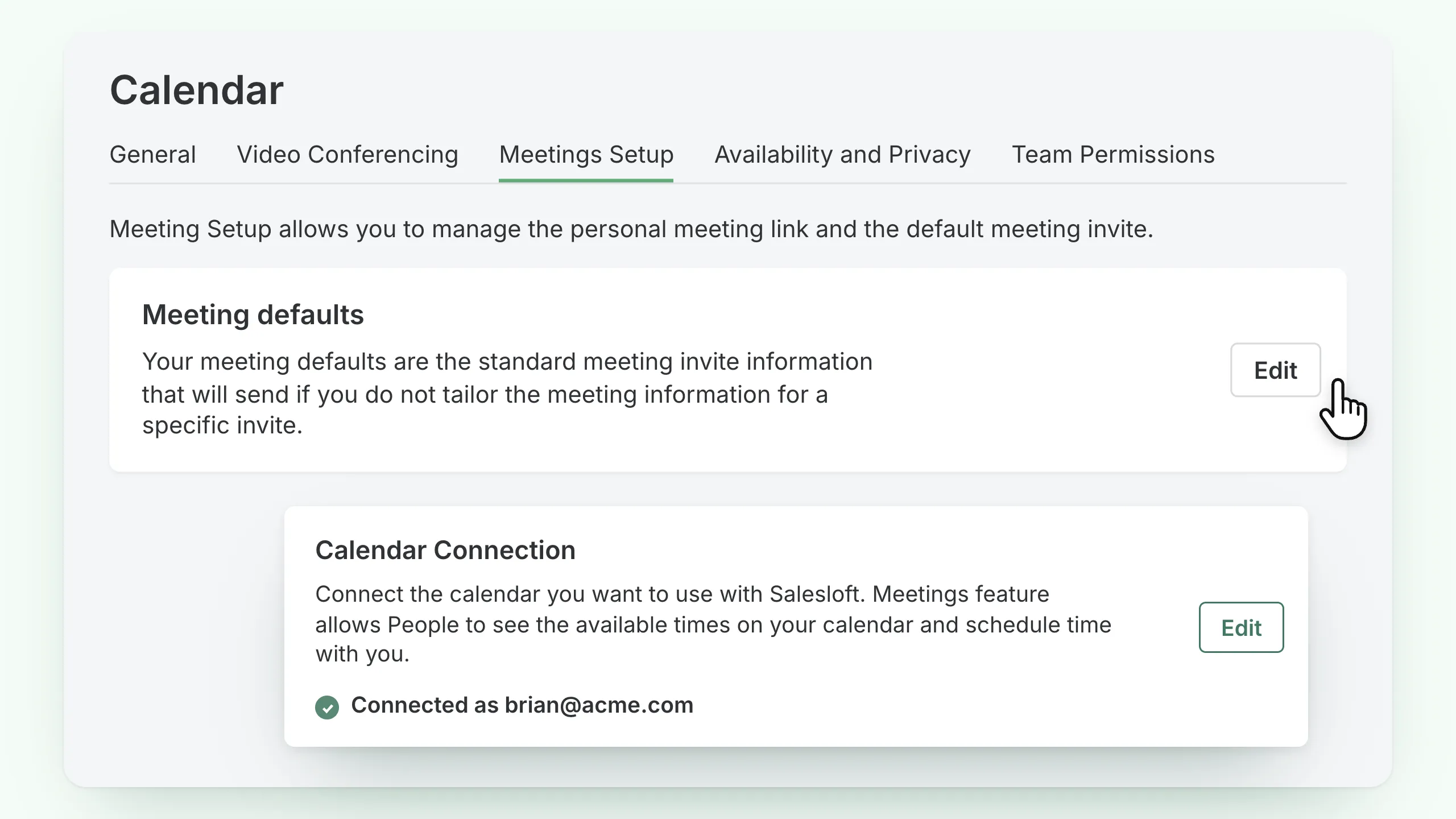
Add your Salesloft meeting link to Storydoc so readers can see your availability and choose a time that works for them.
1. Set up the meeting you want prospects to book
Choose when you’re available and set up the meeting you want to offer prospects in Salesloft.
Salesloft uses your calendar information to keep your availability up to date and avoid offering times when you’re already busy.
2. Copy your Salesloft meeting link
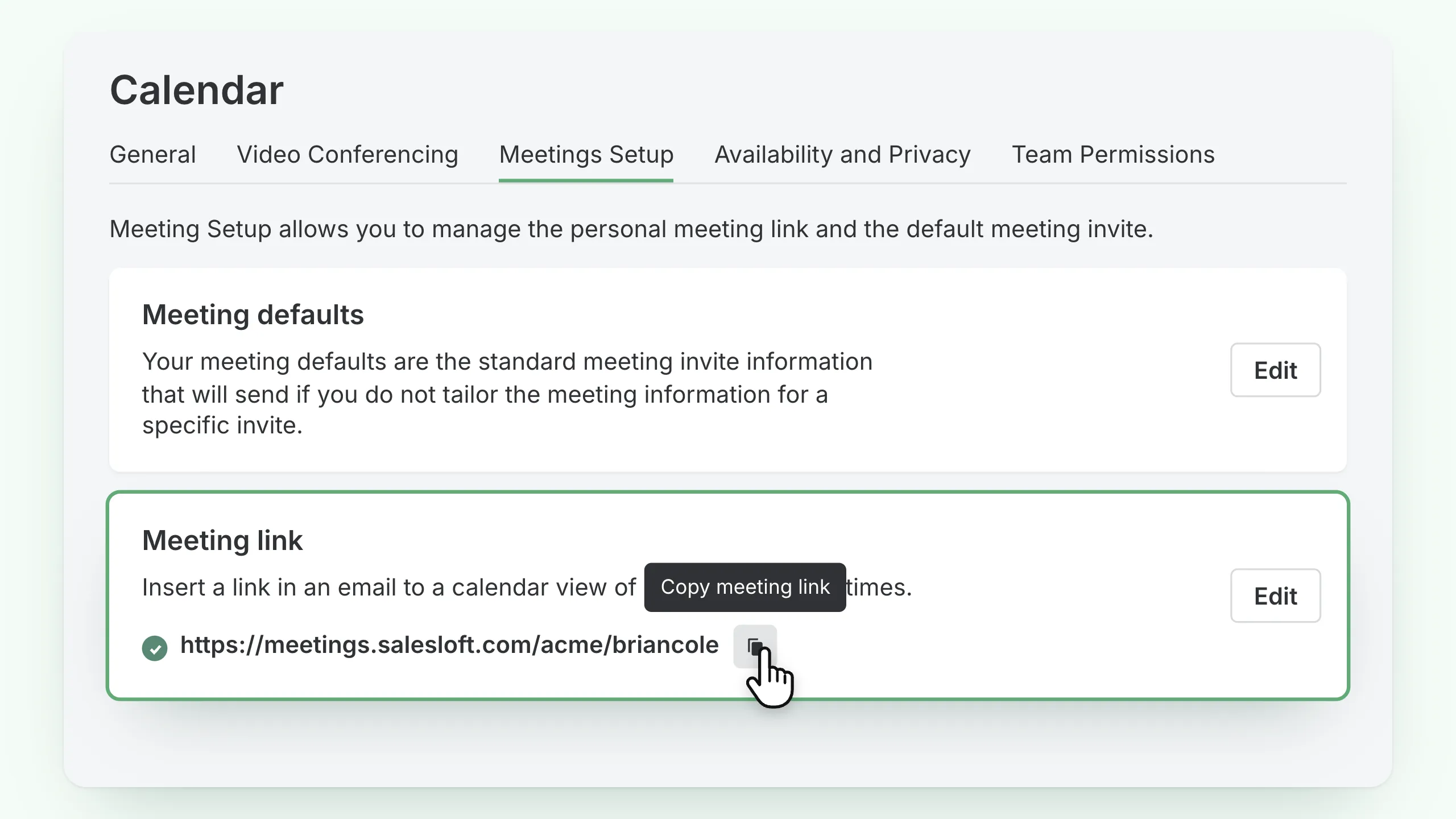
Find the meeting you want to add to your Storydoc and copy its scheduling link.
You can then use that link anywhere you want prospects to access your calendar.
3. Add Salesloft to your Storydoc
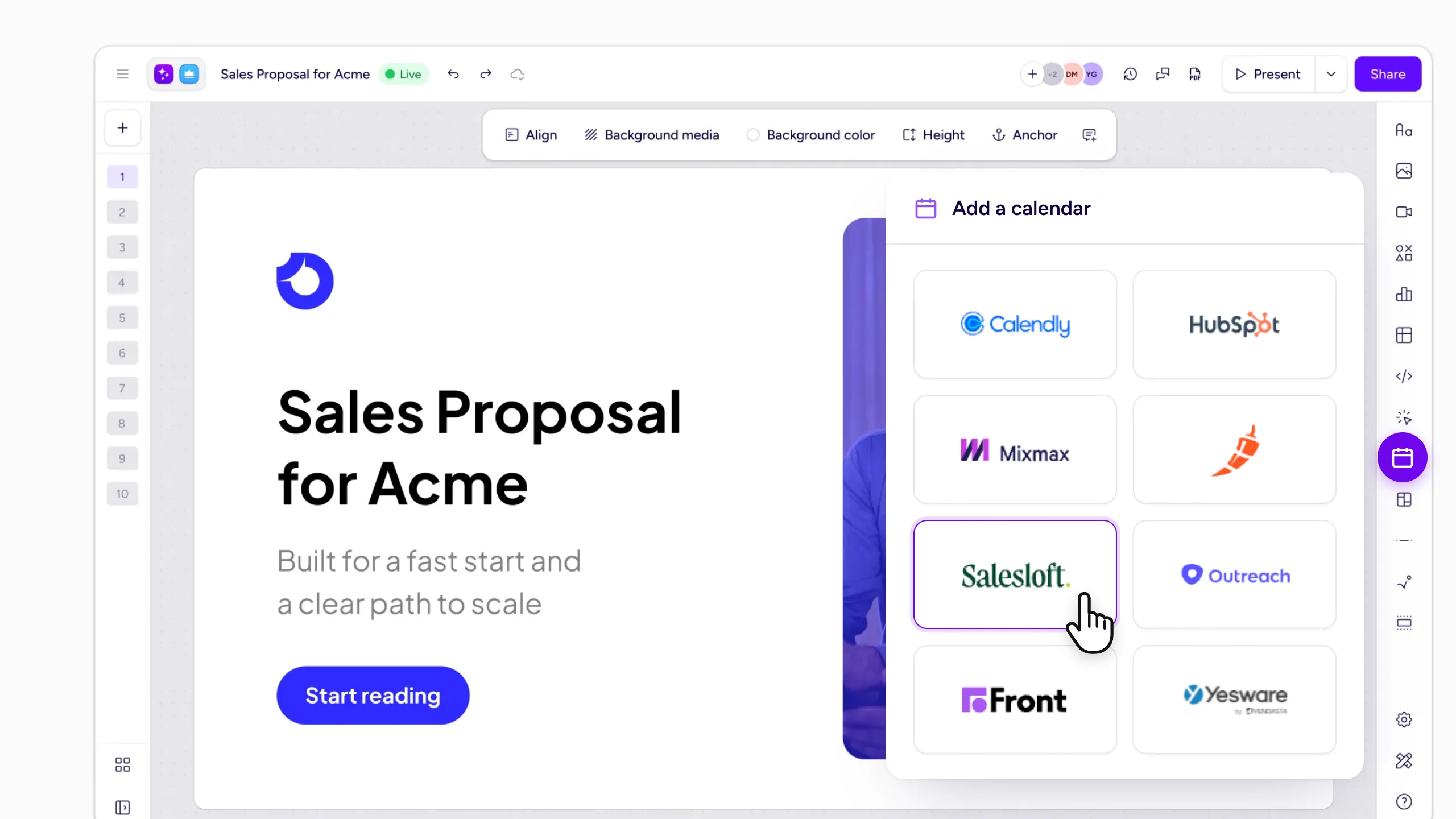
Open your Storydoc and go to the slide where you want readers to book.
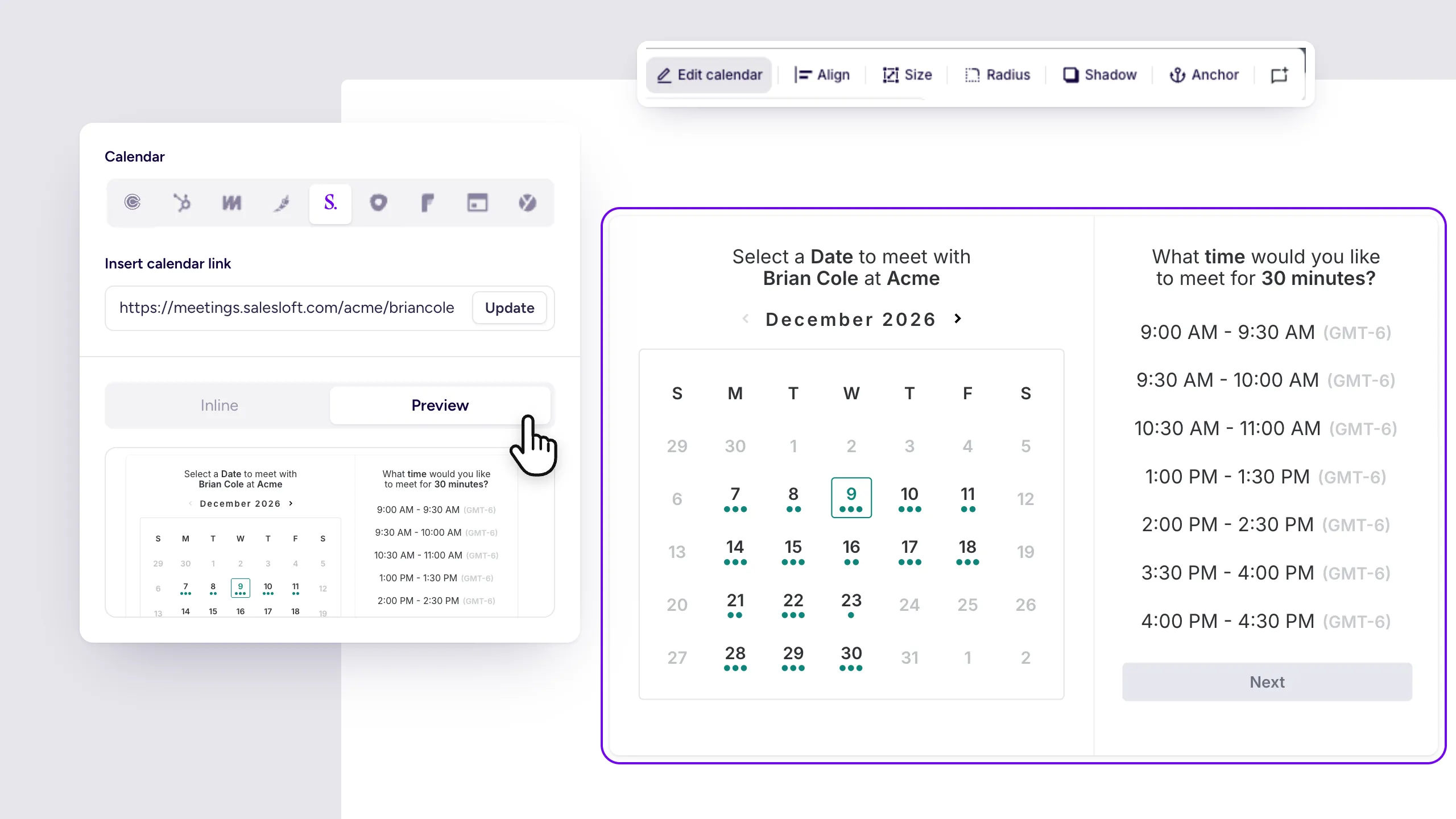
Select Calendars from the right-hand toolbar, add your Salesloft meeting link, and click Update.
4. Adjust how the calendar looks
Use the Inline or Preview options to check how the calendar looks in your Storydoc, then adjust its size, alignment, and design to match the rest of your slide.
5. Publish and start taking bookings
Publish your Storydoc and let readers choose an available time directly from the document. Salesloft will use your calendar availability to determine which times they can book.
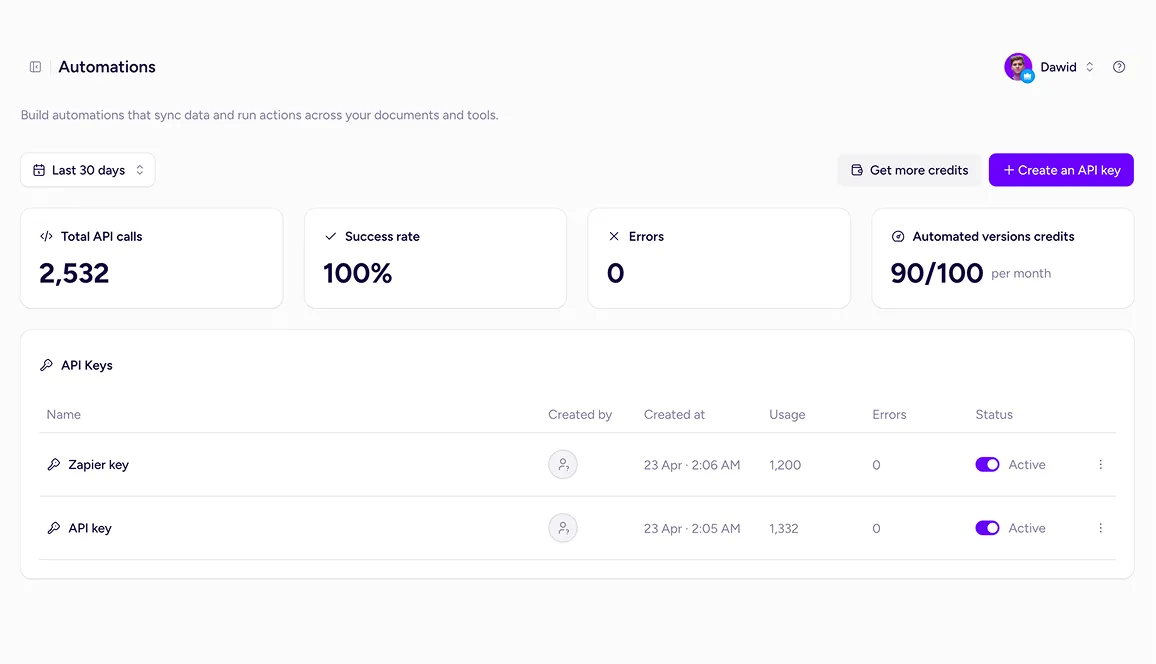
Go beyond native integrations with the Storydoc API.
Automatically generate personalized Storydocs, trigger follow-ups based on engagement, and connect everything to your go-to-market stack.
Build workflows that fit how your team works.
Yes. You can add your Salesloft meeting link to Storydoc so prospects can see your available times and choose when they’d like to meet.
Yes. Salesloft’s meeting functionality uses your calendar events to determine your availability and which time slots can be offered for booking.
Yes. You can add the meeting link that makes the most sense for each Storydoc, giving readers a relevant next step based on where they are in the sales process.
Yes. If you connect Salesloft Scheduling with Zoom, Zoom links can be added automatically to meetings booked through Salesloft.
The Salesloft calendar integration is available on the Starter plan and above.
Still have questions?
Make it easier for prospects to act while they’re interested. Add Salesloft scheduling to your Storydocs and turn engaged readers into booked conversations.