
Storydoc + Typeform: Turn form responses into personalized Storydocs
Embed Typeform in your Storydocs to collect responses, or automatically turn every new submission into a personalized deck, proposal, or follow-up document.

Embed Typeform in your Storydocs to collect responses, or automatically turn every new submission into a personalized deck, proposal, or follow-up document.
Trusted by 400,000+ users to automate their workflows


Collect information from your readers and use their answers to create personalized Storydocs and automate your next steps.
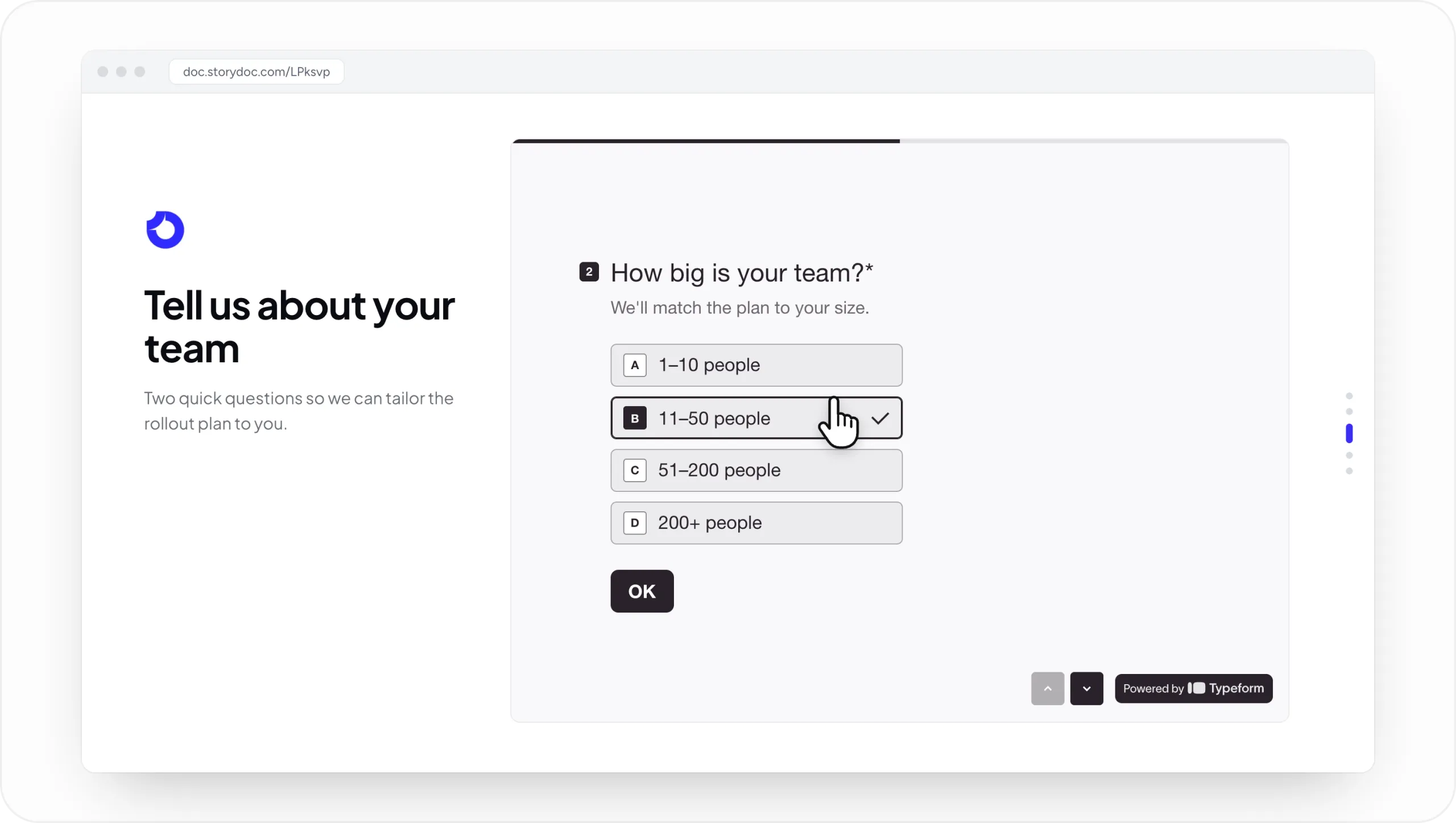
Add an existing Typeform to your Storydoc so readers can answer questions without leaving your content.
Use it for demo requests, lead qualification, surveys, feedback, onboarding, registrations, or any other information you want to collect.
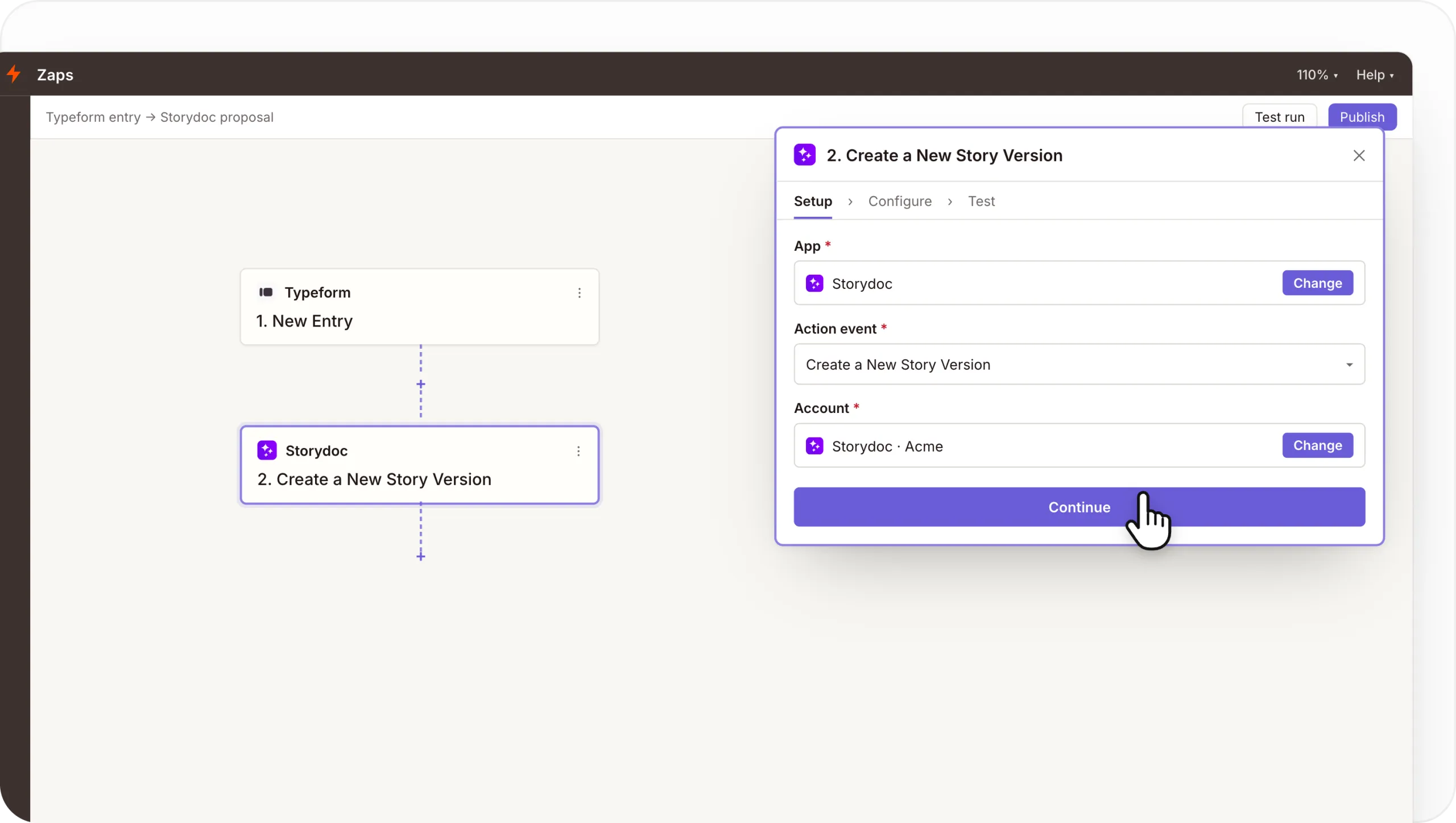
Use New Entry as a trigger in Zapier to automatically create a new Storydoc version whenever someone completes your Typeform.
For example, a demo request could generate a personalized sales deck, a qualification form could create a relevant solution overview, or a customer intake form could trigger tailored onboarding materials.
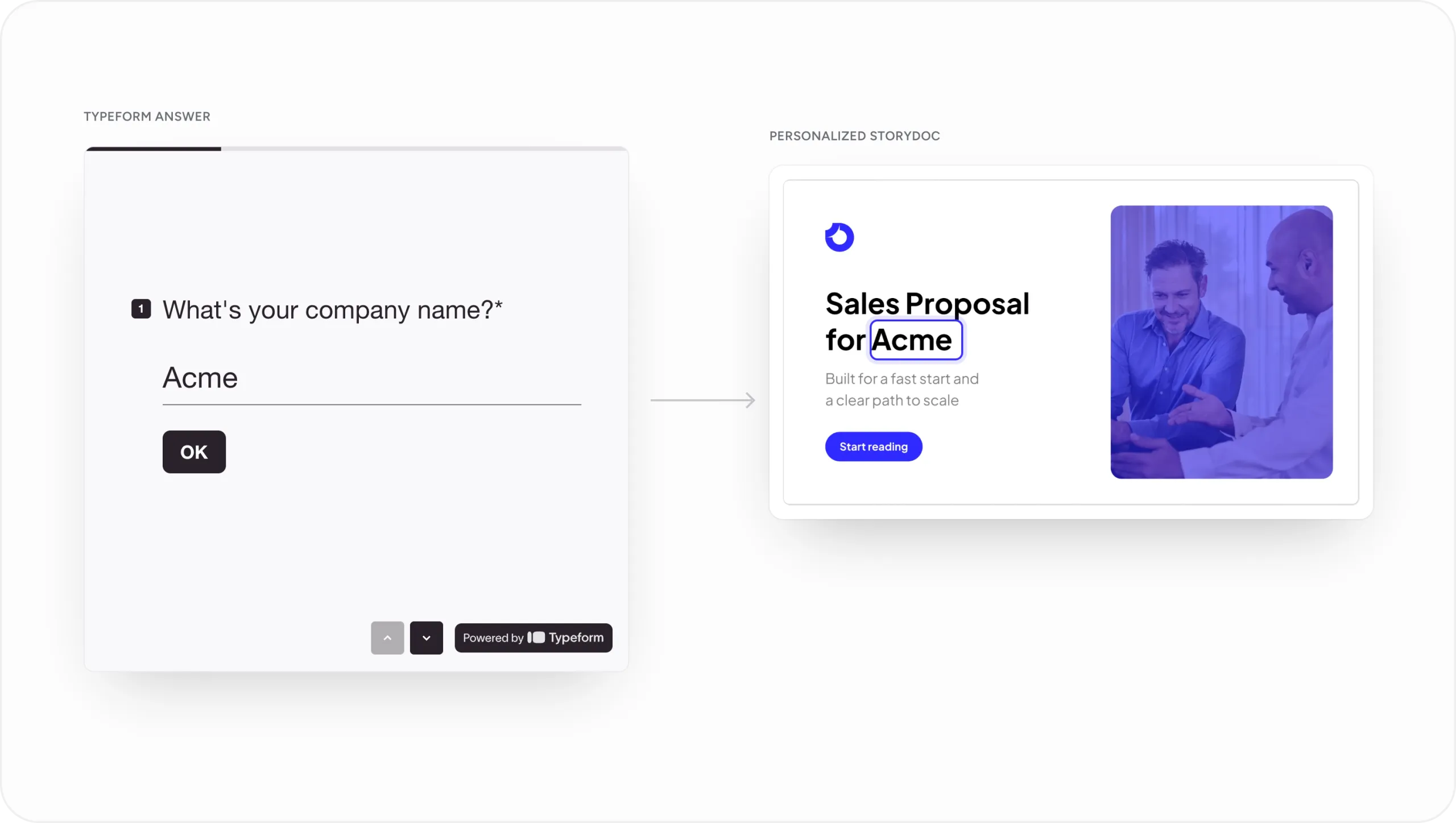
Map information collected in Typeform directly to dynamic variables in your Storydoc template.
You can use variables for:
Name and email
Company name
Role or team
Use case or intent
Any custom questions included in your Typeform
Each new Storydoc can then automatically include the information that particular respondent submitted.
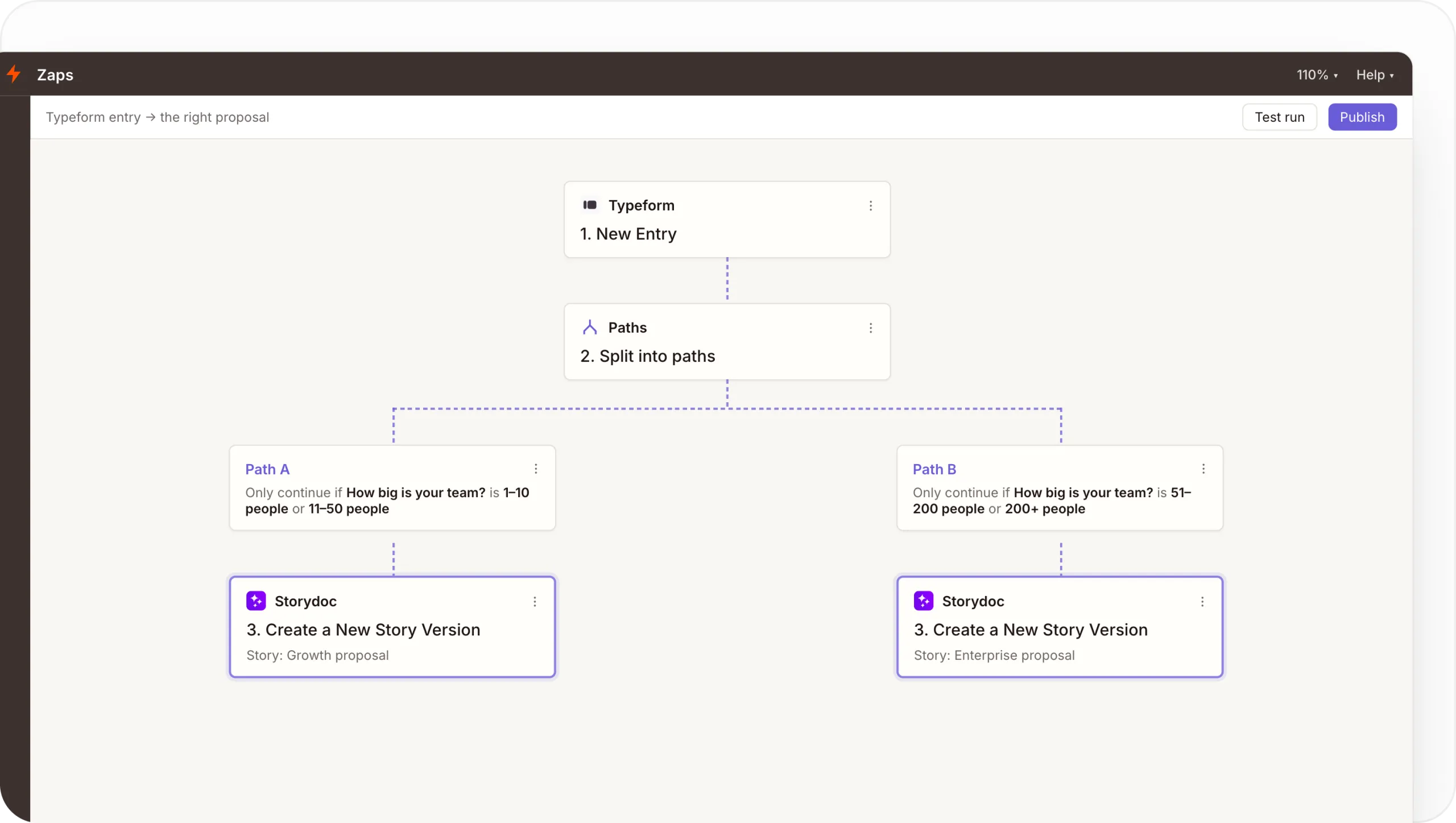
Use conditional logic in your automation to create different Storydoc versions based on someone’s Typeform answers.
For example, prospects interested in different products or use cases could receive different content, while responses to qualification questions could determine which Storydoc template or sections are used.
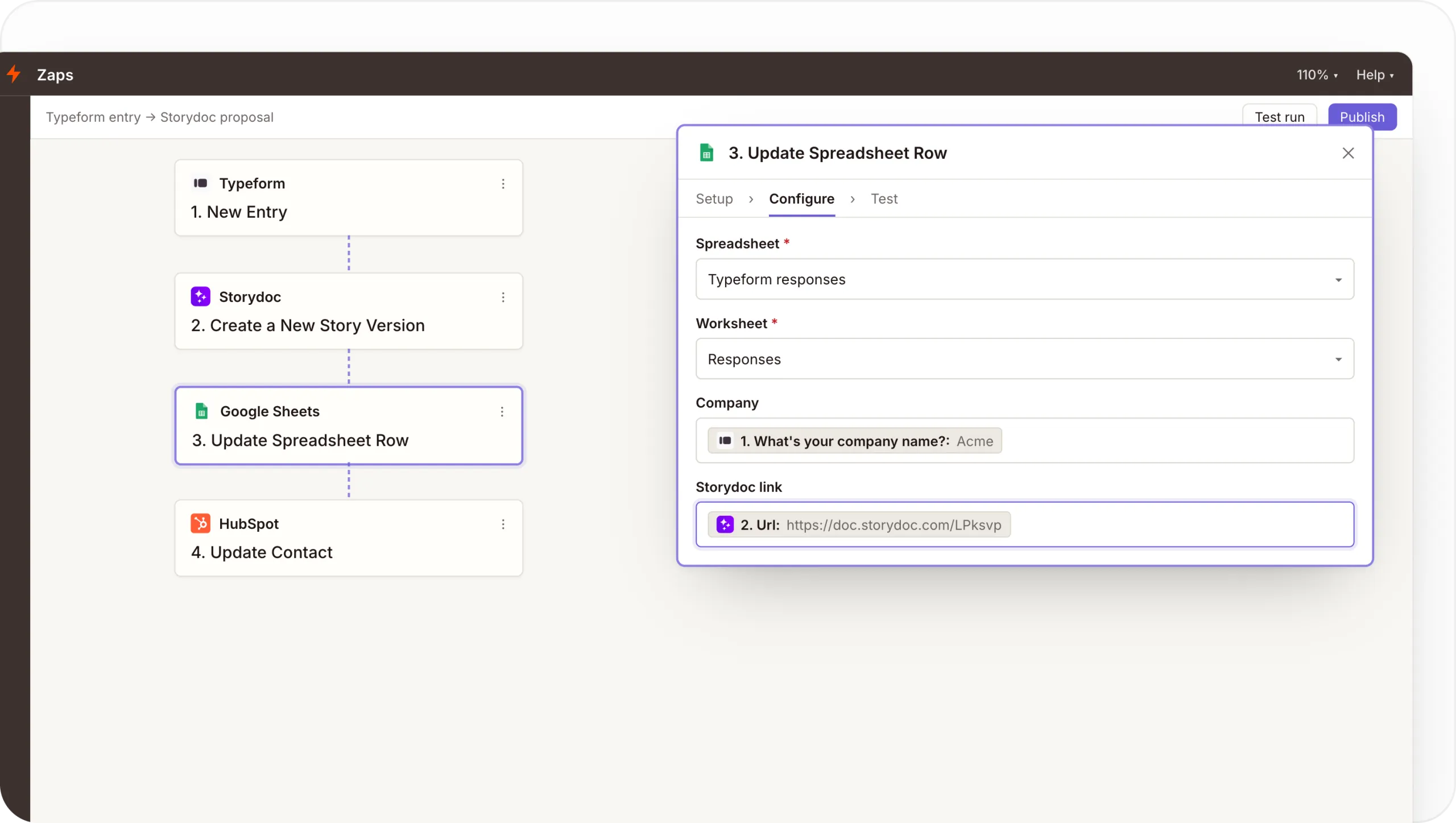
Once Storydoc creates the personalized version, use Zapier to write its URL back to the system your team uses for follow-up.
For example, you can store the link in:
A CRM, on the relevant lead or contact record
Google Sheets, alongside the original submission
An outreach or email automation tool
A project or onboarding workflow
Depending on the tool, the Storydoc URL can be saved in a custom field, notes section, or tracking column.
Embed your Typeform directly in an existing Storydoc, or connect Typeform to Storydoc through Zapier to generate personalized documents automatically from new responses.
1. Create and publish your Typeform
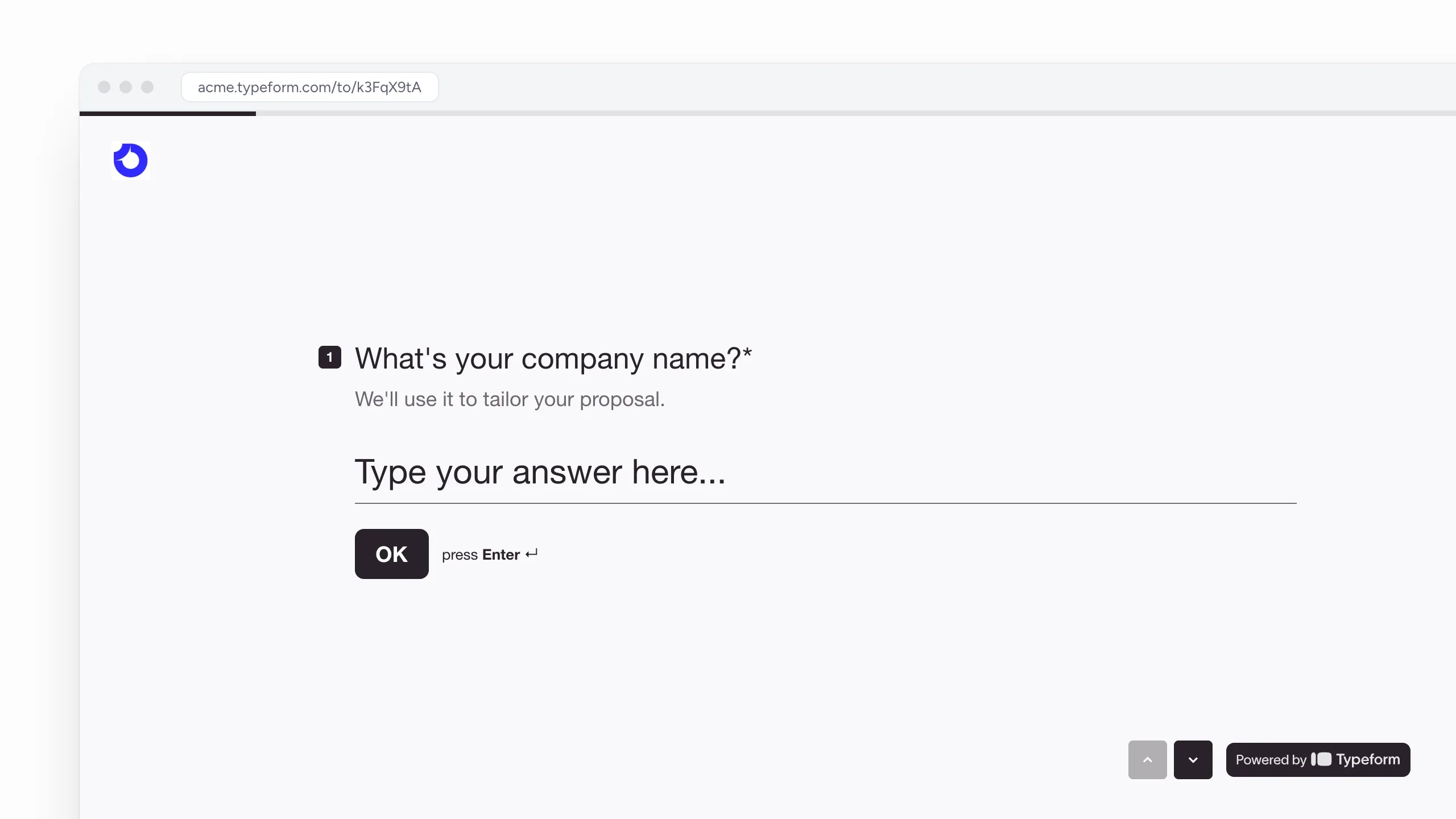
Build the form you want readers to complete and publish it in Typeform.
Typeform gives you several ways to embed your form. For Storydoc, the standard embed works well for displaying the form directly as part of your document.
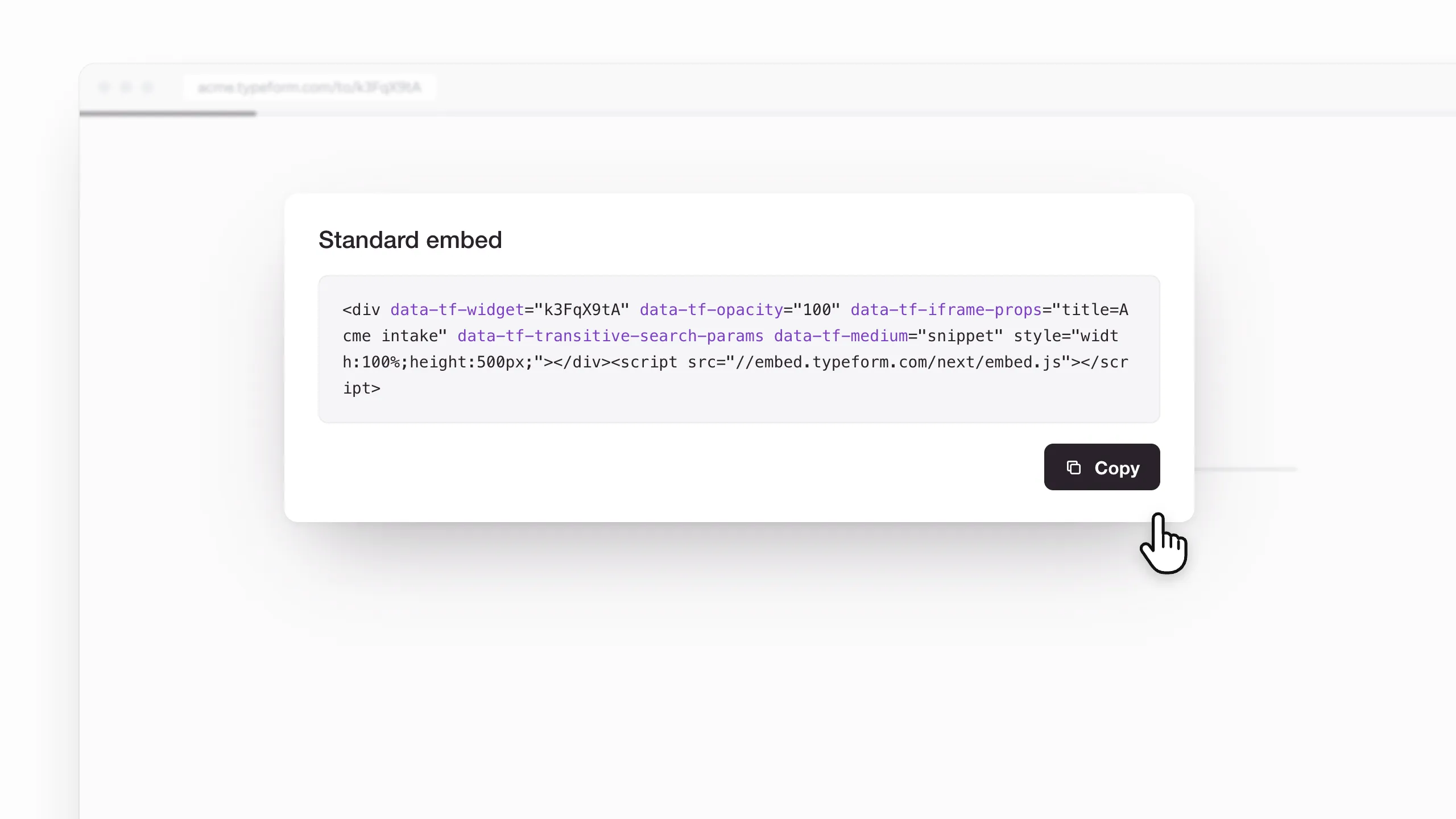
2. Get your Typeform embed code
Choose your preferred embed setup and copy the complete code Typeform generates.
3. Add the form to Storydoc
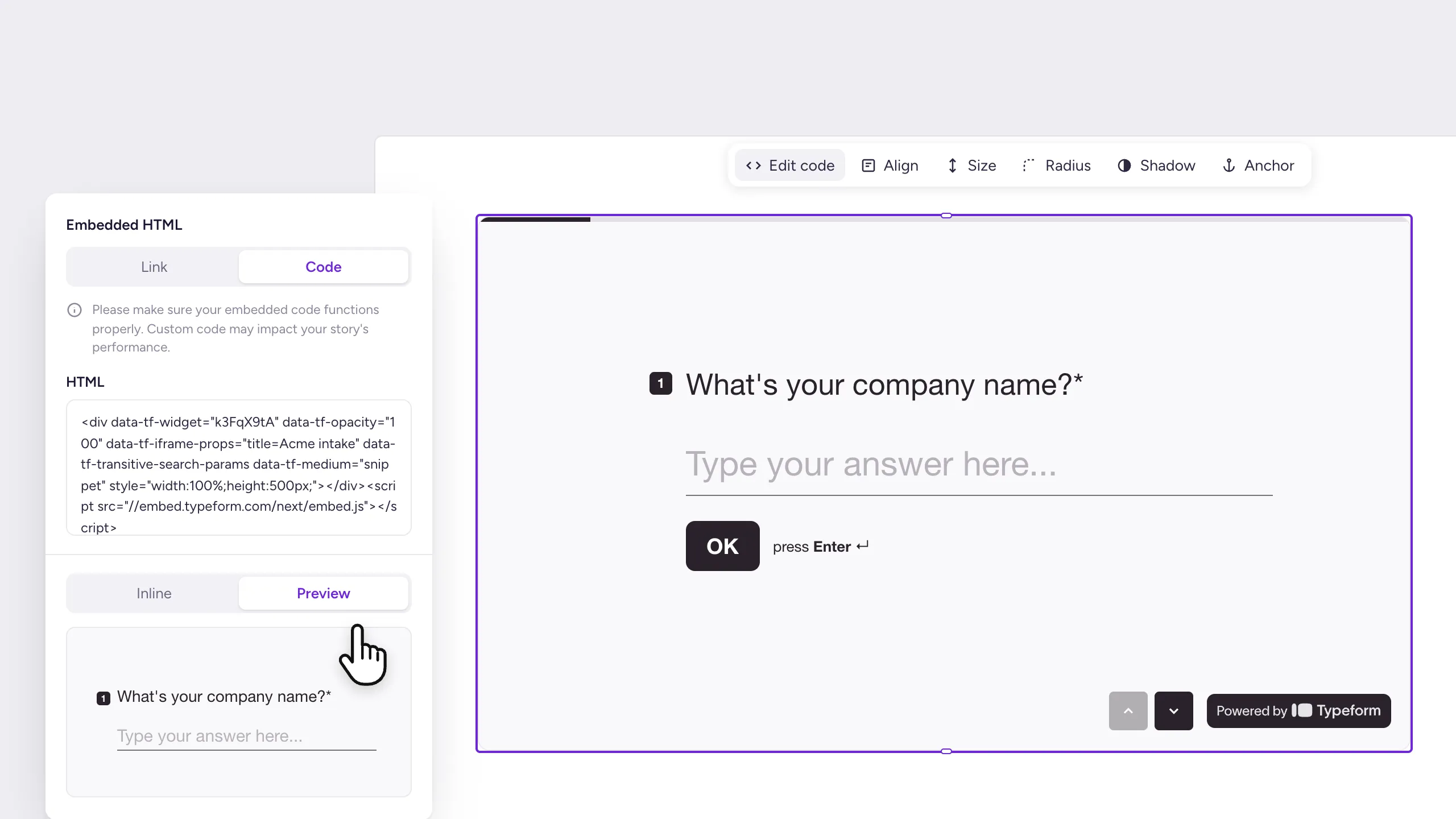
In the Storydoc editor, select Add an embedded tool from the right-hand toolbar and choose Form.
Open the Code tab, paste the complete Typeform embed code, and adjust the height if necessary. Keep the width at 100% for the best fit.
4. Preview and publish your Storydoc
Preview your Storydoc to check how the Typeform looks and functions, then publish it when you’re happy with the result.
If you later edit the form itself, publish your changes in Typeform and they’ll appear in the embedded version without having to embed the form again.

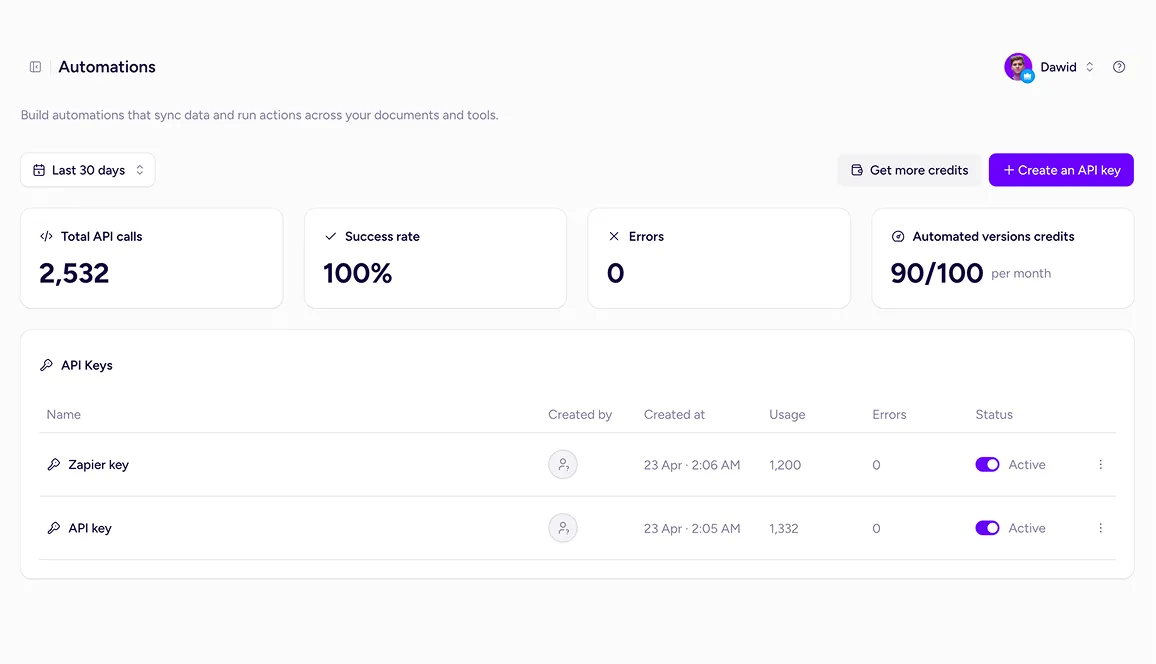
Go beyond native integrations with the Storydoc API.
Automatically generate personalized Storydocs, trigger follow-ups based on engagement, and connect everything to your go-to-market stack.
Build workflows that fit how your team works.
Yes. Copy the embed code Typeform generates and add it using the Add an embedded tool option in the Storydoc editor. Readers can then complete the Typeform directly within your Storydoc.
Open the form you want to embed in Typeform and use its sharing and embedding options to generate the code. Copy the complete snippet Typeform provides.
Yes. Connect Typeform and Storydoc through Zapier and use New Entry as the trigger. You can then use Create Storydoc version as the action to generate a Storydoc after each submission.
Yes. Typeform responses can be mapped to dynamic variables inside your Storydoc template.
For example, you could personalize the document with someone’s name, company, role, team, use case, or answers to custom questions.
Yes. You can use conditional logic to create different Storydocs based on how someone answers your Typeform.
For example, someone’s use case or answers to your qualification questions can determine which content appears in their Storydoc.
Once the Storydoc is created, you can automatically save its URL wherever your team works – for example, in a CRM record, Google Sheet, outreach or email automation tool, or project management platform. This keeps the personalized Storydoc alongside the information your team already uses for follow-up.
No. Publish your edits in Typeform and they’ll appear in the embedded version. You don’t need to generate and paste a new embed code every time you change the form.
No. Zapier is only required if you want a Typeform submission to trigger an automated Storydoc workflow.
To display a Typeform inside an existing Storydoc, simply copy its embed code and add it directly to your Storydoc.
The Typeform integration is available on the Starter plan and above.
Still have questions?
Connect Typeform to Storydoc to collect responses and automatically turn what you learn about each prospect or customer into a Storydoc built for them.