
Storydoc Gemini MCP Connector
Turn reports, meeting notes, research, product documentation, and company knowledge into on-brand Storydocs directly from Gemini.

Turn reports, meeting notes, research, product documentation, and company knowledge into on-brand Storydocs directly from Gemini.
Trusted by teams building AI-native document workflows


Connect your approved Storydoc templates, messaging, branding, StoryBrain knowledge, existing decks, and supporting materials so every Storydoc starts from the same trusted source - not a blank prompt.
Every AI model can generate decks.
That doesn’t mean every deck should be different.
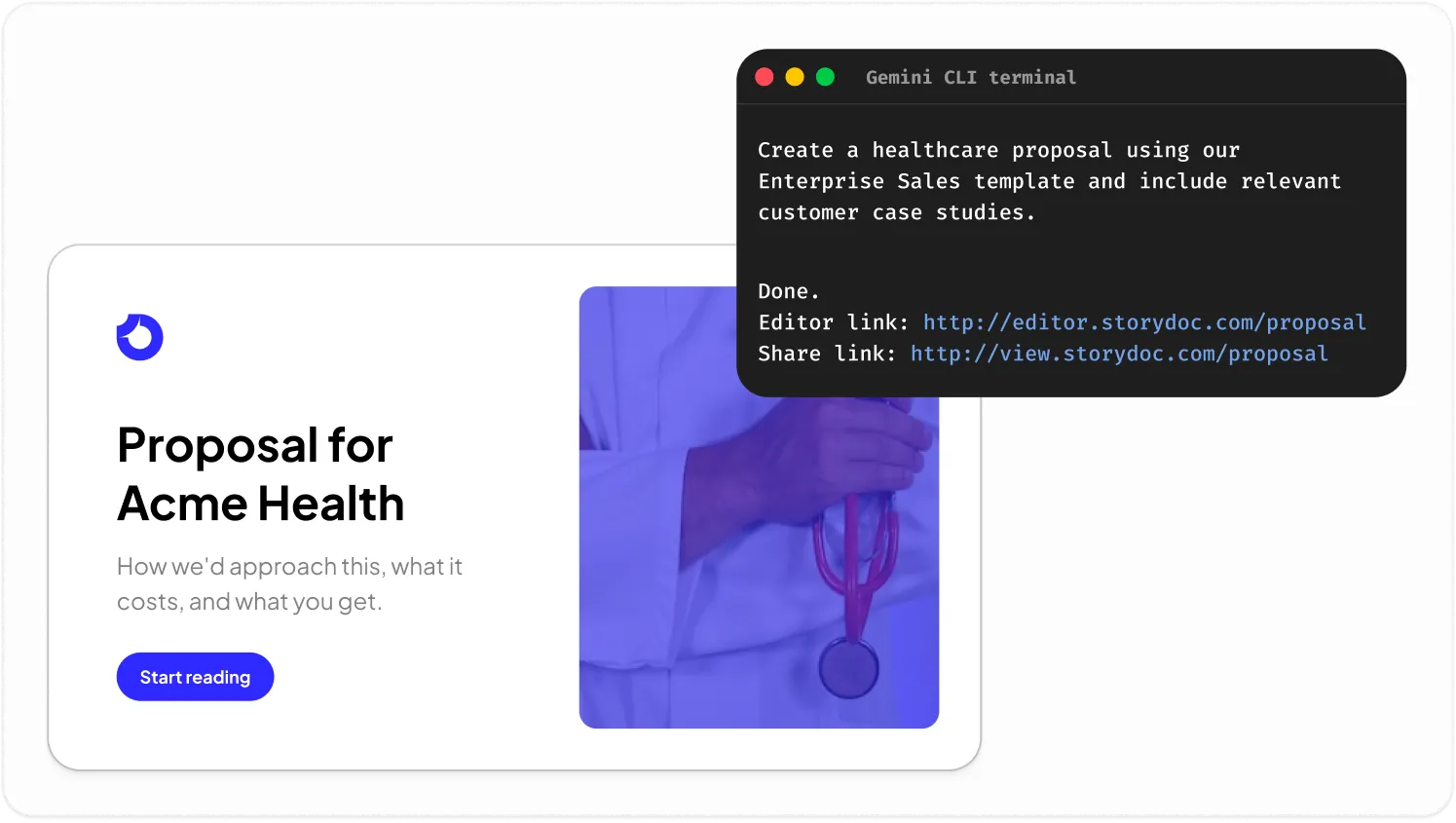
Storydoc lets Gemini create Storydocs using your approved layouts, branding, variables, and messaging
For example:
“Create a healthcare proposal using our Enterprise Sales template and include relevant customer case studies.”
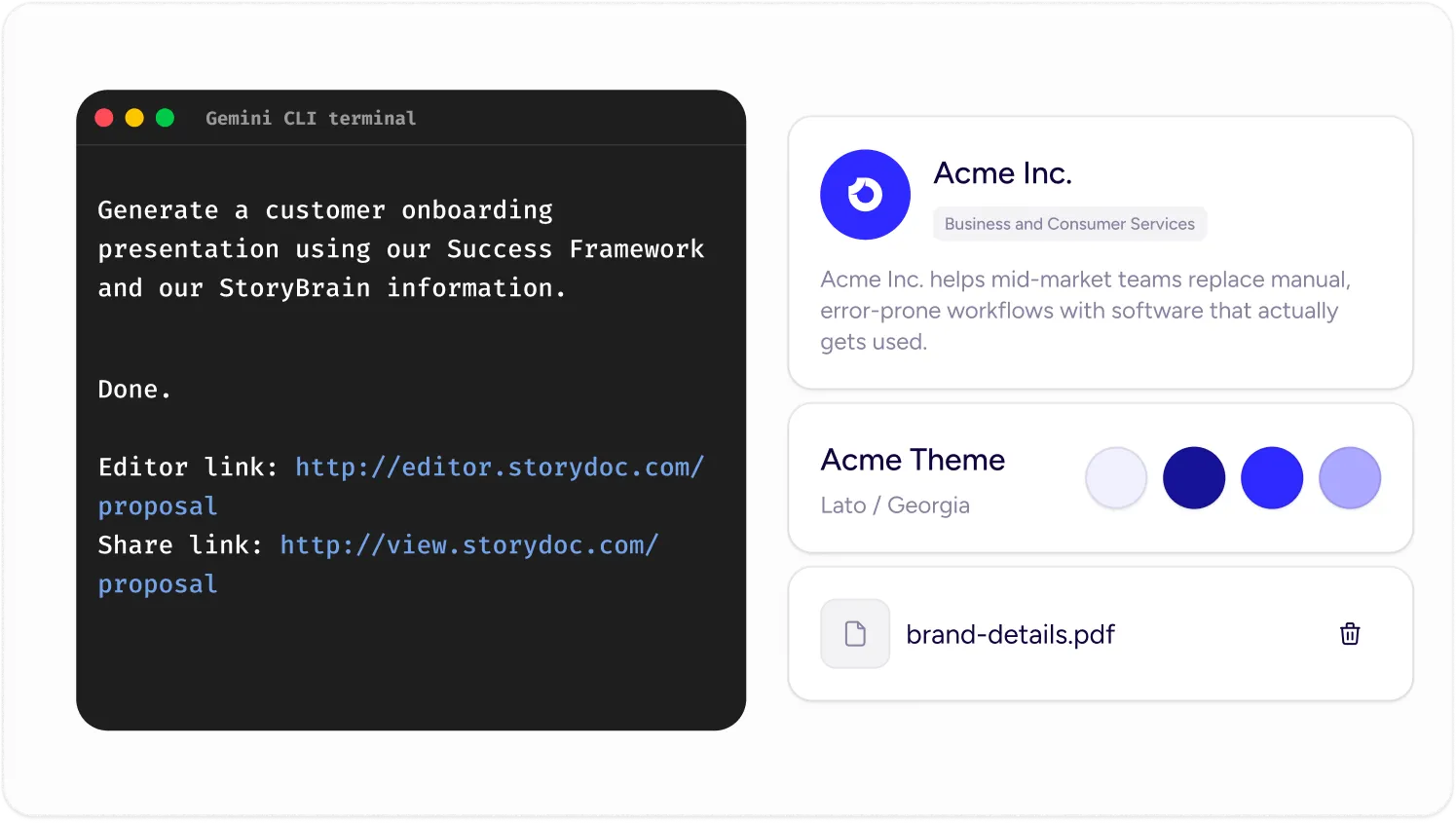
“Generate a customer onboarding presentation using our Success Framework and our latest implementation guide.”
If Gemini needs information that’s missing, it can ask for the required variables before generating the Storydoc.
AI works best when it has access to the right context.
Storydoc allows Gemini to work alongside StoryBrain knowledge, existing Storydocs, approved materials, branding, and company resources.
This helps Gemini generate content that’s grounded in your products, services, positioning, and messaging instead of relying on generic assumptions.
The result is more relevant decks and fewer manual corrections.
The same source material rarely works for every audience.
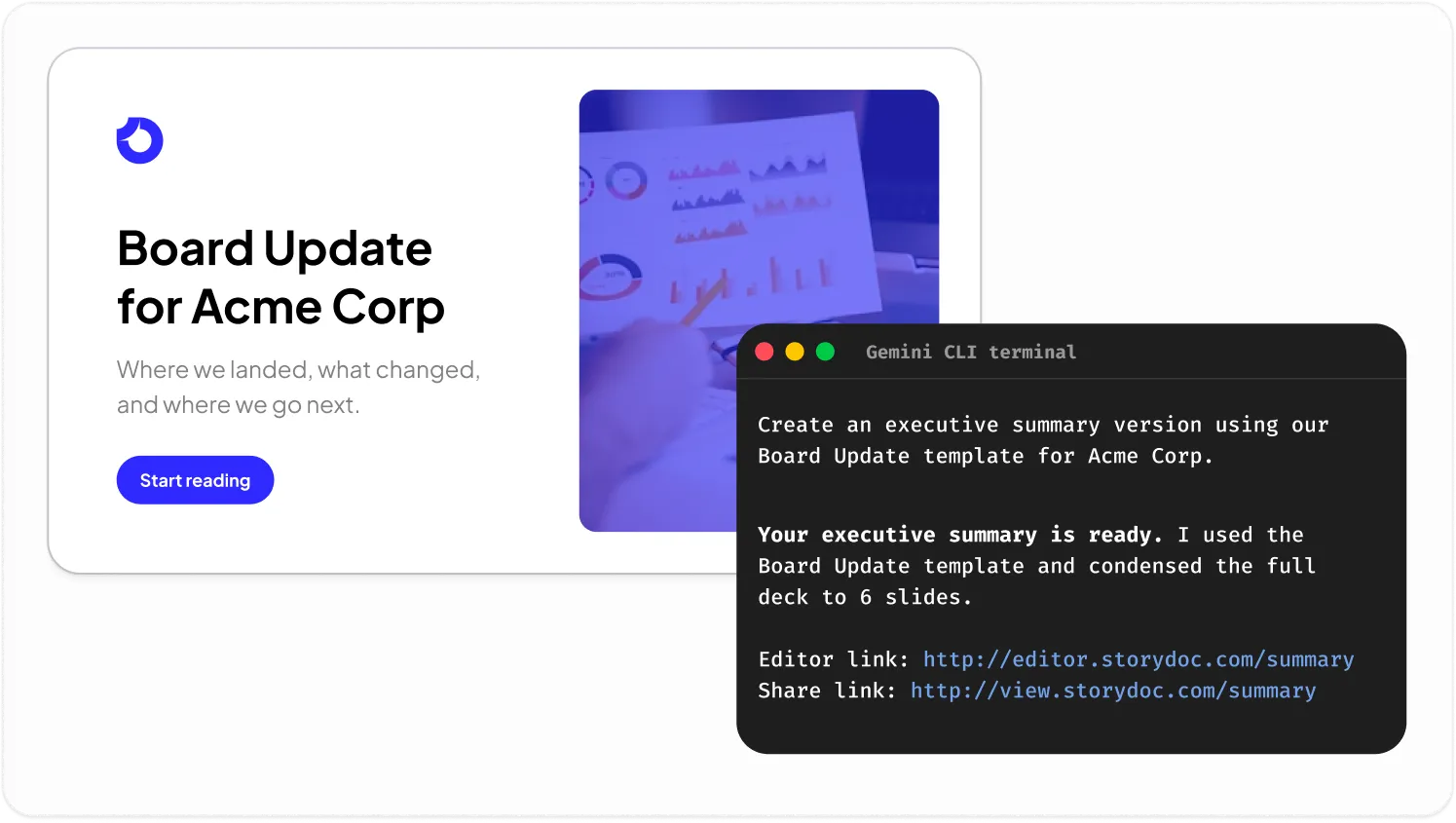
Use Gemini to transform one report into multiple Storydocs without rebuilding everything yourself.
For example:
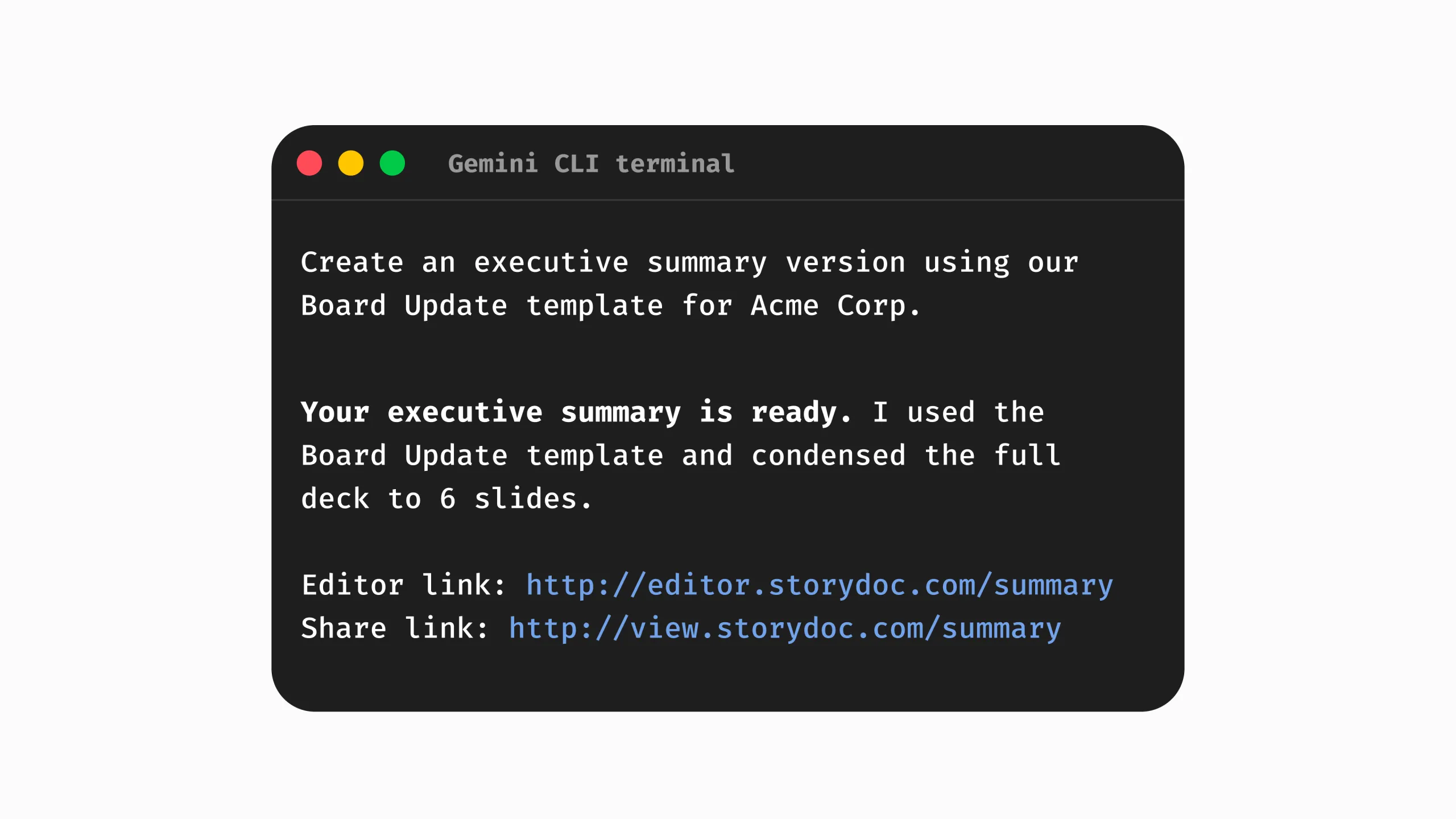
“Create an executive summary version using our Board Update template for Acme Corp.”
“Adapt this report into a customer-facing Product Overview for Globex.”
“Turn this internal update into a board presentation using our Quarterly Board Deck template for Initech.”
“Create a shorter leadership version using our Executive Brief template for Umbrella Corp.”
This allows teams to reuse information while presenting it in the right format for each audience.
Storydoc doesn’t have to work by itself.
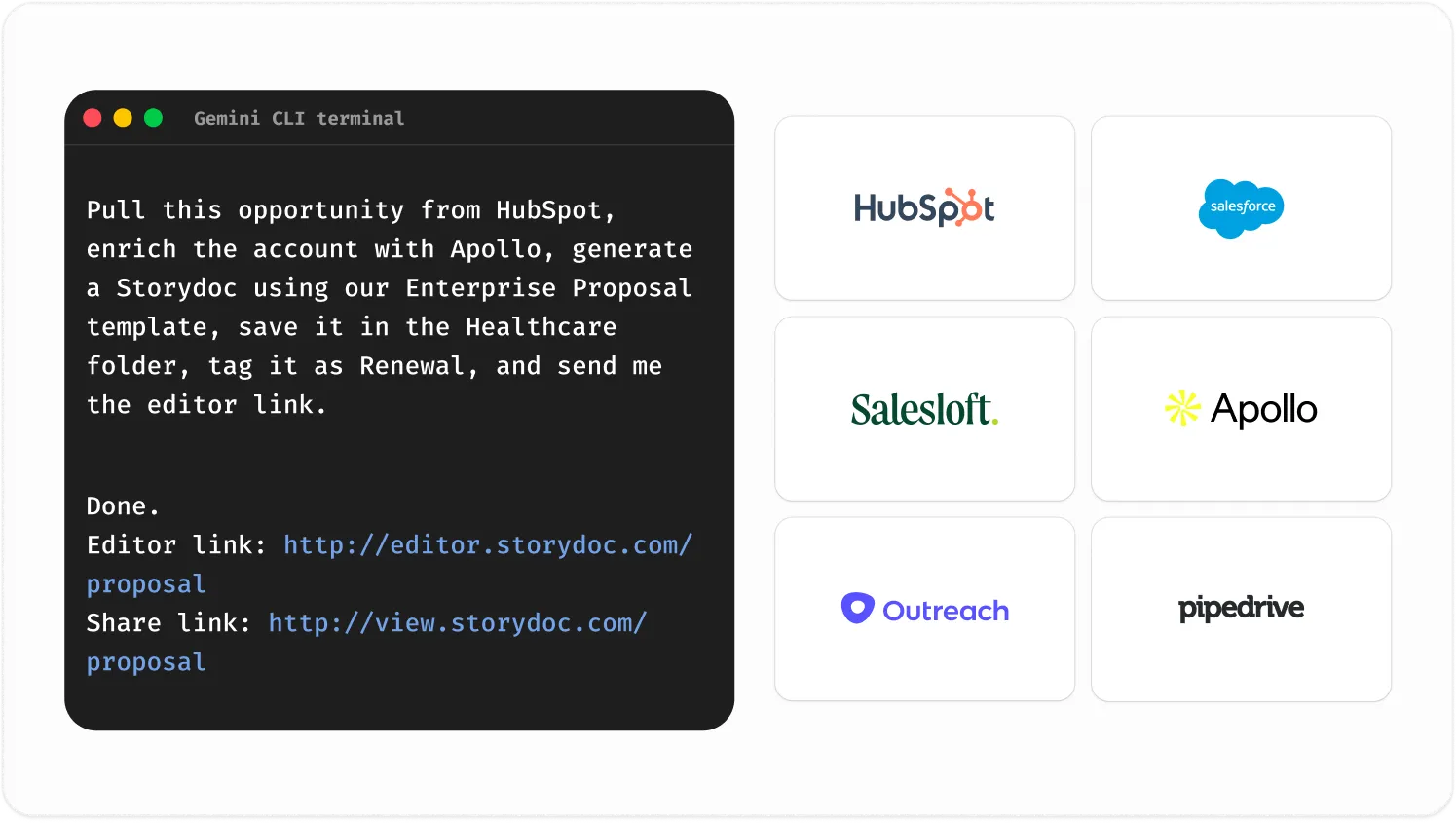
You can use Gemini to connect it with your other tools and handle tasks across them automatically.
For example:
“Pull this opportunity from HubSpot, enrich the account with Apollo, generate a Storydoc using our Enterprise Proposal template, save it in the Healthcare folder, tag it as Renewal, and send me the editor link.”
“Summarize this meeting transcript, generate a customer proposal, and file it in our Sales folder.”
“Find the highest-performing proposal template, then create a personalized version for Sarah Chen from Adobe.”
Gemini orchestrates the workflow while Storydoc handles the presentation.
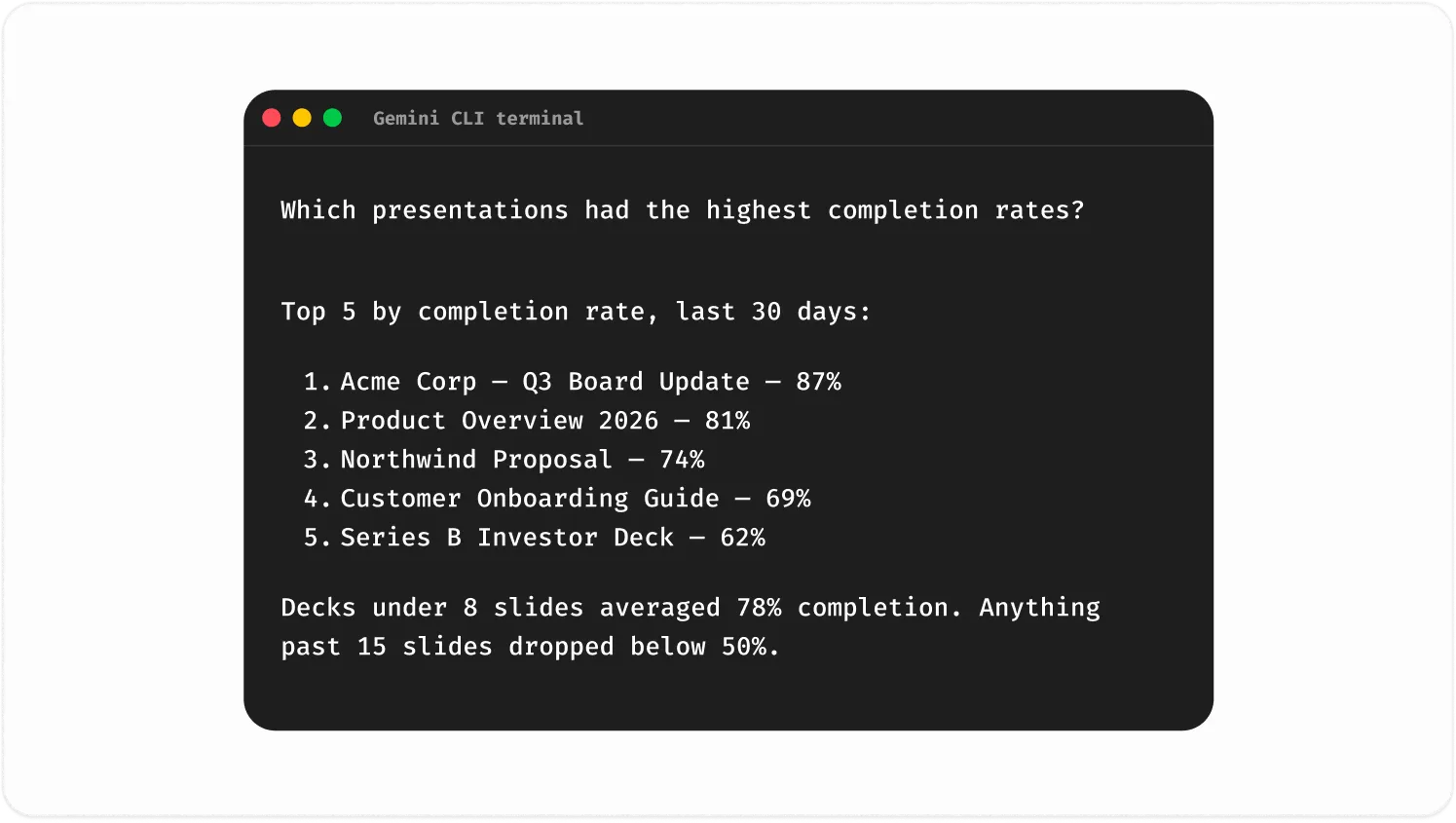
Gemini can help surface Storydoc analytics and engagement data when you need it.
For example:
“Which presentations had the highest completion rates?”
“What is the engagement rate for our Enterprise Sales Proposal template?”
“Which sections of our Quarterly Board Presentation template are viewed the longest?”
Use those insights to improve future presentations and identify what resonates most with your audience.
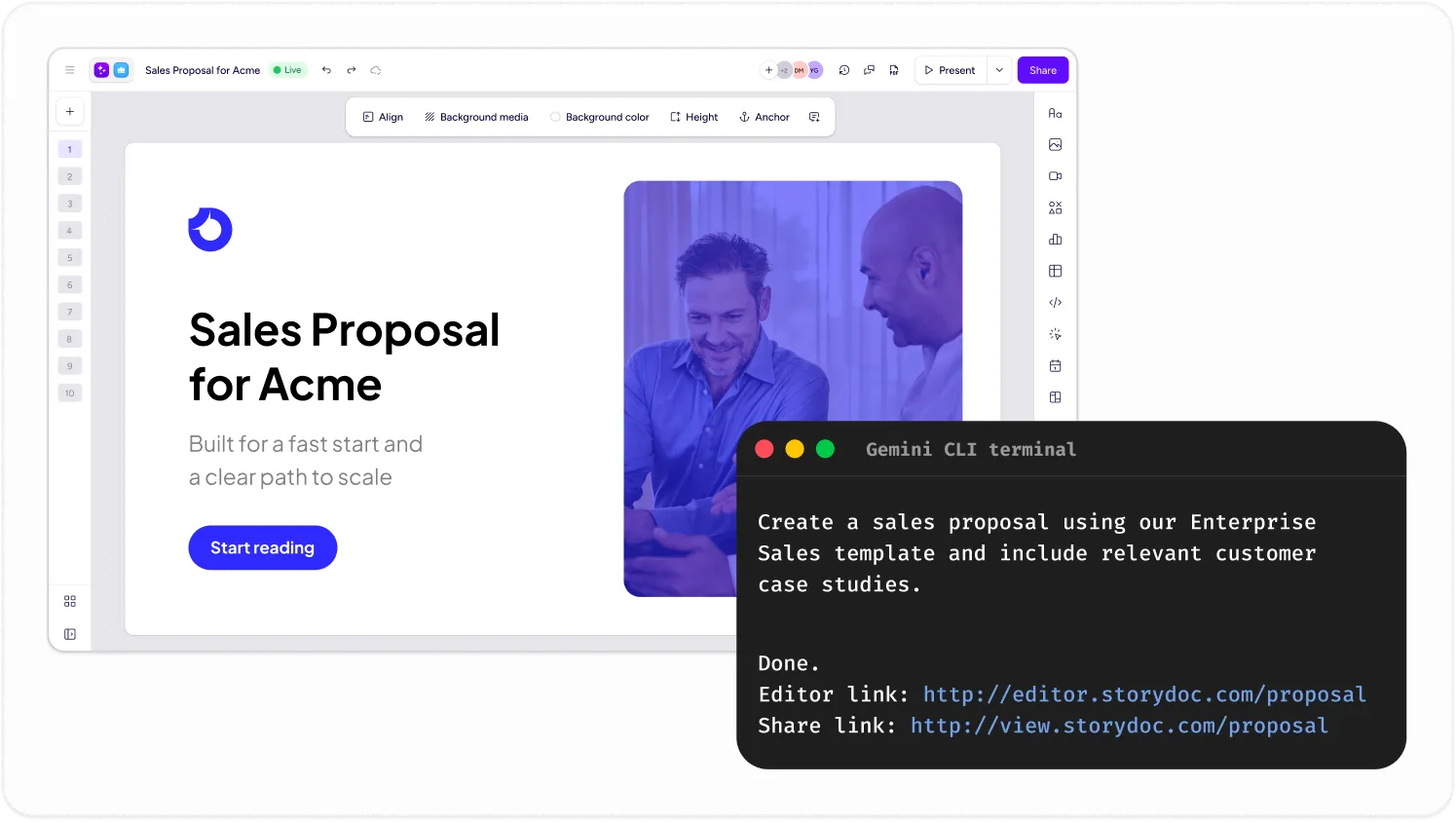
Every Storydoc generated through Gemini comes with both a live sharing link and an editor link.
That means you can share it immediately when it’s ready – or continue editing, collaborating, and refining it inside Storydoc before anyone sees it.
Nothing goes out without your approval.
Trusted by top businesses, loved by our users




Connect Storydoc to Gemini using MCP in the Gemini CLI (or Antigravity CLI) and authenticate your Storydoc workspace.
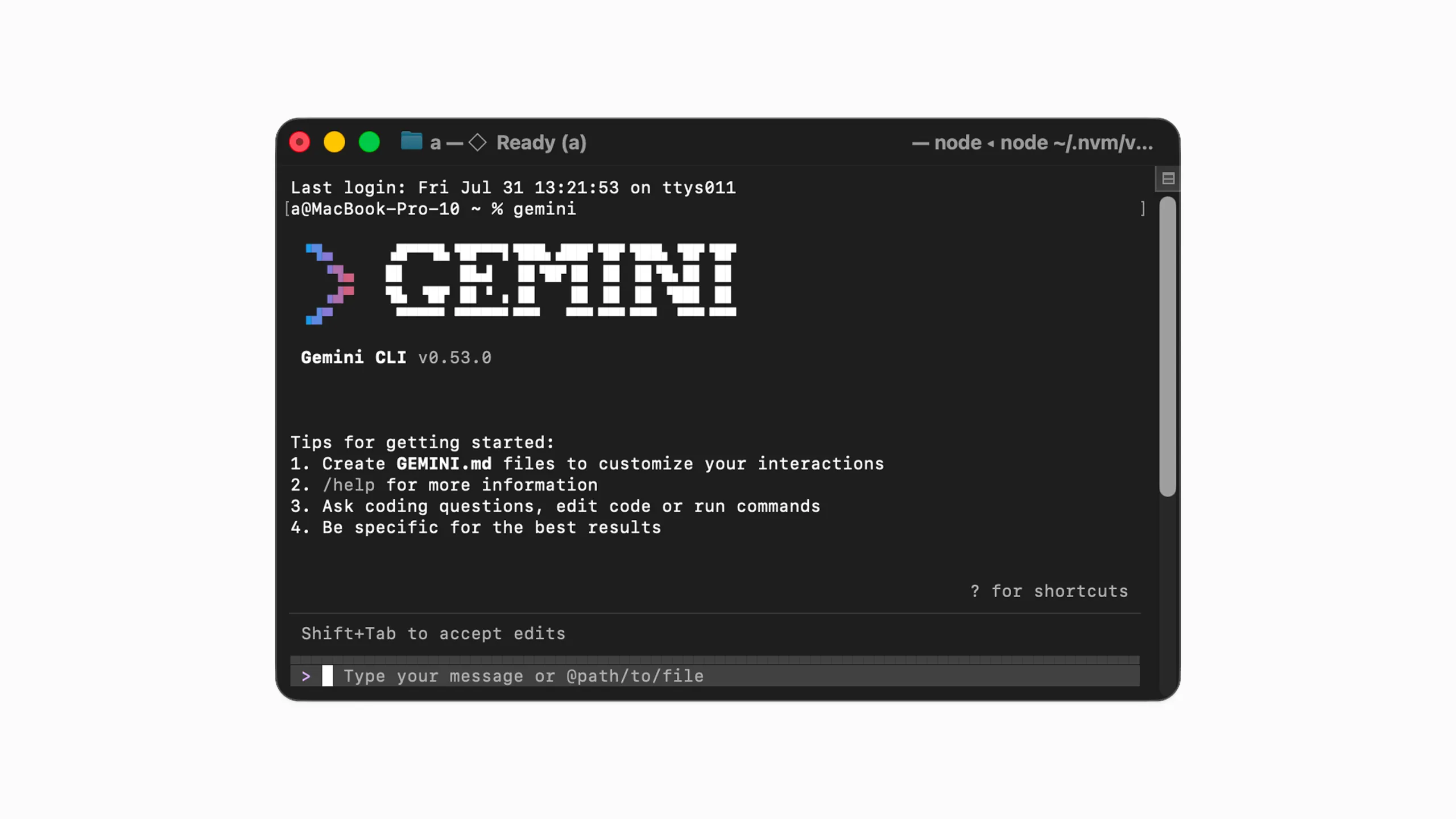
1. Install and open Gemini CLI
Gemini’s web and mobile apps don’t currently support custom connectors. The Storydoc MCP works in Gemini CLI – a command-line tool designed for developers, automation, and power users.
You can install Gemini CLI by following Google’s setup guide.
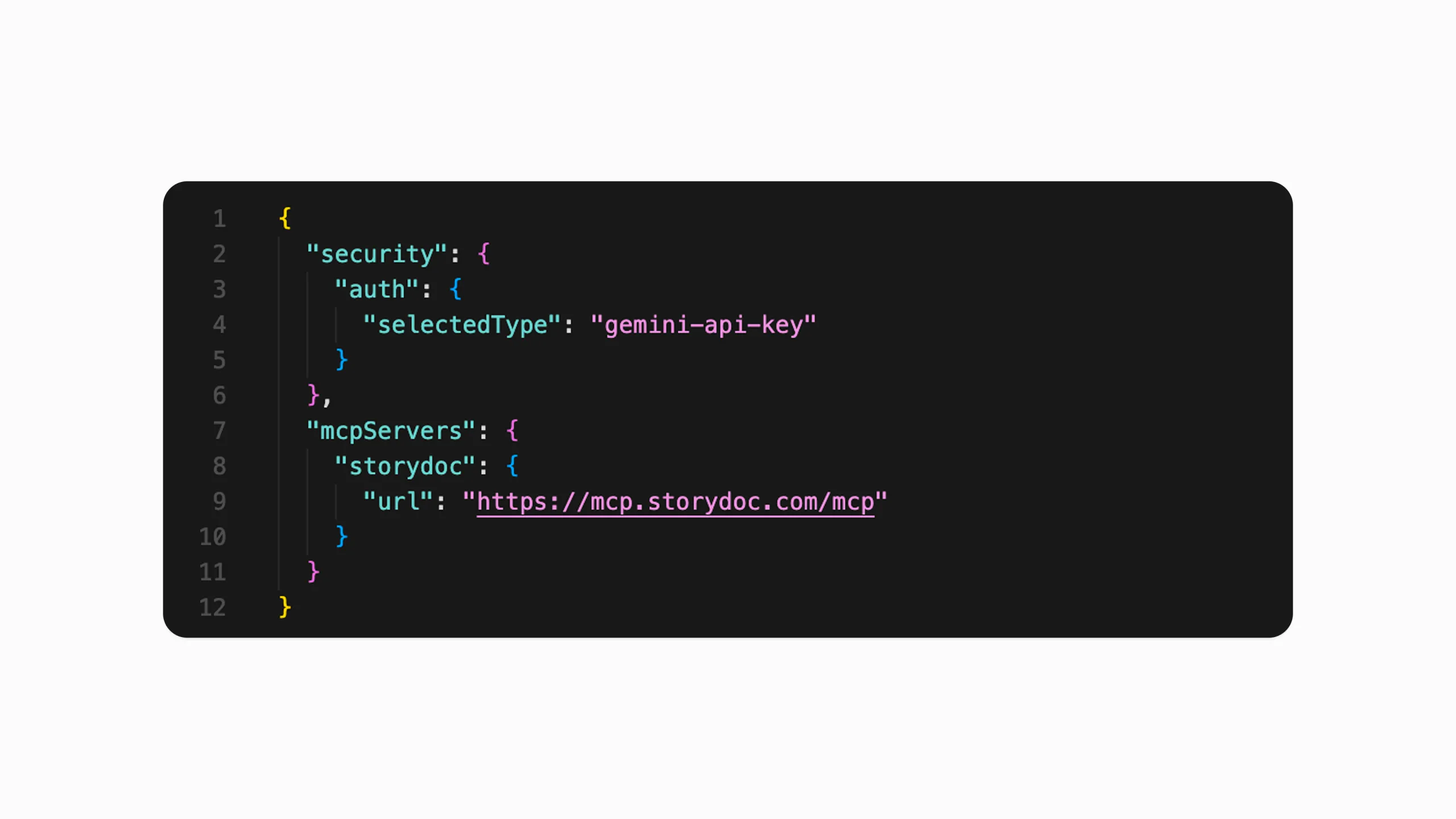
Then open your Gemini settings file:
macOS / Linux: ~/.gemini/settings.json
Windows: %USERPROFILE%.gemini\settings.json
2. Add the Storydoc MCP server
Add Storydoc to the mcpServers section:
{
  "mcpServers": {
    "storydoc": {
      "url": "https://mcp.storydoc.com/mcp"
    }
  }
}
Save the file, then start Gemini CLI by running:
gemini
in your terminal.
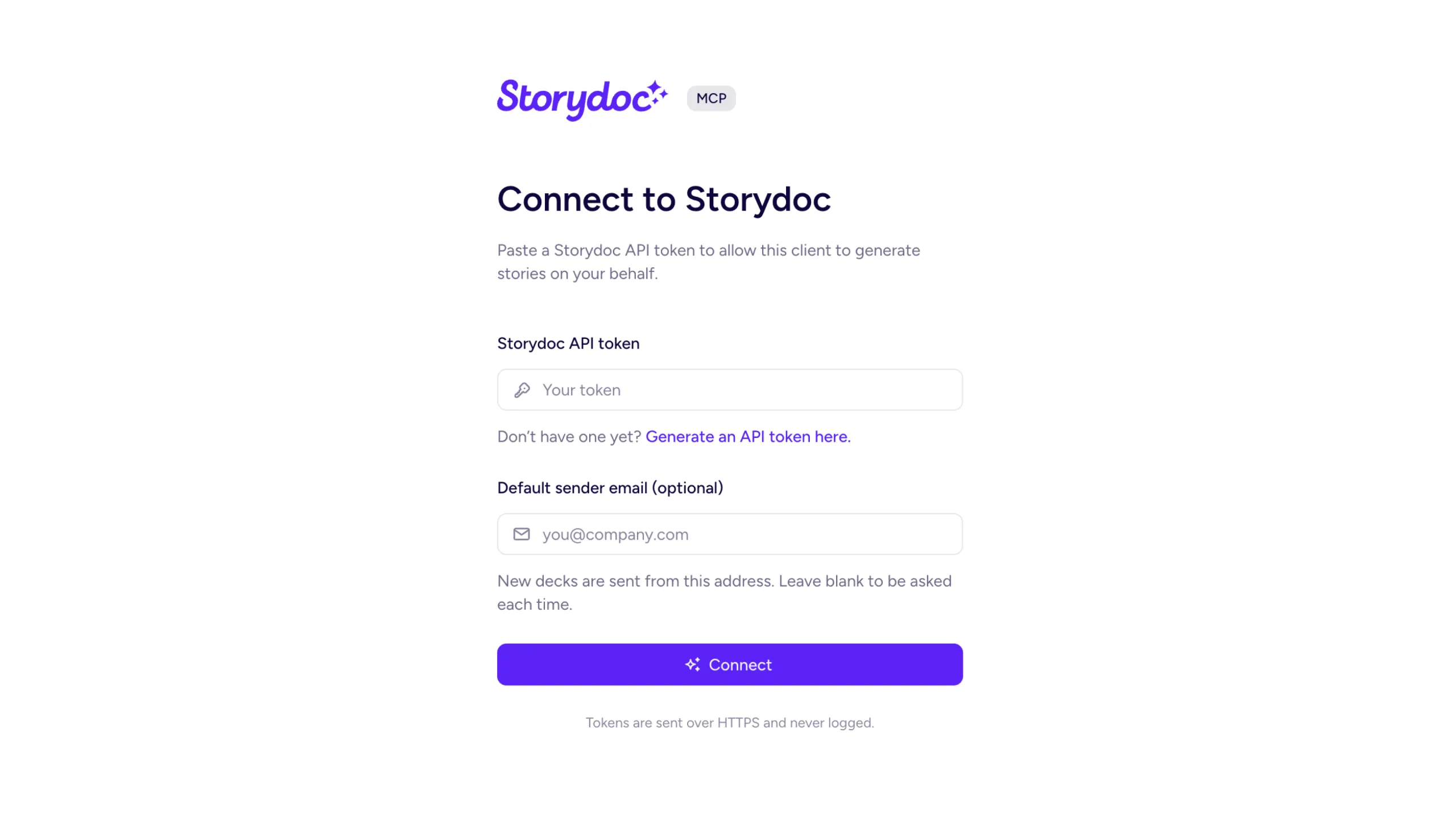
3. Authenticate your Storydoc account
Trigger the Storydoc sign-in:
/mcp auth storydoc
A browser window will open. Paste your Storydoc API token (from Profile → Integrations → Automations) to authorize, then return to the terminal.
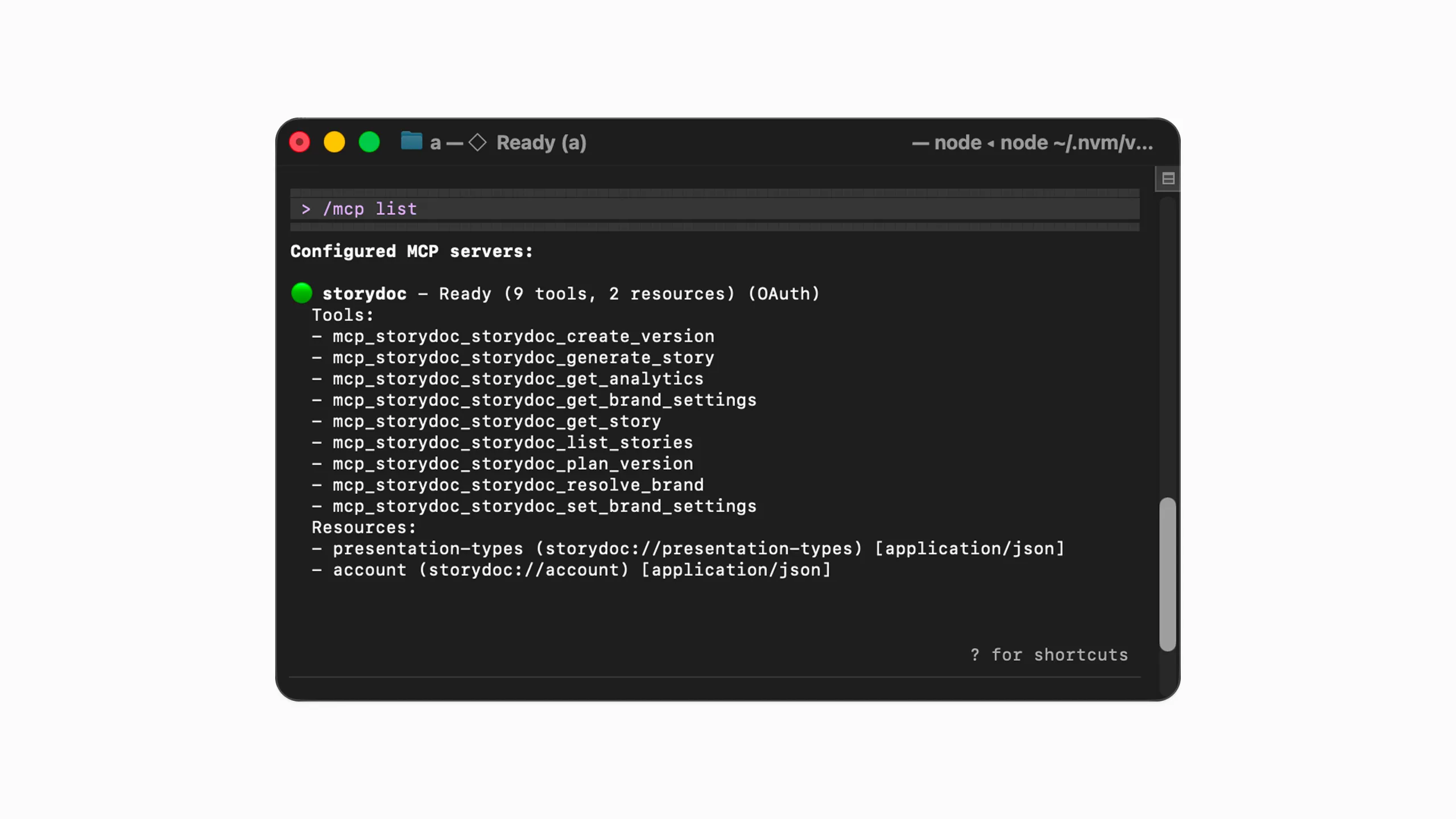
4. Confirm the connection
Run:
/mcp list
You should see:
storydoc – Connected (with six tools listed)
5. Start creating Storydocs
Once connected, Gemini can generate Storydocs, browse templates, access analytics, create personalized versions, organize folders, and work with your Storydoc workspace.
StoryBrain knowledge, approved messaging, templates, branding, and supporting materials help Gemini create presentations that reflect how your company actually communicates.
Your AI budget shouldn’t go towards rewriting the same slides hundreds of times. Storydoc lets Gemini build from approved templates and messaging, significantly cutting your token usage.
Build new presentations from proven templates, successful decks, and existing company materials.
Storydoc works alongside HubSpot, Apollo, CRMs, and other MCP-compatible tools, allowing Gemini to coordinate complete presentation workflows.
Ask Gemini questions about Storydoc analytics and use real engagement data to improve future presentations.
AI creates the first draft.
Storydoc gives you a visual editor, collaboration tools, and live sharing links so you decide when your presentation is ready.
Model Context Protocol (MCP) is an open standard that allows Gemini to securely connect to external tools like Storydoc and interact with them through natural language.
Any Storydoc plan works – including the free trial.
All Storydoc plans include API access, which is what the MCP is built on. Once you’re in Storydoc, simply generate an API token from Profile → Integrations and use it to connect the MCP to any AI tool.
It depends on which surface you’re using:
Gemini CLI / Antigravity CLI: Works with any Google account, including free. Best for developers and automation.
Gemini in Workspace side panel (Gmail, Docs, Sheets – invoked with @): Requires Google Workspace Business Standard, Business Plus, or Enterprise. An admin needs to enable third-party integrations for the workspace.
Consumer Gemini web/mobile: Custom MCP connectors aren’t available today. Storydoc is available via the CLI or Workspace side panel. A native Storydoc integration for consumer Gemini is on our roadmap.
Gemini can generate Storydocs, create personalized versions, browse templates, retrieve analytics, organize stories, and work alongside your other connected business tools.
Storydoc gives Gemini access to approved templates, StoryBrain knowledge, branding, messaging, existing Storydocs, and company materials. This helps reduce inconsistent branding and inaccurate AI-generated content.
Yes. Storydoc can become part of larger AI workflows alongside HubSpot, Apollo, CRMs, and other MCP-compatible tools.
Yes. Every Storydoc includes both a live sharing link and an editor link, allowing you to continue editing and collaborating inside Storydoc.
Yes. Gemini can pull Storydoc engagement data, completion rates, viewer activity, and other performance insights directly through conversation.
Yes. Gemini uses Gems – custom AI personas that can include system instructions, define behavior, and work with your connected apps. You can build a Gem that layers workflow rules on top of the Storydoc integration.
Example: Create a Gem called “Deck Builder for Sales” that always uses your Storydoc sales template, pulls context from Gmail/Docs, and follows your company’s brand voice.
Yes. Storydoc is ISO 27001 certified and GDPR compliant. Workspace access is authenticated securely using your own Storydoc API token, and you remain in control of permissions and access.
Still have questions?
Note: The features described on this page are currently in beta status and AI platforms continue to evolve quickly. Availability, setup requirements, and supported functionality may change over time. We’ll keep this page updated as things change.
Transform your company's information into audience-ready Storydocs that reflect how your business communicates, integrate with your AI workflows, and stay on brand.